MAP4085 Restoring VPD after replacing the CEC enclosure system backplane (Models 961, 98x)

If you replace the CEC enclosure system backplane, you must manually restore the vital product data (VPD) settings. Use this MAP to restore the settings.

MAP4085 Section-1

Procedure

Determine the state of the CEC enclosure being repaired. The CEC enclosure being repaired is in Power Off status.
  1. From the navigation area, click Storage Facility Management > storage facility > Server View.
  2. From the right work area, observe the text in the Status column.
Is the CEC enclosure in Power Off state?

MAP4085 Section-2

Procedure

  1. Launch the Advanced System Management Interface (ASMI) for the CEC enclosure being repaired. The CEC enclosure being repaired is in Power Off status.
    1. From the navigation area, click Storage Facility Management > storage facility > Server View > server.
    2. From the bottom Task area, click Operations > Launch Advanced System Management (ASM).
    3. On the Launch Advanced System Management (ASM) confirmation window, click OK.
    4. If the This Connection is Untrusted window opens, click Add Exceptions. When the Add Security Exception window opens, click Confirm Security Exception.
    5. The management console Web browser will be launched, and the ASM login panel will display.
      Note: If access fails and you have a laptop available, try MAP6F20 Accessing the ASMI by using a web browser.
  2. In the ASMI login panel, check the User Status table in the right pane. Does the table show user ID dev as Enabled?
    • Yes, user ID dev is enabled. Go to step 5.
    • No, user ID dev is disabled. Continue with step 3.
  3. Log in as user ID admin with password admin2107.
  4. Use the ASMI to enable user ID dev.
    1. In the navigation area, expand Login Profile and select User Access Policy.
    2. In the User ID dropdown menu, select dev.
    3. In the Policy setting dropdown menu, select Enabled.
    4. Click Continue.
    5. Log out of ASMI, but do not close the ASMI login panel.
    6. Continue with step 5.
  5. Log in as user ID celogin and the password FipSce.
    Notes:
    1. If you are logged in and not active for 15 minutes, your session expires
    2. If you make five invalid attempts, your user account is locked out for 5 minutes and none of the other accounts are affected.
  6. Determine and record the CEC enclosure feature, sequence, and serial number.
    1. Refer to the vertical label to the right of the CEC control panel. The front cover must be removed to view the label. See Figure 1. For Models 98x, this sticker is on the top of the CECs. The CECs need to be pulled out from the rack by approximately 2 cm for this sticker to be visible.
      Note: Do not refer to the MTMS (Machine Type Model Serial number) label on the left side of the front cover.
      Figure 1. CEC enclosure feature code label
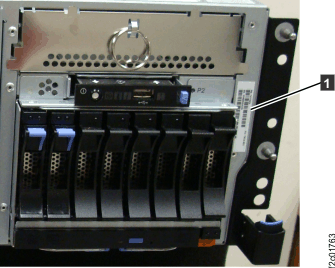
      Image of CEC enclosure feature code label
  7. Use the ASMI to set the CEC enclosure feature, sequence, and serial number.
    Note: The feature, sequence, and serial number must be entered for all system backplane replacements. Obtain the feature code and sequence number from Table 1:
    Table 1. Feature codes and sequence numbers
    Machine Type / Model External Frame Model Feature Code/Sequence Number
    8205-E6C, 8205-E6D 961 78AA-001
    8284-22A 980, 983, 984 78CB-001
    8286-42A 981, 985, 986 78C9-001
    1. In the navigation area, expand System Configuration and then scroll down to select Program Vital Product Data.
    2. Select System Enclosures. In the right pane, the current system enclosure (CEC enclosure) is displayed.
      Note: The system planar VPD has not been set yet, so the enclosure location is displayed as: U.
    3. Click Continue.
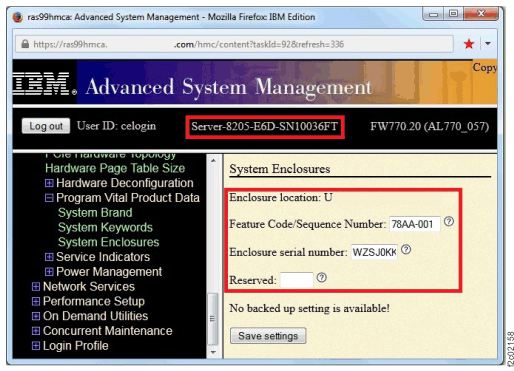
    4. Enter the feature code number (obtained from Table 1; for example, 78AA-001) in the Feature Code/Sequence Number field.
    5. Enter the enclosure serial number recorded from the previous step.
    6. Leave the reserved field blank. See Figure 2. Note that Figure 2 is an example for Model 961.
    7. Click Save settings.
    8. The System enclosure operation completed successfully screen is displayed. The service processor reboots.
    Figure 2. ASMI System Enclosures VPD window
    ASMI System Enclosures VPD window
  8. Log out of ASMI.
  9. Wait 5 minutes, then confirm the CEC is again in Power Off state.
    Note: The service processor reboots. The CEC transitions from Power Off state to No Connection, then back to Power Off state. The reboot takes approximately 5 minutes.
  10. Log in as user ID celogin and the password FipSce.
  11. Determine whether the Logical Memory Block Size (LMB Size) is displayed by using the ASMI menu for the CEC enclosure being repaired.
    1. From the ASMI navigation, select Performance Setup, then select Logical Memory Block Size.
    2. If the Automatic field is displayed, ignore its value.
    3. Is the LMB Size displayed in the Setting field?
      • Yes, go to step 17.
      • No, if this is your first time through this step go to the next step. If this is your second time through the No answer, stop and call the next level of support.
  12. Determine whether the server state is Power Off.
    1. From the navigation area, click Storage Facility Management > storage facility > Server View.
    2. From the right work area, observe the Status column. Is the status Power Off?
      • Yes, go to step 15
      • No, go to the next step.
  13. Change the server state to Power Off:
    1. From the navigation area, click Storage Facility Management > storage facility > Server View.
    2. From the right work area, select the CEC enclosure being repaired.
    3. From the bottom Task area, click Service Utilities > Storage System Power Control.
    4. The System Power Control window opens. Click Power Off System.
    5. A confirmation window opens. Click Yes.
    6. A success window opens.
      Note: This means the power off command was executed. The CEC enclosure is starting its power off sequence.
    7. Wait up to 5 minutes for a confirmation that the power off operation was successful.
    8. Was the Power Off operation successful?
      • Yes, do not close the System Power Control window. Continue at the next step.
      • No, try the power off operation again until it is successful, or call the next level of support.
  14. Observe the status of the server. Wait for the server to be in the Power Off state, and then go to the next step.
  15. Change the server state to Standby:
    1. From the navigation area, click Storage Facility Management > storage facility > Server View.
    2. From the right work area, select the appropriate CEC enclosure.
    3. From the bottom Task area, click Service Utilities > Storage System Power Control.
    4. The System Power Control window opens. Click Power On System to Standby.
    5. A confirmation window opens. Click Yes.
    6. A success window opens.
      Note: This means the power on to standby operation was executed. The CEC enclosure is starting its power on to standby sequence.
    7. The CEC enclosure fans go into high-speed mode and the CEC enclosure status changes to Initializing.
    8. Wait up to 10 minutes for the CEC enclosure to change to Standby status.

      Is the CEC enclosure displaying in Standby status?

      • Yes, do not close the System Power Control window. Continue at the next step.
      • No, try the power off operation again (step 13) and then the Standby operation (step 15) until the CEC is in Standby status, or call the next level of support
  16. Change the server state back to Power Off (use the procedure in step 13) and then return to step 11 to display the LMB setting.
  17. Is the displayed LMB Size Setting equal to 16?
    Note: The value displayed in the Automatic field can be ignored. The Setting field must be 16.
    • Yes, continue at the next step.
    • No, change the setting to 16. Then, continue at the next step.
  18. Click Save Settings even if you did not change the LMB settings. A confirmation window opens.
    1. The Service Processor might reboot at this point. Wait until the Service Processor returns to the Power Off state before you continue with the next step.
  19. Log out and close any ASMI windows that are open.
  20. Close any System Power Control windows that are open.
  21. Close this window, then return to the HMC repair process window that sent you here and click Next to continue.