MAP4110 Exchange the CEC enclosure control panel (concurrent)

Before you begin

Icon for electrostatic discharge wrist strapUse approved ESD procedures to prevent damage.

Attention:
  • This procedure is not a stand-alone procedure. Customer disruption and damage to the hardware might occur when microcode and power boundaries are not in the proper conditions for this service action.
  • If a serviceable event FRU repair directed you to this procedure, the microcode and power boundaries are already set.
  • If a serviceable event FRU repair did not direct you to this procedure, see MAP1230 Replace a FRU without using a serviceable event.

MAP4110 Section-1 Remove the control panel

Procedure

  1. Is the affected CEC enclosure in a 242x Model 961 (8205-E6C or 8205-E6D) or a Model 98x (8284-22A, 8286-42A, 8408-44E, or 8408-E8E)?
    • Yes, continue with step 2.
    • No, continue with step 3.
  2. For Model 961 and Model 98x, replacement of the control panel (operator panel) requires that CEC power be removed. Do one of the following:
    • Locate an open serviceable FRU with the CEC enclosure control panel as a FRU, exit this MAP and use that to continue the repair.
    • If there are no serviceable events with the CEC enclosure control panel as a FRU, exit this MAP and refer to MAP1230 Replace a FRU without using a serviceable event to replace the CEC enclosure control panel, location Un-D1.
  3. For Models 941 and 951, the CEC enclosure control panel can be replaced with the CEC power on and in use by the customer only if the CEC is not rebooted during the procedure.
    Important: The CEC will not boot the functional code properly if the control panel is not physically and logically installed prior to CEC power on.
  4. Logically remove the control panel. Access the Advanced System Management Interface (ASMI). Refer to MAP6F10 Accessing the ASMI using the management console.
    Attention: Do not reset the service processor, or remove and then reapply power to the CEC or storage facility during this procedure.
  5. In the navigation area of the ASMI, select Concurrent maintenance and then Control panel.
  6. At the Preparing the control panel window, select Remove and click Continue.
  7. Choose the control panel's location and then click Save Settings.
    Note: The location displayed is the serial number of the CEC enclosure, which is on the vertically oriented bar code label at the front far right rack mount flange. This is a different serial number from the one on the CEC enclosure control panel.
  8. If the operation was successful, the window will display Operation completed successfully.
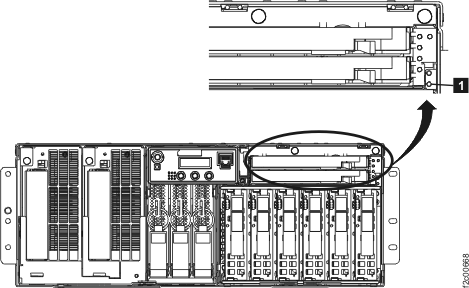
  9. Ensure that the CEC enclosure amber identify LED Callout label 1 is lit, as shown in Figure 1. This identifies the CEC enclosure that is ready to have the control panel removed in the next step.
    Figure 1. CEC enclosure system attention LED indicator
    CEC enclosure system attention LED indicator
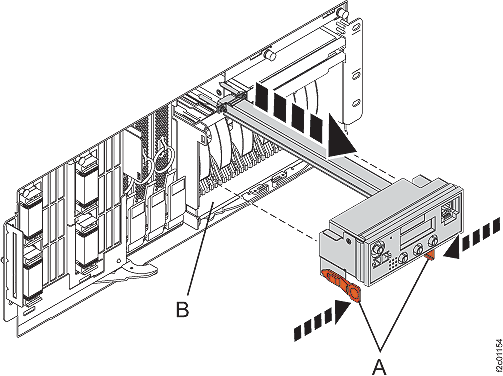
  10. At the front of the CEC enclosure, remove the control panel by pressing the locking tabs Callout label A located on either side of the panel, grasping the edges of the panel, and pulling it out of its bay Callout label B. See Figure 2.
    Attention: If the system power is on, a control panel filler should be installed for proper air flow and cooling. The control panel opening must be closed either with a filler or a control panel within 15 minutes.
    Figure 2. Removing the CEC enclosure control panel
    Removing the CEC enclosure control panel

MAP4110 Section-2 Install the control panel

Procedure

  1. Remove the machine type label, with the serial number, from the front of the existing control panel and place the label on the new control panel.
  2. Carefully slide the control panel into the control panel bay until you feel the locking tabs Callout label A lock in place.
    Note: The control panel display will show a "ball icon" moving in a clockwise direction. This will continue until the ASMI is used to logically install the control panel in later steps.
  3. In the navigation area of the ASMI, select Concurrent maintenance and then Control panel.
  4. At the control panel window, select Install and then click Continue.
  5. Choose the control panel's location and then click Save Settings.
  6. If the operation was successful, the window displays Operation completed successfully.
  7. The control panel should now display normally as compared to the other control panel.
    Note: If there is a ball or dot that appears in the middle of the control panel, toggle between function 02 and function 01 until the graphic disappears.
  8. Return to the procedure that sent you here and continue the repair.