MAP4841 CEC enclosure fails to power off during service processor repair (Models 961, 98x)
You have been sent to this procedure during the replacement of a CEC enclosure FRU.
Before you begin
Warning: This procedure must only be
used if you were sent here from elsewhere in maintenance package.
About this task
MAP4841 Section-1
Procedure
-
Verify that the managed system is powered off. At the rear of the storage facility, view the CEC enclosure power supplies. See Figure 1, Figure 2,
Figure 3, or Figure 4.
Figure 1. Power supply LED indicators (Model 961)  is the LED for AC GOOD,
  is the LED for DC GOOD,
  is the LED for IDENT.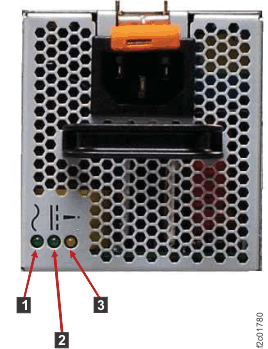
Figure 2. Location of the power supplies and LEDs (Model 980, 983, 984) 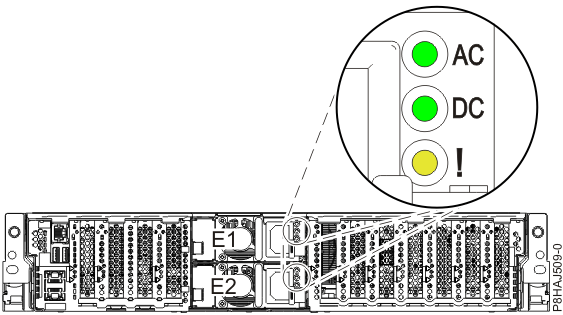
Figure 3. Location of the power supplies and LEDs (Model 981, 985, 986) 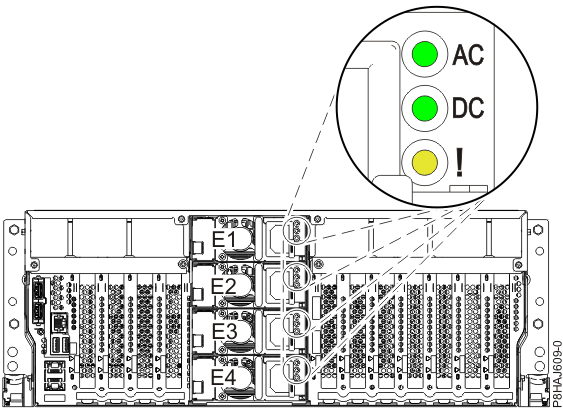
Figure 4. Location of the power supplies and LEDs (Model 982, 988) 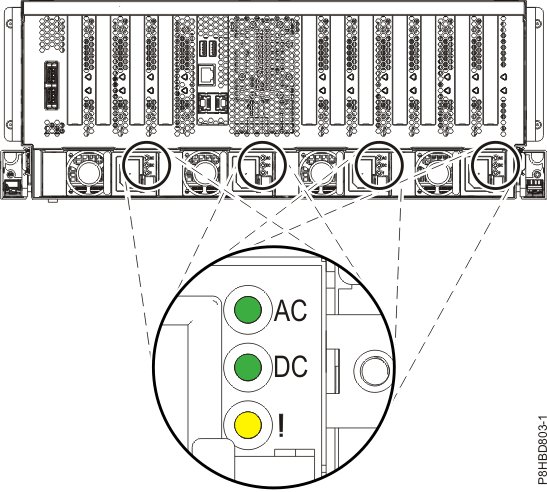
Are the DC GOOD LEDs solidly lit?
- Yes, continue with the next step.
- No, the CEC enclosure is already powered off. Return to the on-screen panel that sent you here and continue with the replacement process.
-
Pull the CEC enclosure control panel out to the service position.
-
For Model 961, press the blue release tab to the left and pull the control panel out to the
service position. See Figure 5.
Figure 5. Accessing the control panel (Model 961) 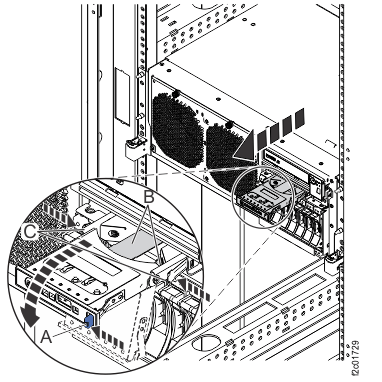
-
For model 98x, at the front of the affected CEC enclosure, press the blue eject
button E and pull the control panel out to the service position.
See Figure 6. After you complete this procedure, carefully
slide the control panel into the control panel bay until it latches in place.
Figure 6. Control panel LEDs 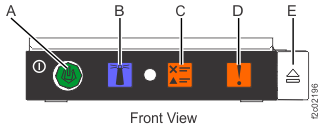
-
For Model 961, press the blue release tab to the left and pull the control panel out to the
service position. See Figure 5.
-
Attempt to power off the SF managed system (CEC enclosure) using the CEC enclosure control panel. Perform the following steps.
Refer to Figure 7 or
Figure 8.
Note: If the CEC enclosure control panel is inoperative, contact your next level of support.
- Press the Increment button until 02 is displayed on the display.
-
Press Enter. Display will show:

-
Press Enter. Display will show:

-
Press the Increment button. Display will show:

-
Press Enter. Display will show:

-
Press Enter. Display will show:

- Press Enter. Display will show 02 only.
- Press the Power push button and hold it until you see the power down sequence start.
- Wait until the CEC enclosure has powered down (Power On light will be flashing).
-
Reset the SF managed system (CEC enclosure) to
Normal mode. Repeat steps a through d. The display should now show:
- Press Enter three times. Display will now show 02 only.
- Continue with step 4.
Figure 7. CEC enclosure control panel assembly (Model 961) 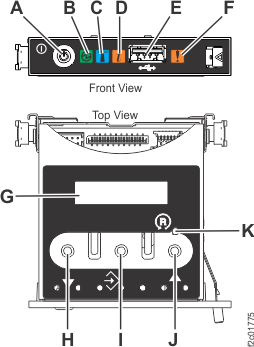
- H: Decrement button
- I: Enter button
- J: Increment button
Figure 8. CEC enclosure control panel assembly (Models 98x) 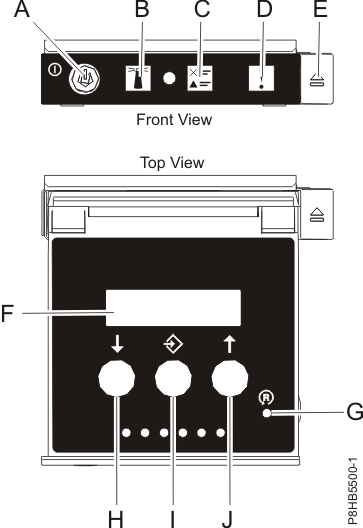
- H: Decrement button
- I: Enter button
- J: Increment button