MAP4AF0 CDA utilities for update of firmware and LPAR LIC on second CEC
About this task
This MAP is called when a LIC update process fails during quiesce, update, or resume of the second managed system or LPAR in a storage facility image, after the first managed system or LPAR was successfully updated.
Use this MAP ONLY when directed from a serviceable event or by next level of support.
MAP4AF0 Section-1
Procedure
-
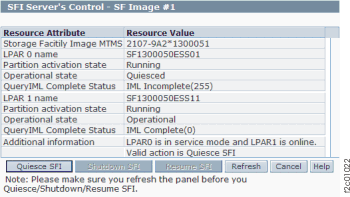
Use the HMC to display the partition activation state for each LPAR on the storage facility
image.
Note which LPAR has an operational state that is something other than Operational.- From the navigation area, click Storage Facility Management > storage facility > SF image.
- From the bottom Task area, click Service Utilities > Change/Show SFI State.
Figure 1. Window: SFI Server's Control 
-
Use the HMC to launch the Verify Bundle Installed utility.
From the service interface:- From the navigation area, click Updates.
- In the upper Updates area, select the storage facility.
- From the bottom Tasks area, click Verify Bundle Installed. The Select a Code Level window opens.
- Select the LIC bundle level you are installing and click OK. An Action Panel window opens, showing expected and active code levels.
From the customer interface:- From the navigation area, click the Service drop down menu.
- Select Install Firmware > Verify Bundle Installed. The Select a Code Level window opens.
- Select the LIC bundle level you are installing and click OK. An Action Panel window opens that displays expected and active code levels.
-
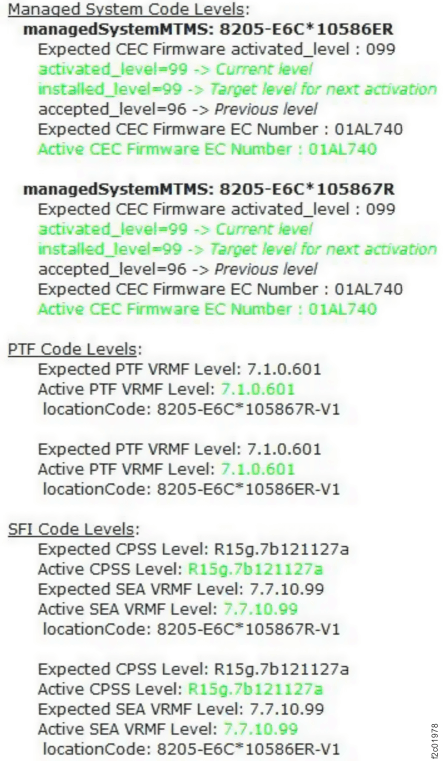
Observe the expected and activated firmware and LIC levels. See Figure 2.
For each of the following components, compare the active level for each managed system with the expected level:- Managed System Code Levels (CEC Firmware)
- PTF Code Levels (PTF VRMF Level)
- SFI Code Levels (CPSS Level and SEA VRMF Level)
Note: In Figure 2, green means the active level matches the expected level; red means the active level is lower than the expected level.Figure 2. Expected and active code levels (sample) 
- Do all active levels for each managed system match the
expected levels for the selected bundle?
- Yes, go to step 9 to resume the LPAR and continue the CCL.
- No, note which components are downlevel (firmware, PTF, SFI) and go to the next step.
-
Do Managed System Code Levels (CEC Firmware) match the expected levels?
- Yes, CEC firmware update is not needed, go to step 6.
- No, update the CEC firmware on the affected managed system.
- From the navigation area, click Updates.
- In the upper Updates area, select the storage facility.
- From the bottom Tasks area, click Recovery Utilities > NCCL Utilities > NCCL eServer Firmware Single Node Update...
-
A Recovery Procedure window opens, stating:
This action is disruptive and will cause loss of access. Do you still want to continue with this action?
Click Yes.
Note: This action is only disruptive to the managed system being updated. As long as the other managed system is still running, customer access is preserved. - An Action Panel window opens. Select the LIC bundle you are applying and click OK.
-
An Action Panel window opens. Select the managed system (CEC) to be updated and click
OK.
Attention: Selecting the managed system that is still operating will cause loss of access.
- A Code Update Progress window opens. Monitor the update progress. When complete, click OK.
- A Recovery Procedure window opens, indicating the recovery procedure is completed. Click OK.
- Update the LIC levels on the affected managed
system. Note: This will update both PTF and SFI levels as needed.
- From the navigation area, click Updates.
- In the upper Updates area, select the storage facility.
- From the bottom Tasks area, click Recovery Utilities > NCCL Utilities > NCCL SFI Code Activation Single LPAR -- No IML.
- A Recovery Procedure window opens, stating:
This action is disruptive and will cause loss of access. Do you still want to continue with this action?
Click Yes.
Note: This action is only disruptive to the managed system being updated. As long as the other managed system is still running, customer access is preserved. - An Action Panel window opens. Select the LIC bundle you are applying and click OK.
- An Action Panel window opens. Select the managed system
(CEC) to be updated and click OK. Attention: Selecting the managed system that is still operating will cause loss of access.
- A Code Update Progress window opens. Monitor the update progress. When complete, click OK.
- A Recovery Procedure window opens, indicating the recovery procedure is completed. Click OK.
- Recheck the expected and activated firmware and LIC levels. Refer to step 2 and step 3.
-
Do all active levels for each managed system match the expected levels for the selected
bundle?
- Yes, go to the next step.
- No, note which components are downlevel (firmware, PTF, SFI) and return to step 5, or contact your next level of support.
-
Use the Service Utilities to reset No-rsStart
and resume the affected LPAR.
- From the navigation area, click Storage Facility Management > storage facility > SF image.
- From the right work area, select the affected LPAR.
- From the bottom Task area, click Service Utilities > Reset No-rsStart.
- When the Reset No-rsStart Successful window opens, click OK.
- From the bottom Task area, click Service Utilities > Change/Show LPAR State. The LPAR Server Control window opens.
- Click Resume LPAR. Click Yes to confirm. Allow the resume to complete.
- Exit this MAP and resume the CCL to continue updating the remaining components.