MAP6520 Management console power problem

About this task

Use this procedure to isolate management console power problems.

MAP6520 Section-2, xSeries 335, 336, or 3550

Procedure

  1. Observe the power LEDs on the front and rear of the management console server. Refer to the figures that follow.
    Figure 1. X335 management console server (front view)
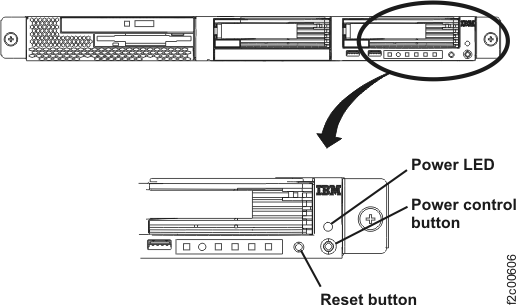
    X335 Management console server (front view)
    Figure 2. The Power LED on the rear of the X335 management console server
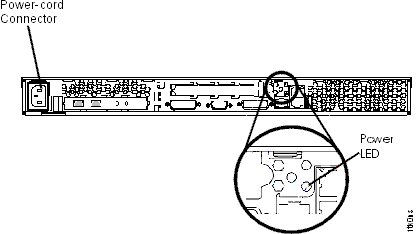
    Rear view of management console showing the power LED
    Figure 3. X336 management console server (front view)
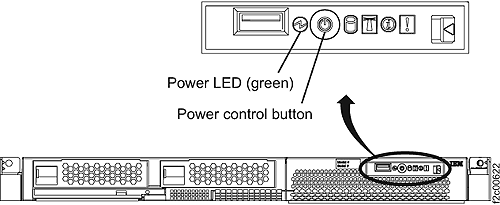
    X336 management console server (front view)
    Figure 4. The Power LED on the rear of the X336 management console server
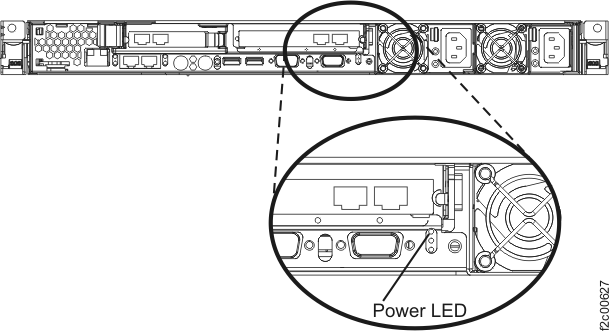
    The Power LED on the rear of the X336 server
    Figure 5. X3550 management console server - operator control panel (front view)
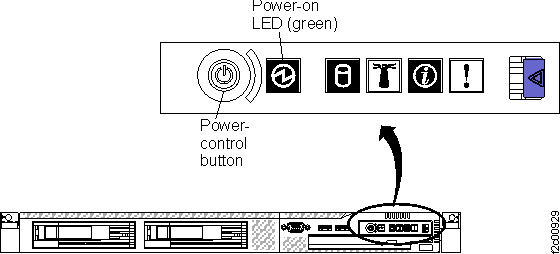
    X3550 management console server operator control panel (front view)
    Figure 6. Power LED on rear of X3550 management console server
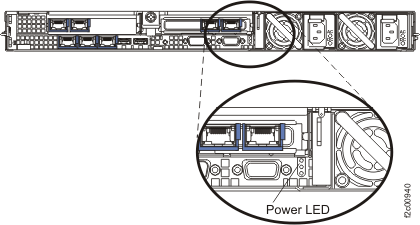
    Power LED on rear of X3550 management console server
  2. Take the appropriate action based on the state of the power LEDs that is specified in Table 1.
    Table 1. State of the power LEDs on the management console server
    State of the power LEDs Indication Action
    Front Rear
    Off Off Input power is not present at the power supply or the power supply itself has failed. For internal HMC, go to MAP6520 Section-3.

    For external HMC, go to MAP6520 Section-5.

    On On The power supply is working correctly. Return to the MAP or Section that sent you here.
    Off On The power supply or the operator information panel (card) has failed. Use the appropriate maintenance manual to repair the management console server.a
    On Off The power supply or the system board has failed. Use the appropriate maintenance manual to repair the management console server.a
    Flashing Flashing The management console server is in power off state. Press the power control button on the front of the management console server to start it. Return to the MAP or Section that sent you here.
    Notes:
    1. Refer to the appropriate manual that is on the IBM® DS8000® series Service Documents CDROM:
      • xSeries 335 Type 8676, Type 8830 Hardware Maintenance Manual and Troubleshooting Guide
      • xSeries 336 Type 1879 and Type 8837 Hardware Maintenance Manual and Troubleshooting Guide
      • IBM System x3550 Type 7978 and 1913 Problem Determination and Service Guide
      • ThinkPad® T500 and W500 (15.4-inch widescreen) Hardware Maintenance Manual

MAP6520 Section-3

Use this section to determine if input power is not present at the management console server power supply or if the management console server power supply itself has failed.

Procedure

  1. At the front of the rack, on each primary power supply (PPS), locate the six vertical LEDs that are to the left of the fans.
  2. Are the AC INPUT GOOD indicator and the UEPO LOOP GOOD indicator both lit on one or both of the PPSs?
  3. Take the appropriate action based on the state of the LEDs that is specified in Table 2.
    Table 2. State of the LEDs on the PPSs
    AC INPUT GOOD UEPO LOOP GOOD Action
    Off Off Input power fault, go to MAP2110 Isolating problems using visual symptoms.
    On Off UEPO fault, go to MAP21E0 UEPO Loop Good LED should be on.

MAP6520 Section-4

Procedure

  1. Temporarily connect a standard PC power cord between the internal management console server and an external convenience outlet. Check the power LEDs on the front and rear of the management console server. Are the LEDs on?
    • Yes, go to the next step.
    • No, it appears that the management console server power supply has failed. To resolve the problem, use the appropriate manual that is on the IBM DS8000 series Service Documents CDROM:
      • xSeries 335 Type 8676, Type 8830 Hardware Maintenance Manual and Troubleshooting Guide
      • xSeries 336 Type 1879 and Type 8837 Hardware Maintenance Manual and Troubleshooting Guide
      • IBM System x3550 Type 7978 and 1913 Problem Determination and Service Guide
      • ThinkPad® T500 and W500 (15.4-inch widescreen) Hardware Maintenance Manual
  2. Ensure that the J9 cable is properly connected to both of the PPSs. If you do not find a problem, replace the power distribution cable/assembly which links the PPSs to the management console server, display/keyboard, and the Ethernet switches.

MAP6520 Section-5

Procedure

  1. Is there a visual problem with the power distribution system/cables in the customer-provided rack?
    • Yes, exit this MAP and have the customer repair the rack.
    • No, go to the next step.
  2. Temporarily connect a standard PC power cord between the internal management console server and an external convenience outlet. Check the power LEDs on the front and rear of the management console server. Are the LEDs on?
    • Yes, go to the next step.
    • No, it appears that the management console server power supply has failed. To resolve the problem, use the appropriate manual that is on the IBM DS8000 series Service Documents CDROM:
      • xSeries 335 Type 8676, Type 8830 Hardware Maintenance Manual and Troubleshooting Guide
      • xSeries 336 Type 1879 and Type 8837 Hardware Maintenance Manual and Troubleshooting Guide
      • IBM System x3550 Type 7978 and 1913 Problem Determination and Service Guide
      • ThinkPad® T500 and W500 (15.4-inch widescreen) Hardware Maintenance Manual
  3. The management console server is receiving power when it is connected to an external convenience outlet, but it is not receiving power when it is connected to the rack power cable. Work with the customer to resolve the problem with the rack power.

MAP6520 Section-6 ThinkPad laptop

Procedure

  1. Observe the ThinkPad laptop green power-status indicator.
    Note: This ThinkPad laptop runs only on the external power input. It is cost-reduced and does not have the normal internal battery.
    Is the power status indicator lit?
    • Yes, the laptop is receiving power from the laptop power adapter. (See Figure 9.) Therefore, the problem is internal to the laptop.

      Use standard field service procedures to isolate and repair the laptop. Exit this MAP.

    • No, the laptop indicates it does not have proper power. Go to step 2.
    Figure 7. ThinkPad W500 laptop status indicators
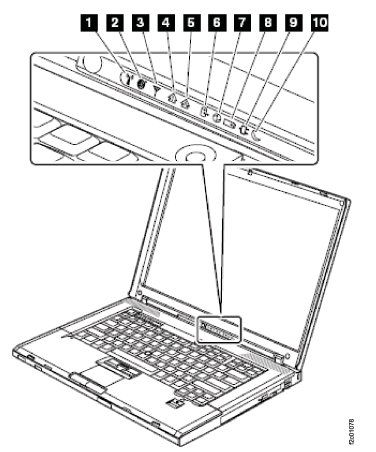
    Laptop status indicators
    Figure 8. ThinkPad T510, T520 laptop status indicators
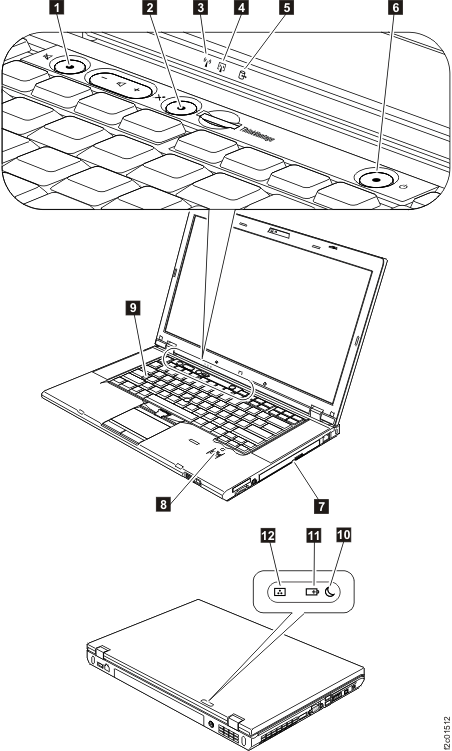
    Status indicators
  2. Check the physical power connections. See Figure 9.
    1. At the rear of the laptop, ensure that the power input cable Callout label 1 from the laptop power adapter is connected.
    2. At the laptop power adapter, ensure that the laptop power adapter power input cable Callout label 2 is connected.
    3. Ensure that the laptop power adapter power input cable Callout label 3 is connected to the rack power cable.
      Note: The rack power cable is a multi-cable that is also connected to both Ethernet switches Callout label 4 in this rack. If the cable is not receiving power from the rack, the Ethernet switches will also be powered off.
    Figure 9. ThinkPad W500 laptop power (T510, T520 similar)
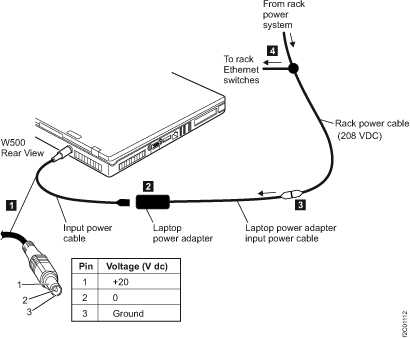
    Laptop power
  3. Were any problems found and fixed?
    • Yes, if the laptop powers on successfully, exit this MAP.

      If the laptop still will not power on, go to step 4.

    • No, go to the next step.
  4. Check the laptop to determine if it is receiving 20 VDC power from the laptop power input cable:
    1. At the rear of the laptop, unplug the power input cable and measure for 20 VDC, as shown in Figure 9.
    2. If 20 VDC is present and the laptop power status LED indicator is not lit, the problem is internal to the laptop.
      Refer to the appropriate management console maintenance and service guide PDF that is on the IBM DS8000 series Service Documents CDROM to repair the laptop.
    3. If 20 VDC is not present, go to step 5.
  5. Check the laptop power adapter to determine if it is receiving 208 VDC input power.
    1. Disconnect the laptop power adapter power input cable Callout label 2 from the laptop power adapter.
    2. Measure for 208 VDC on the cable connector.
    3. If 208 VDC is present, replace the laptop power adapter and then exit this MAP.
    4. If 208 VDC is not present, go to the next step.
  6. At the rear of the rack, observe both Ethernet switches.
  7. Do both switches power on?
    • Yes, go to the next step.
    • No, the most likely failing FRU is the rack power cable.
  8. Check if the laptop is receiving 208 VDC power from the rack power cable.
    • Disconnect the laptop power adapter power input cable Callout label 3 from the rack power cable.
    • Measure for 208 VDC on the rack power cable connector:
    1. If 208 VDC is present, replace the laptop power adapter power input cable.
    2. If 208 VDC is not present, replace the rack power cable.
      Note: Replacing this cable will cause both Ethernet adapters to lose power and serviceable events will be opened for the loss of communication on both private networks (gray and black).

MAP6520 Section-7 ThinkPad laptop power (Model 961)

Procedure

  1. Observe the ThinkPad laptop green power-status indicator.
    Note: This ThinkPad laptop runs only on the external power input. It is cost-reduced and does not have the normal internal battery.

    Is the power status indicator lit?

    • Yes, the laptop is receiving power from at least one of the power junction assembly (PJA) J8 outputs through the Y cable. (See Figure 12.) Therefore, the problem is internal to the laptop.
      Use standard field service procedures to isolate and repair the laptop. Exit this MAP.
    • No, the laptop indicates it does not have proper power. Go to step 2.
    Figure 10. ThinkPad T530 laptop status indicators
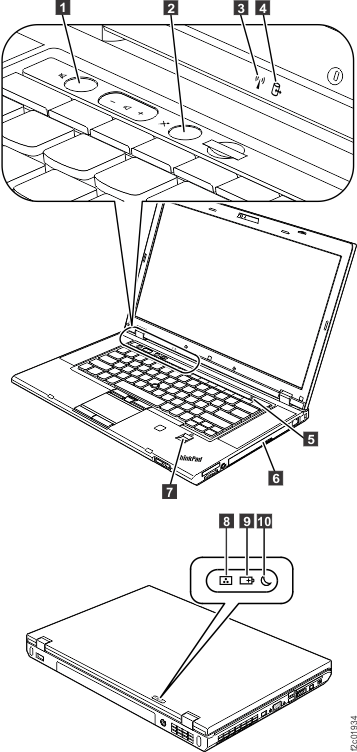
    ThinkPad T530 laptop status indicators
    Figure 11. ThinkPad T540 laptop status indicators
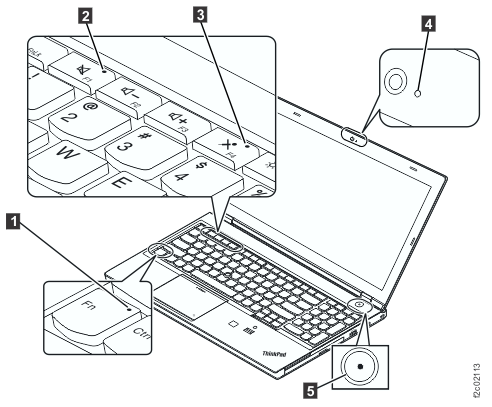
    ThinkPad T540 laptop status indicators
    Figure 12. 20V power distribution
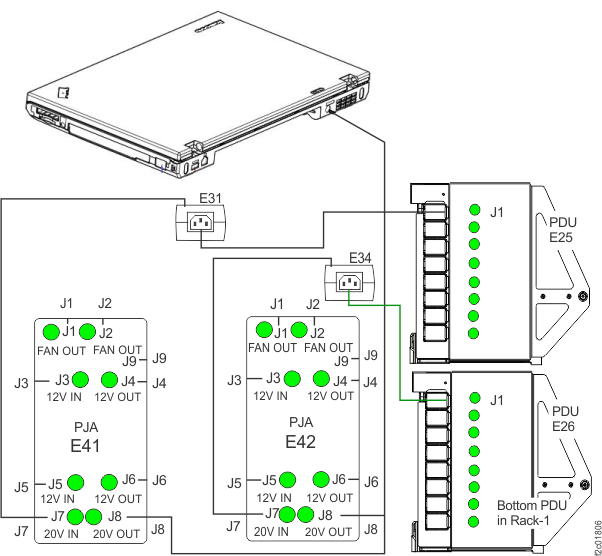
    20V power distribution
  2. Go to MAP2730 Visual symptoms for Ethernet switch tray (switches, fans, power junction assemblies) (Model 961).

MAP6520 Section-8 Model 98x management console

Procedure

  1. Observe the Model 98x management console green power-status indicator LED Callout label 1. See Figure 13. What is the state of the power status indicator LED?
    • Solid green, the management console is receiving power. Therefore, the problem is internal to the management console. Use standard field service procedure to isolate and repair the management console. Exit this MAP.
    • Flashing green, a hardware problem exists within the management console; the management console should be replaced. Exit this MAP.
    • Not lit, the management console is not receiving power. Proceed to the next step.
    Figure 13. Model 98x (not 983) management console (front); 983 management console is similar.
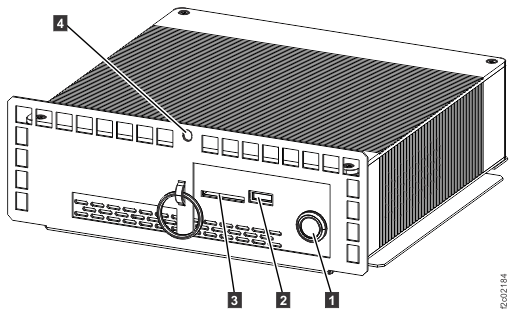
    HMC management console (front)
  2. Check the physical power connection.
    1. At the rear of the management console, ensure that the power adapter power input cable Callout label 1 is connected. See Figure 14.
      Figure 14. Model 98x management console cable connections (rear)
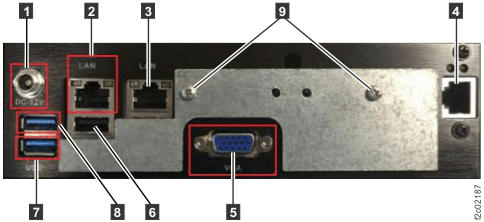
      Model 98x management console cable connections (rear)
  3. If you find no problems in the previous steps, go to MAP2750 visual symptoms for power junction assembly (PJA) devices (Models 98x).