Exchange the laptop cooling tray fan (Model 941)
Before you begin
 Use approved ESD procedures to prevent damage.
Attention:
- This procedure is not a stand-alone procedure. Customer disruption and damage to the hardware might occur when microcode and power boundaries are not in the proper conditions for this service action.
- If a serviceable event FRU repair directed you to this procedure, the microcode and power boundaries are already set.
- If a serviceable event FRU repair did not direct you to this procedure, see MAP1230 Replace a FRU without using a serviceable event.
Notes:
- All the cables and FRUs to be removed must be uniquely identified so they can be reinstalled correctly.
- If an installed earthquake resistance kit prevents you from accessing this FRU, refer to MAP1600.
DANGER
Hazardous
voltage, current, or energy levels are present inside of a component
to which this label is attached. (L001) 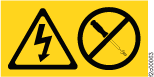
Remove the laptop cooling tray fan
Procedure
- At the rear of the
rack, remove the two screws
 holding the modem and Ethernet connector
bracket to the frame. Do not disconnect phone or Ethernet cables.
It may be necessary to unfasten the modem from the bracket to allow
access to the screws. Let the bracket "float" to allow removal of
the laptop cooling tray. See Figure 1.
holding the modem and Ethernet connector
bracket to the frame. Do not disconnect phone or Ethernet cables.
It may be necessary to unfasten the modem from the bracket to allow
access to the screws. Let the bracket "float" to allow removal of
the laptop cooling tray. See Figure 1.
Figure 1. Modem and Ethernet connector bracket 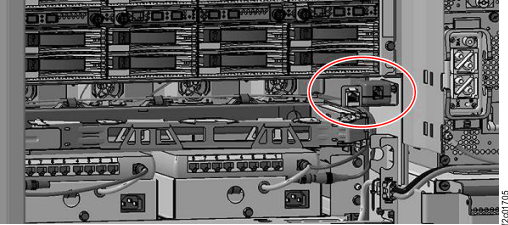
- Remove the four screws holding the laptop cooling tray to
the frame. See Figure 2.
Figure 2. Laptop cooling tray assembly 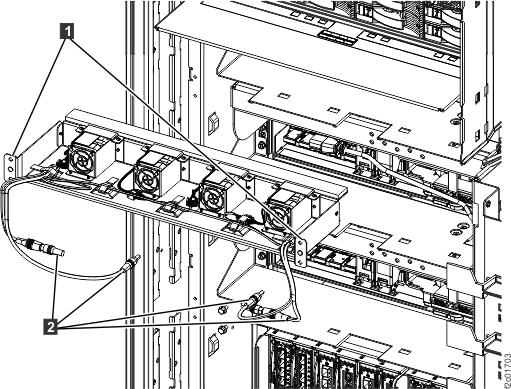
- Carefully slide the tray out far enough to access the tops
of the fans, as shown in Figure 3.
Do not disconnect the power cables (
 in Figure 2)
from the Ethernet switches or power supplies.
in Figure 2)
from the Ethernet switches or power supplies. Figure 3. Laptop cooling tray assembly locations 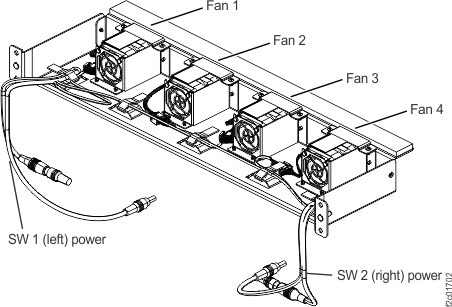
- Remove the fan, as shown in Figure 4:
- Unplug the cable connector to the left of the fan.
- Remove the two Torx screws and the top bracket, then remove the fan.
Figure 4. Cooling tray fan 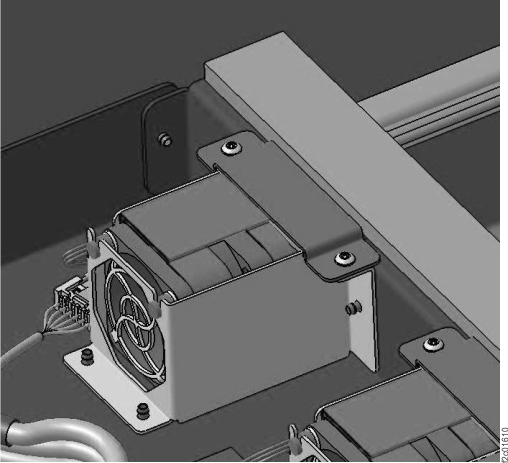
Install the laptop cooling tray fan
Procedure
- Install the new fan.
- Install the top bracket with two Torx screws.
- Connect the fan cable.
- Ensure the fan is spinning at full speed. Although the fan has a built in rotation sensor, that signal is not used.
- Slide the laptop cooling tray into the rack and secure with the four screws removed earlier.
- Secure the modem and Ethernet connector bracket to the frame with the two screws removed earlier. Re-fasten the modem to the bracket as needed.
- Return to the procedure that sent you here.