Exchange the CEC enclosure I/O backplane assembly
Before you begin
 Use approved ESD procedures to prevent damage.
Attention:
- This procedure is not a stand-alone procedure. Customer disruption and damage to the hardware might occur when microcode and power boundaries are not in the proper conditions for this service action.
- If a serviceable event FRU repair directed you to this procedure, the microcode and power boundaries are already set.
- If a serviceable event FRU repair did not direct you to this procedure, see MAP1230 Replace a FRU without using a serviceable event.
Notes:
- All the cables and FRUs to be removed must be uniquely identified so they can be reinstalled correctly.
- If an installed earthquake resistance kit prevents you from accessing this FRU, refer to MAP1600.
Remove the CEC enclosure I/O backplane assembly
Procedure
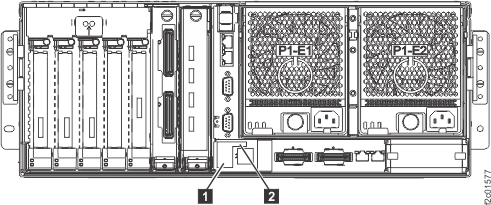
- At the rear of the storage facility, view
both CEC enclosure power supplies.
Figure 1. CEC enclosure DC good LEDs 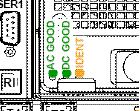
Are both DC GOOD LEDs flashing?
- Yes, continue with the next step.
- No, do not continue with this FRU replacement. Go to MAP4840 CEC enclosure fails to power off during CEC enclosure parts exchange to fix the problem with the CEC enclosure not being in the power off state.
- Remove
all power from the CEC enclosure.
- At the rear of the CEC enclosure, disconnect the power input cables
 to both CEC enclosure power supplies.
 - At the CEC enclosure control panel, observe
the green Power® Present icon,
beneath the white Power button.
- If it is slow flashing, the CEC enclosure is still in the power-off state. DO NOT CONTINUE. Ensure that you have unplugged the power cables.
- If it is off, go to the next step.
Figure 2. CEC enclosure (rear) 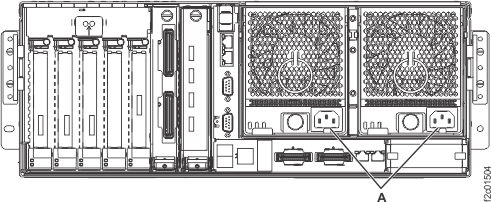
- At the rear of the CEC enclosure, disconnect the power input cables
- Remove both power supplies. See Figure 3.
- Push the handle latch to release the handle.
- Lift the handle
 up and into the open position.
- Repeat these steps until both power supplies are removed.
Figure 3. Removing the power supply 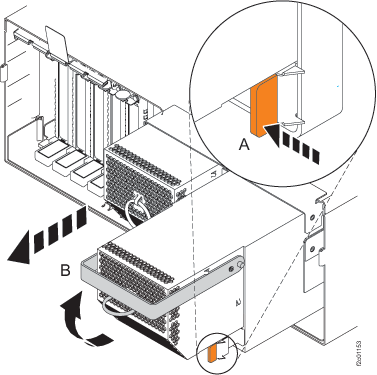
- Push the handle latch
- Remove the PCIe adapter
cards and empty cassettes from slots 1 through 5. See Figure 4.
- Lift and hold the PCIe adapter
EMC shield in the open position.
Ensure that you slide
up, before you swing the EMC shield
up. - Lift the lower cassette handle up as shown.
- Pull the PCIe card
 out of the CEC enclosure.
Figure 4. Removing PCIe adapter cards 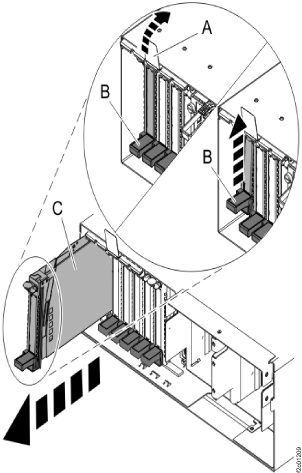
- Lift and hold the PCIe adapter
EMC shield
- Remove the CEC enclosure RIO card from
slot 8. See Figure 5.
- Unscrew the latch screw .
- Pull the latch toward you and down to release the CEC
enclosure RIO card .
- Pull the CEC enclosure RIO card from
the enclosure.
Figure 5. Pulling the CEC enclosure RIO card 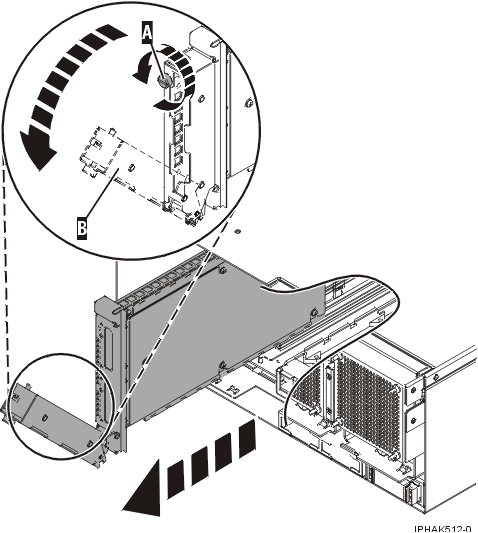
- Unscrew the latch screw
- Remove the PCIe four port card or filler from
slot 9. Note: Some Model 941 configurations will have a filler card in this location.
- Unscrew the latch screw .
- Pull the latch toward you and down to release the PCIe
four port card .
- Pull the PCIe four port card from the enclosure.
Figure 6. Removing the PCIe four port card 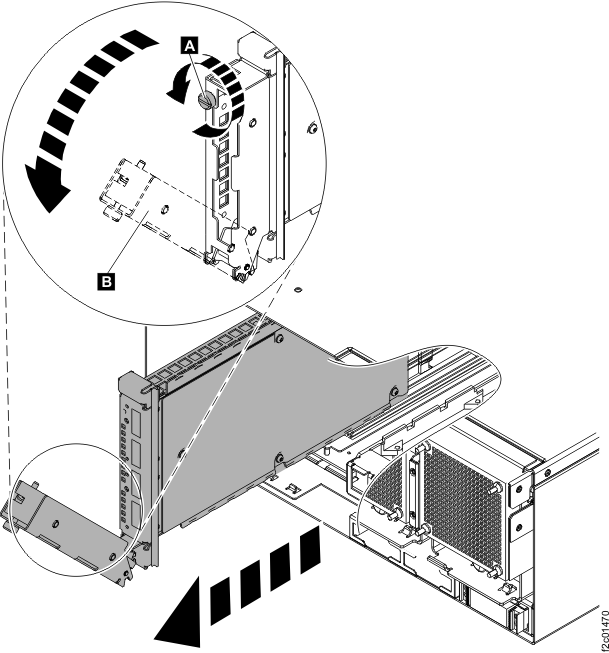
- Unscrew the latch screw
- Remove the service processor card. See Figure 7.
- Press the thumb release on the service processor assembly
to unlock the handle.
- Pull the handle to the right to unseat the service processor assembly.
- Pull the service processor assembly from the I/O backplane
assembly using the handle and supporting the bottom of the card.
Figure 7. Removing the service processor card 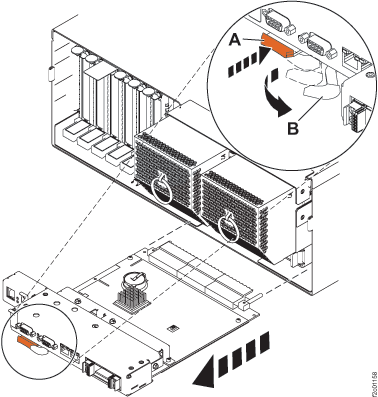
- Press the thumb release
- Pull out the Vital Product Data (VPD) card by the blue
handle. See Figure 8.
Figure 8. Removing the VPD card 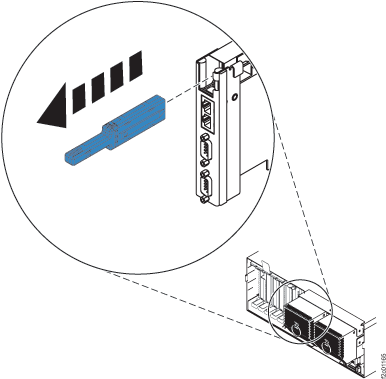
- At the front of the CEC enclosure, remove the control panel
by pressing the locking tabs located on either side of the panel,
grasping the edges of the panel, and pulling it out of its bay . See Figure 9.
Figure 9. Removing the CEC enclosure control panel 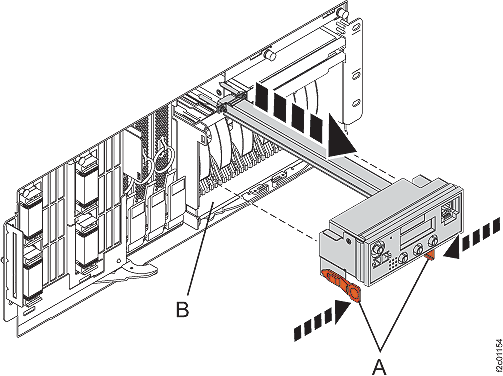
- Remove all system processor voltage cards. See Figure 10.
- Squeeze the top of the latch to release it .
- Rotate the latch out and then down .
- Grasp the pull ring and slowly pull the system processor
voltage card out of the enclosure . Attention: Pulling the system processor voltage card out of the card enclosure requires a large amount of force. The system processor voltage card is of substantial weight, so grasp it firmly when it is free of the card enclosure.
Figure 10. Removing the system processor voltage card 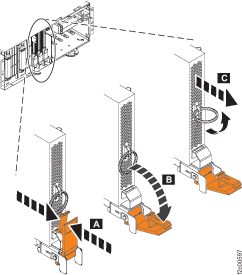
- Squeeze the top of the latch to release it
- Unlock the system processor backplane assembly and then pull it out of the CEC enclosure . See Figure 11.
Attention: The system processor backplane assembly weighs 35 lb and should not be pulled out using the blue lever. Grasp the backplane assembly firmly with both hands when it is free of the system.
Figure 11. Unlocking and removing the system processor backplane assembly 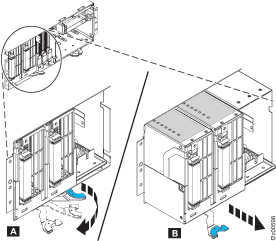
- Remove the removable media device enclosure filler.
See Figure 12.
- Pull the two orange locking knobs out until they unlock.
- Grasp the removable media device enclosure filler and slowly pull it out of the disk
drive enclosure.
Figure 12. Removing the media backplane assembly 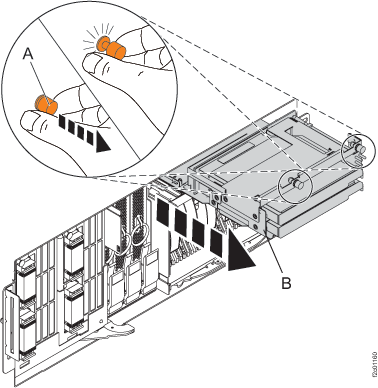
- Pull the two orange locking knobs
- Remove both fans. Pull the ring downward to disengage it from the
system chassis and then pull the fan out of the CEC enclosure. See Figure 13.
Figure 13. Removing the CEC enclosure fan 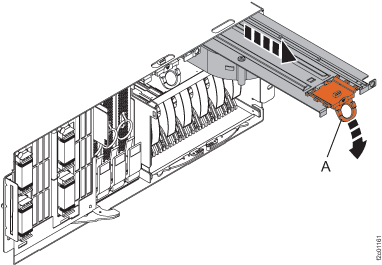
- Remove the disk drive enclosure. See Figure 14.
- Press down and pull out to open the handles on the lower edge of the disk drive
enclosure.
- Pull the disk drive enclosure toward you to remove it from the system unit.
Figure 14. Removing the disk drive backplane assembly 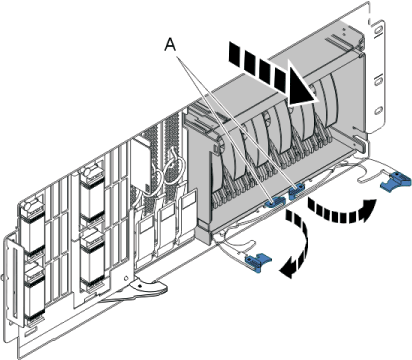
- Press down and pull out to open the handles
- At the front of the CEC enclosure, loosen the
thumbscrews inside the enclosure at the front
of the I/O backplane. See Figure 15.
Figure 15. Unscrew thumbscrews on I/O backplane 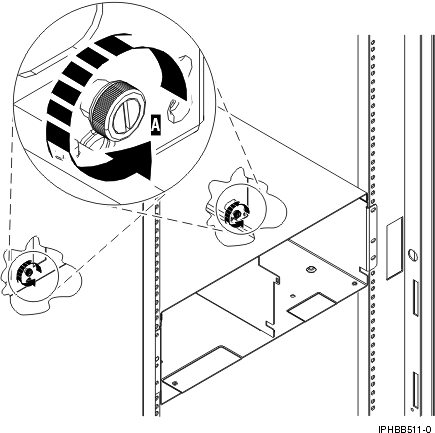
- At the rear of the CEC enclosure, slide the backplane from
the enclosure. See Figure 16.
Figure 16. Removing the enclosure 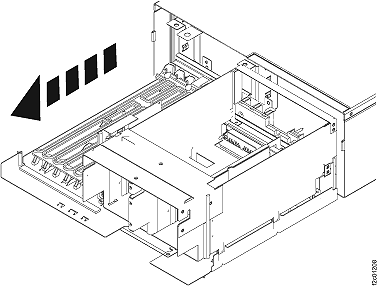
- Remove the CEC enclosure VPD pass-through card
from the I/O backplane assembly by pulling it straight up and out
of the I/O backplane assembly. See Figure 17.
Figure 17. Removing the VPD pass-through card 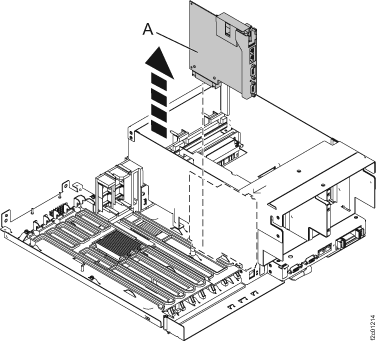
Install the CEC enclosure I/O backplane assembly
Procedure
- Install the PCIe cassettes
in slots 1 through 5. Ensure that the PCIe cassettes
with adapter cards are in their original slots.
- Slide the cassette into the cassette slot as shown in
Figure 18.
Figure 18. Installing PCIe adapter cards 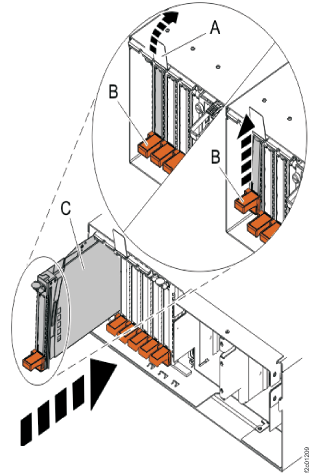
- Slide the cassette into the cassette slot as shown in
- For a model 951 CEC enclosure,
ensure both USB ports are protected by the metal cover
 held in place by the Torx T6 screw
  . If the new FRU did not include the
cover, reuse the cover from the original FRU.
. If the new FRU did not include the
cover, reuse the cover from the original FRU. Figure 19. USB ports cover and screw