Exchange the USB modem (T520, T530, T540)

Before you begin

Icon for electrostatic discharge wrist strapUse approved ESD procedures to prevent damage.

Attention:
  • This procedure is not a stand-alone procedure. Customer disruption and damage to the hardware might occur when microcode and power boundaries are not in the proper conditions for this service action.
  • If a serviceable event FRU repair directed you to this procedure, the microcode and power boundaries are already set.
  • If a serviceable event FRU repair did not direct you to this procedure, see MAP1230 Replace a FRU without using a serviceable event.
Notes:
  • All the cables and FRUs to be removed must be uniquely identified so they can be reinstalled correctly.
  • If an installed earthquake resistance kit prevents you from accessing this FRU, refer to MAP1600.

Remove the USB modem

About this task

The laptop unit USB modem is at the rear of the rack, at the rear of the Ethernet switch tray.

Procedure

  1. Unfasten the USB modem from the sheet metal bracket. It is held in place with a hook-and-loop fastener.
    Figure 1. USB modem at rear of rack (right side of tray)
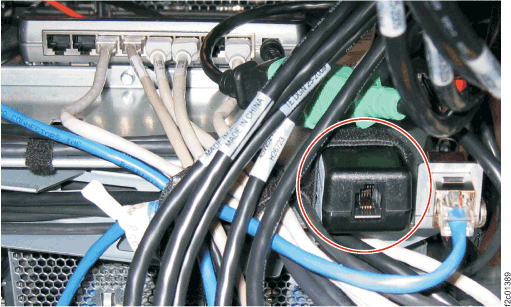
    USB modem at rear of rack
    Figure 2. Customer modem and Ethernet connectors, DS8870 All Flash, rear of rack
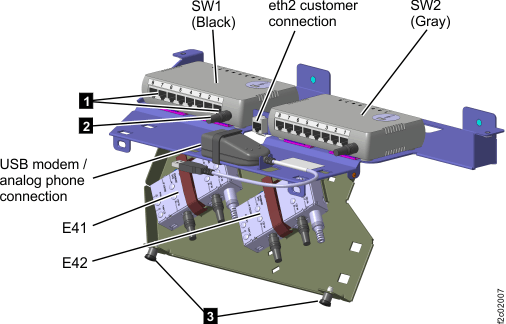
    Ethernet switch tray locations (Model 961 rack version 2 rear)
  2. Disconnect the USB modem integrated short USB cable.
    1. The USB modem integrated short USB cable is routed down and into the laptop tray cable management arm. It connects to a USB cable that goes to the laptop at the front of the rack.
  3. Remove the USB modem from the rack.

Install the USB modem

Procedure

  1. Install the new USB modem.
    1. Set the USB modem into the mounting bracket and secure it with the hook-and-loop fastener.
    2. Route the USB modem-integrated USB cable down to the laptop tray cable management arm.
    3. Connect the USB modem-integrated USB cable to the USB cable in the laptop tray cable management arm.
    4. Ensure that there is some slack in the cable to ensure it stays connected when the cable management arm moves when the laptop tray is moved in and out.
  2. Test the laptop unit to ensure that the modem is functioning:
    1. If the customer allows a phone line connection, test the modem. Select Service Management > Manage Outbound Connectivity > Configure > Local Model > Test.
  3. This procedure is complete.