Routing FC-AL cables, Model 84E
You are here to route FC-AL cables from model 84E Rack-2 or Rack-3 to the existing storage facility.
About this task
Note: If an FC-AL cable is
damaged, you can use the point-to-point cabling diagrams to determine the other end of the cable.
See Point-to-point cabling diagrams - FC-AL, Flash PCIe, and SAS cables. Several FC-AL cables are tightly bundled together so
it is difficult to physically trace an individual FC-AL cable from end to end.
Procedure
- Find and uncoil the FC-AL cables that are coiled at the rear of the expansion rack you are installing. Do not remove the black protective cable connector covers.
-
Determine the destination rack and storage enclosure for each FC-AL cable.
- Find the location code label at the free end of each FC-AL cable.
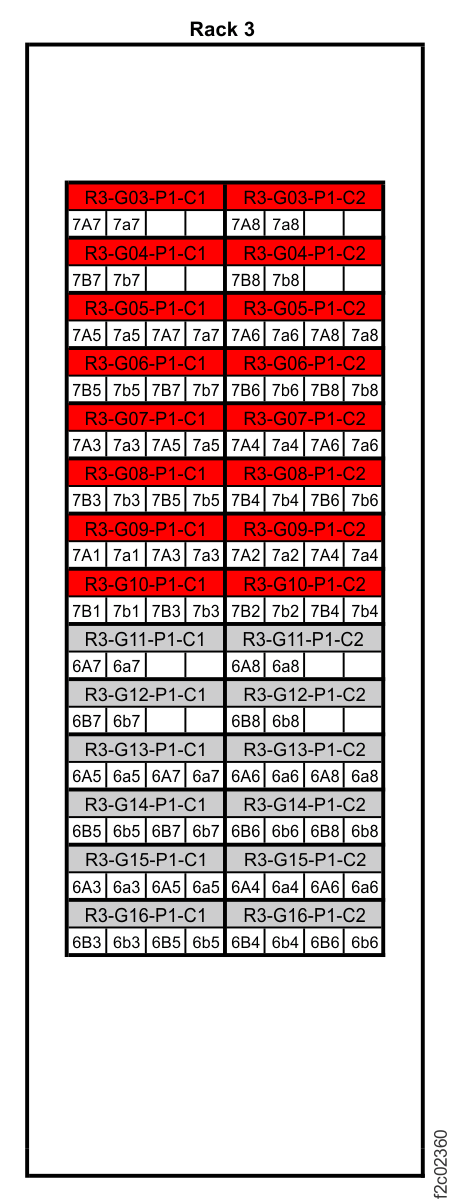
- If the labels include the physical location code (for example, R2-G01-P1-C1-T2) refer to Figure 1 and Figure 2 and Figure 3 to translate to the destination storage enclosure. Then, go to step 3.
- If the labels include only the three-character connection designators (for example, 4A1), refer to Figure 2 and Figure 3 to translate to the destination storage enclosure. Then, go to step 3.
Figure 1. Cable labels, storage and I/O enclosure locations for physical location codes 
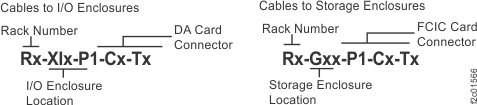
Figure 2. Point-to-point cabling diagram for storage enclosure FC-AL and Flash PCIe / SAS cables (Models 984, 84E, rear view, racks 1, 2) 
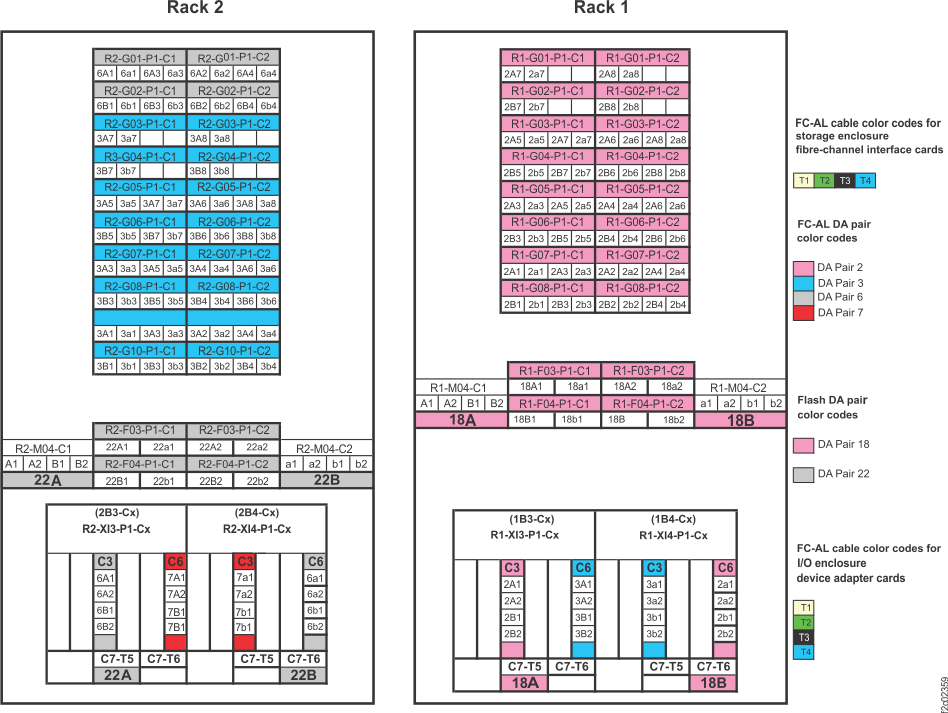
Figure 3. Point-to-point cabling diagram for the FC-AL cables (Models 984, 84E, rack 3) 
-
Route the FC-AL cables to the destination rack.
- Do not connect the FC-AL cables to the storage enclosure Fibre Channel interface cards until directed later in this procedure.
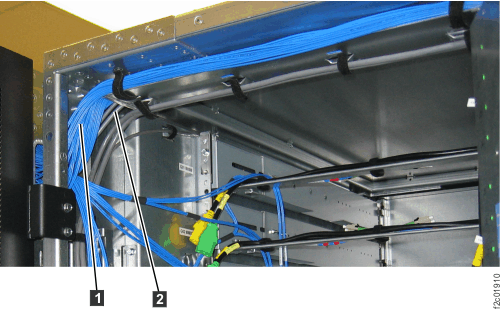
- Route each cable bundle 1 to the destination rack through the rack-to-rack holes at the upper rear of each rack. See Figure 4 and Figure 5.
Figure 4. Routing remote power control cables and FC-AL cables between racks Note: Models 984 and 84E shown, routing for other models is similar.
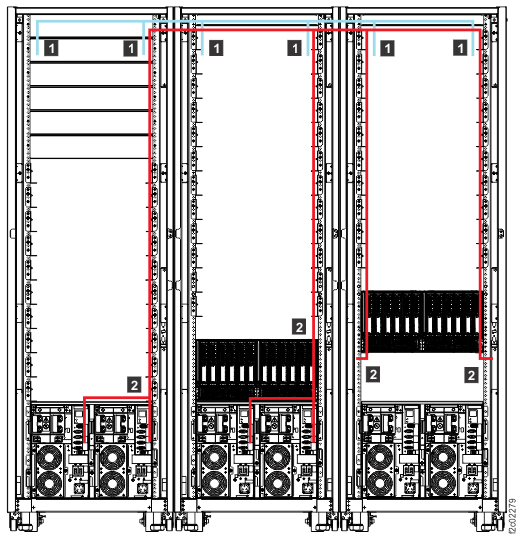
Figure 5. Routing rack-to-rack power control and optical cables across a rack (earlier model shown, routing for models 98x and 8xE similar) 
-
If you are connecting cables to I/O enclosure locations, route the FC-AL cables to the
destination I/O enclosures.
- Do not connect the FC-AL cables to the I/O enclosure device adapter cards until directed later in this procedure.
-
FC-AL cables that will connect to an I/O enclosure on the left side of the rack are routed down
the left side of the rack.
- Left side cables have "XI1" or "XI3" in the location code (for example, Rx-XI3-P1-Cx-Tx), or the second character in the connection designator is uppercase (for example, 2A1).
-
FC-AL cables that will connect to an I/O enclosure on the right side of the rack are routed
down the right side of the rack.
- Right side cables have "XI2" or "XI4" in the location code (for example, Rx-XI4-P1-Cx-Tx), or the last character in the connection designator is lowercase (for example, 2a1).
-
If you are connecting cables to storage enclosure locations, route the FC-AL cables
to the destination storage enclosures.
- Do not connect the FC-AL cables to the storage enclosure Fibre Channel interface cards until directed later in this procedure.
-
FC-AL cables that will connect to the Fibre Channel interface card in
the left side of a storage enclosure are routed down the left side of the rack.
- Left-side cables have "C1" in the location code (for example, R3-G05-P1-C1-T1), or the last character in the connection designator is odd (for example, 2A5).
-
FC-AL cables that will connect to the right Fibre Channel interface card in a
storage enclosure are routed down the right side of the rack.
- Right-side cables have "C2" in the location code (for example, R3-G05-P1-C2-T1), or the last character in the connection designator is even (for example, 2A6).
- Do not remove the black rubber protective connector covers at the end of each cable. Do not connect the cables until directed later in the installation.
- Go to Installing and testing the expansion rack storage enclosures, Model 84E.