Exchange the CEC enclosure system backplane
Before you begin
CAUTION:
This assembly contains mechanical moving parts. Use care when
you service this assembly. (C025)
 Use approved ESD procedures to prevent damage.
Attention:
- This procedure is not a stand-alone procedure. Customer disruption and damage to the hardware might occur when microcode and power boundaries are not in the proper conditions for this service action.
- If a serviceable event FRU repair directed you to this procedure, the microcode and power boundaries are already set.
- If a serviceable event FRU repair did not direct you to this procedure, see MAP1230 Replace a FRU without using a serviceable event.
Notes:
- All the cables and FRUs to be removed must be uniquely identified so they can be reinstalled correctly.
- If an installed earthquake resistance kit prevents you from accessing this FRU, refer to MAP1600.
Preparing the CEC enclosure to remove and replace the system backplane
Procedure
- Use the front and rear blue identify
LEDs to determine the CEC enclosure to be repaired. Both blue LEDs
should be lit.
- CEC control panel blue identify LED
 as shown in Figure 1.
 - CEC enclosure rear blue identify LED
 as shown in Figure 2.
Note: If both the front and rear CEC enclosure identify LEDs are not lit, use the location code listed in the serviceable event FRU list. See MAP1245 Finding FRUs by using location codes.Figure 1. Control panel LEDs 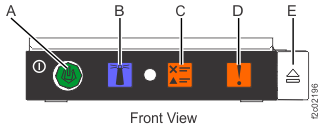
Figure 2. CEC enclosure rear LEDs 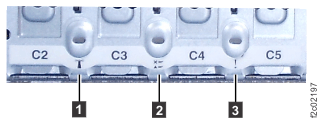
- CEC control panel blue identify LED
- Verify that the CEC enclosure is in the
power-off state. See Figure 3
Figure 3. Location of the power supplies and LEDs (Models 980, 983, 984) 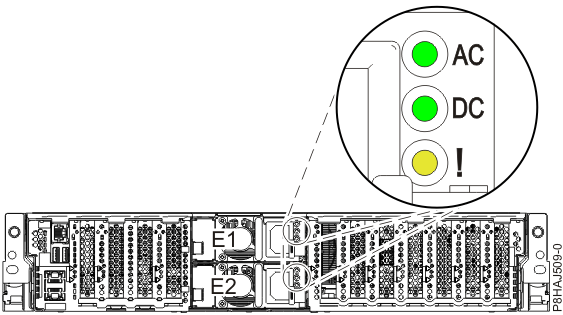
- Disconnect the power cords from the CEC with the DC (output)
LEDs flashing. See Figure 4.
Notes:
- Ensure the power cords are correctly labeled.
- The power supply LEDs might continue to flash for up to 20 seconds while internal power is discharged.
- The power cord is fastened to the system using the hook-and-loop
fastener
 . Unstrap the fastener to allow the
enclosure to be placed in the service position.
. Unstrap the fastener to allow the
enclosure to be placed in the service position.
Figure 4. Removing the power cords (Models 980, 983, 984) 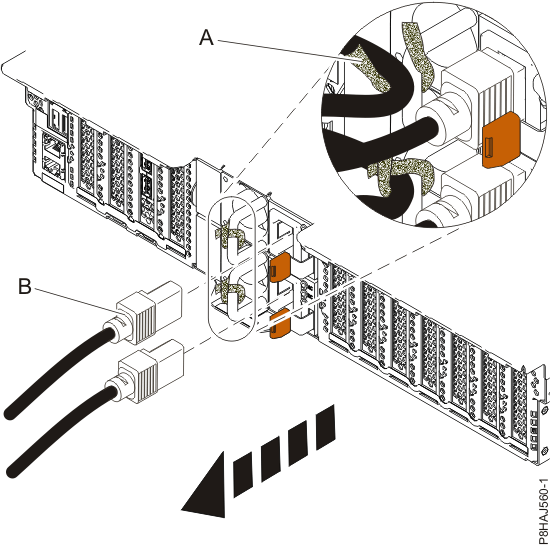
- Observe the CEC enclosure control
panel green power button LED . See Figure 5.
- If it is off, go to the next step.
- If it is flashing, the CEC enclosure is still in the power-off state. DO NOT CONTINUE. Ensure that you have unplugged the power cables.
Figure 5. Control panel LEDs - Remove filler plugs (if present) at the
rear of the CEC enclosure. See Figure 6.
- Remove the filler plugs (if present) from USB ports P1-C1-T2, P1-C1-T3 and serial port P1-C1-T1.
- Remove the filler plugs (if present) from Ethernet ports P1-C10-T3 and P1-C10-T4.
- Remove the filler plugs (if present) from Ethernet ports P1-C11-T1, P1-C11-T2, P1-C11-T3, and P1-C11-T4.
Figure 6. CEC enclosure location codes (rear view) (Models 980 and 984) 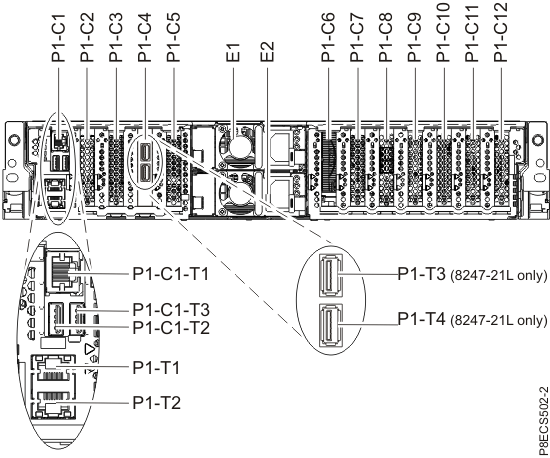
- Remove the power supplies. Note: Place all removed components that will be reinstalled later in this procedure, on an electrostatic discharge (ESD) mat.
- Ensure that you have the electrostatic discharge (ESD) wrist strap attached. If not, attach it now.
- To unseat the power supply from its position in the system, push
the terracotta locking-tab in the direction shown in Figure 7.
- Pull the power supply
 away from the system, as shown in Figure 7.
Figure 7. Removing a CEC enclosure power supply 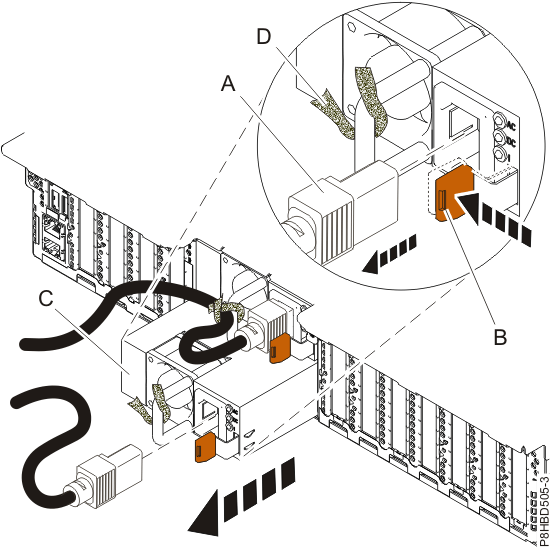
- Remove the front cover.
- Ensure that you have the electrostatic discharge (ESD) wrist strap attached. If not, attach it now.
- Remove the two shipping screws (if present) that secure the system
to the rack.
- Pull the cover away from the system. The cover has an indentation where you can hold onto it more easily.
Figure 8. Removing the front cover 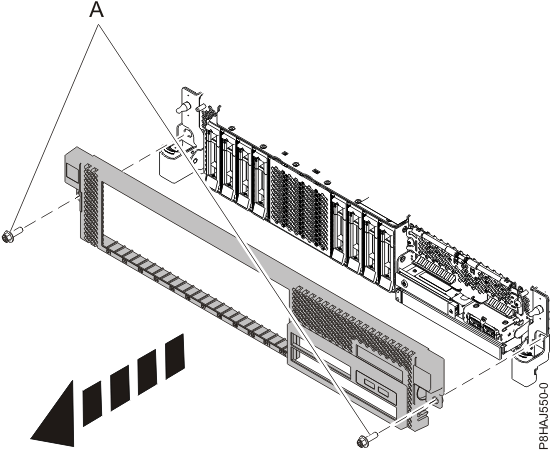
- Place the CEC enclosure into the service
position.
- Remove the front screws (if present) that secure the enclosure
to the rack.
Figure 9. Removing the front screws 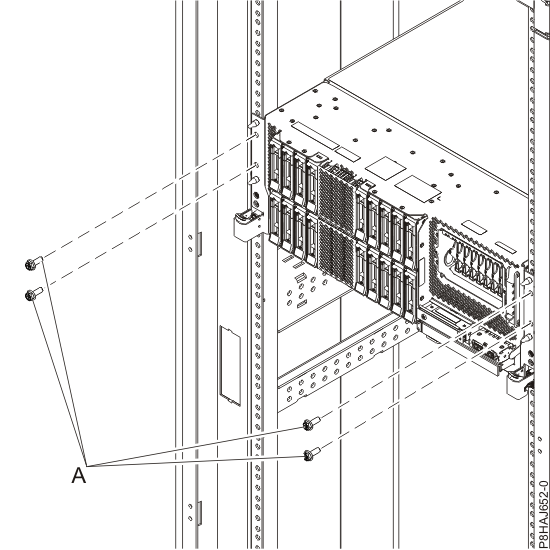
- Release the side latches and pull the latches to slide out
the enclosure assembly.
Figure 10. Releasing the side latches 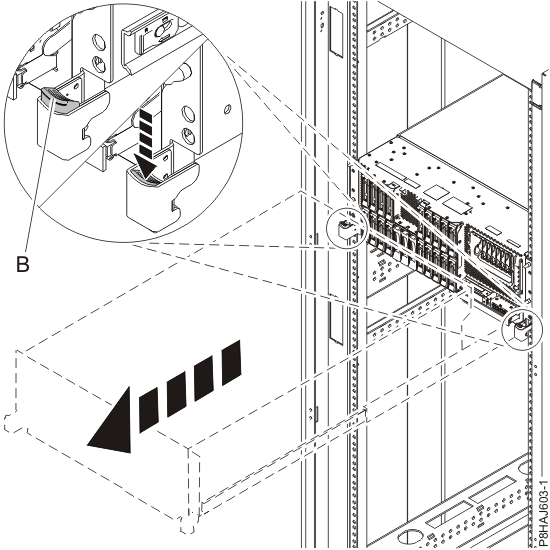
- Remove the front screws
- Remove the service access cover.
- Release the latch by pushing the release latch in the direction shown.
- Slide the cover off the system unit. When the front
of the service access cover has cleared the upper frame ledge, lift
the cover up and off the system unit. Attention: For proper cooling and airflow, replace the cover before turning on the system.
Figure 11. Removing the service access cover 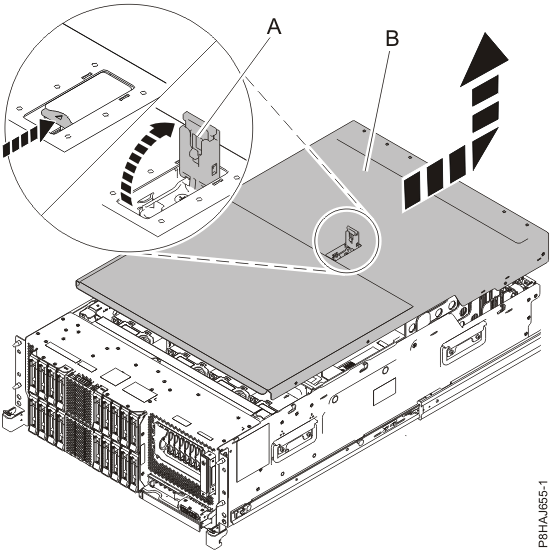
- Release the latch by pushing the release latch
- Remove the control panel. Press
the terracotta tab and then slide the control panel straight out of
the slot.
Figure 12. Removing the control panel 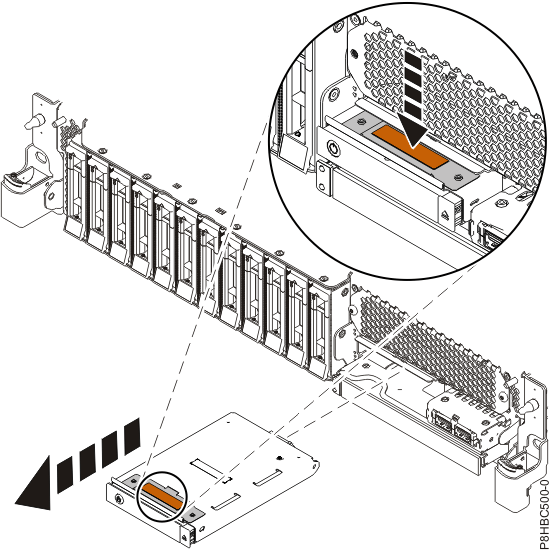
- Remove the Slimline media device (DVD),
if present.
- Press the retaining tab toward the system until the Slimline
media device is unseated from the media bay. See Figure 13.
- Pull the Slimline media device away from the system, in the direction
shown.
Figure 13. Removing the Slimline media device 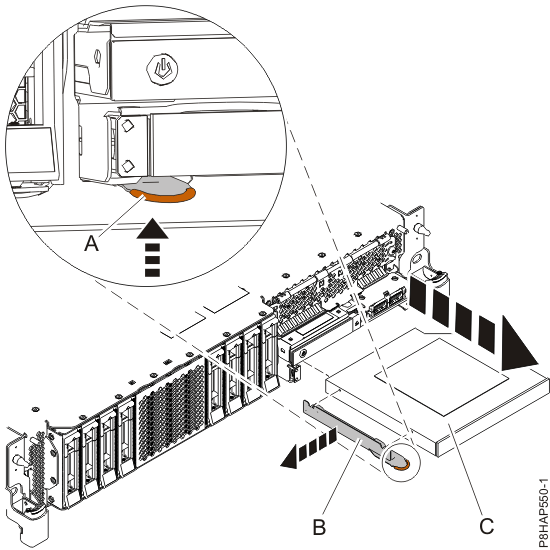
- Press the retaining tab
- Unplug but do not remove the disk drives
from their slots. Pull the drives out far enough to prevent them from
interfering with the removal of the disk drive backplane.
- Unlock the drive handle by pressing the handle latch and pulling it out toward you, as
shown in Figure 14. If the handle is
not all the way out, the drive cannot slide out of the system.
- Support the bottom of the drive as you slide it out of the system. Hold the drive by its sides.
Figure 14. Removing a disk drive 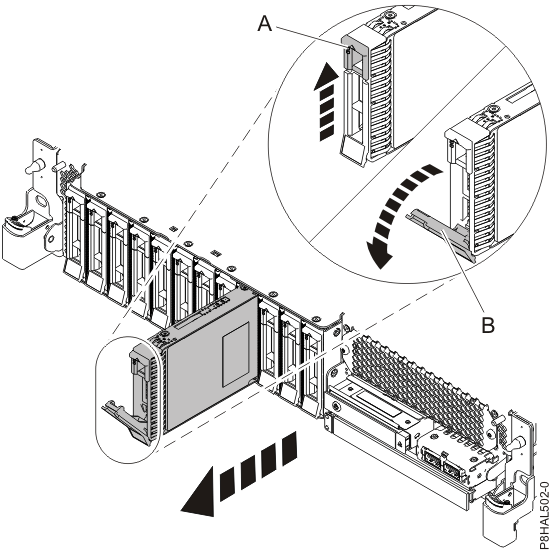
- Unlock the drive handle
Removing the CEC enclosure system backplane
About this task
To remove the CEC enclosure system backplane, complete the following steps:
Procedure
- Remove the fan cage.
- Release the blue touch point latches by pulling them up, as shown in Figure 15. This
action unseats the fan cage.
- Pull up the fan cage out of the system by holding on
to the blue touch point latches .
Figure 15. Removing the fan cage 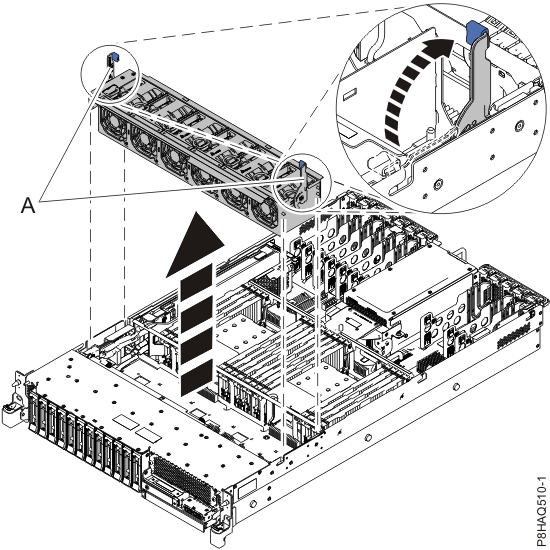
- Release the blue touch point latches
- Label the front SAS cables, paying attention
to the connectors each cable attaches to on the disk drive backplane
and the SAS RAID internal adapter. Disconnect the front SAS cables
from the disk drive backplane by pressing the latch and unplugging the cable as shown
in Figure 16.
Figure 16. Disconnecting the front SAS cables 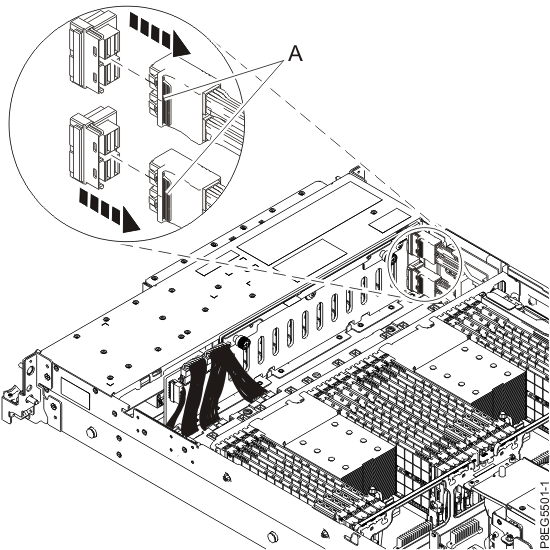
- Unseat the front SAS cables from the cable guide on the
side of the system chassis. See Figure 17.
Figure 17. Unseating the SAS cables 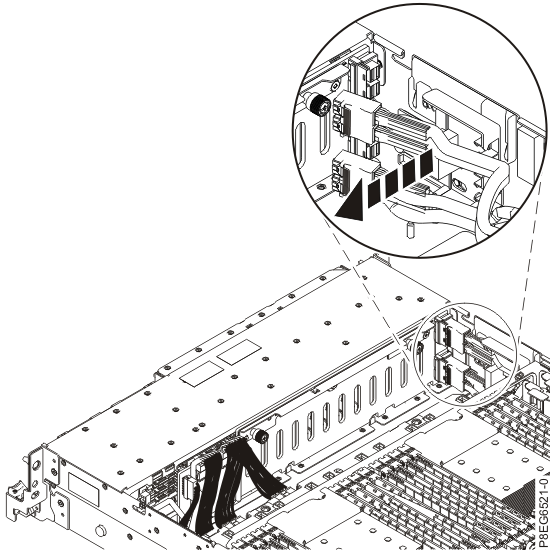
- Label, disconnect, and remove the signal,
and control panel cables , and the power Y cable , from the disk drive backplane and
system backplane. See Figure 18.
Figure 18. Removing the power, signal, and control panel cables 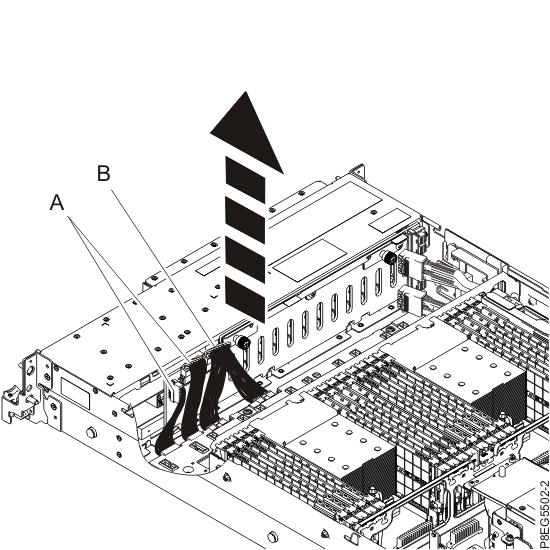
- Carefully unscrew the disk drive backplane's
captive thumbscrews until fully loose as shown in Figure 19.
- Remove the disk drive backplane.
Figure 19. Removing the disk drive backplane 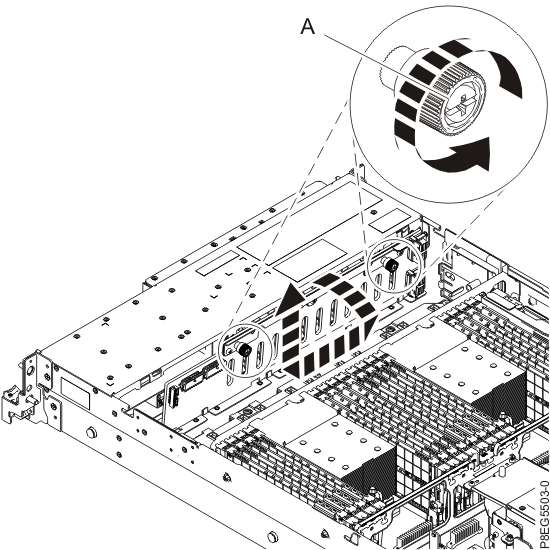
- Remove the PCIe3 x8 SAS RAID internal adapter
6 Gb and the front SAS cables from slot P1-C14.
- Lift the two cable retention brackets in the direction shown. See Figure 20.
- Lift the blue handles in the direction shown. See Figure 20.
- Lift the SAS RAID internal adapter out of the slot with the front SAS cables still connected to the adapter. Ensure that the front SAS cables do not get caught on any components while you are lifting the SAS RAID internal adapter out of the slot.
Figure 20. Removing the SAS RAID internal adapter 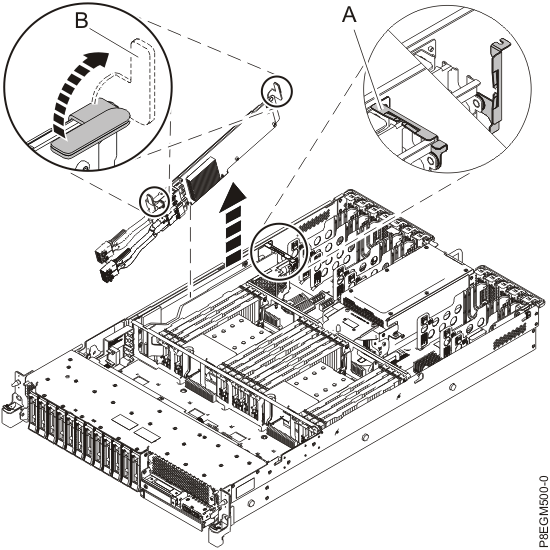
- Lift the two cable retention brackets
- Remove the time-of-day battery from its corresponding
slot on the system backplane, as shown
in Figure 21.
Ensure to record the orientation of the polarity of the battery so
that you can insert it with the same orientation later. Note: The orientation of the + of the battery is towards the power supplies or middle of the system.Attention: When removing the battery, do not use a metallic tool to disengage it from its slot.
Figure 21. Removing the time-of-day battery 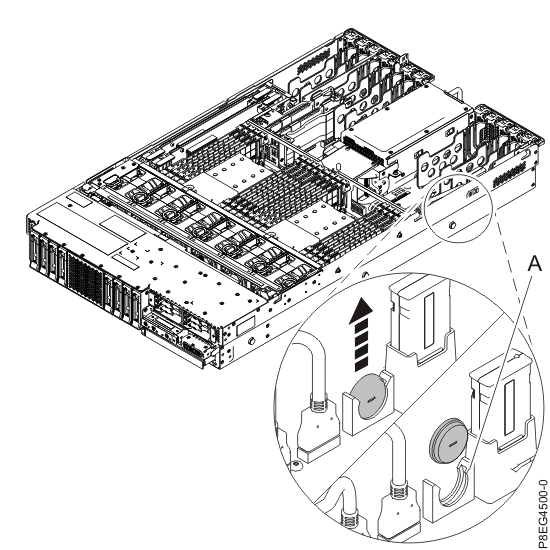
- Remove the VPD card. Grasp the VPD card
by the plastic housing and pull it out of its slot in location P1-C13
on the system backplane as shown in Figure 22.
Figure 22. Removing the VPD card 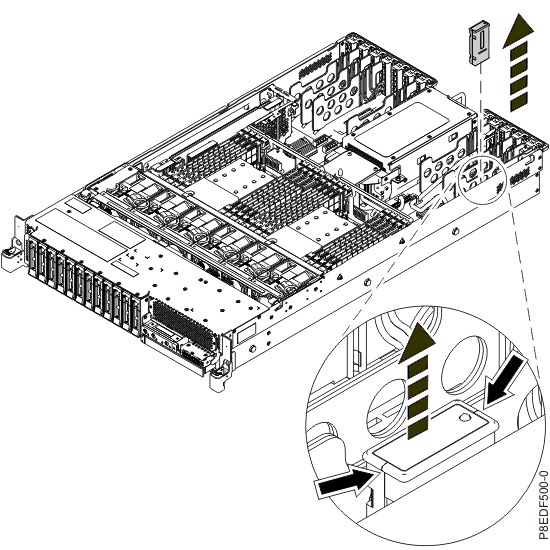
- Label and remove the memory modules, then
remove the memory module fillers.
Important: In a CEC enclosure with two system processor modules, the memory module pairs might be installed in a different order than the one shown on the inside of the service access cover.
Record and use the actual location of each memory module.
- Record the location of each memory module, then remove the module. Each module must be installed in the same location on the new system backplane.
- To unlock the memory module from its connector in the
slot, push the locking tabs in the direction that is shown in Figure 23. The lever
action of the tabs forces the memory module out of the connector.
- Hold the memory module by the edges and pull it out of the system.
- Repeat steps b and c to remove the memory module fillers.
Figure 23. Removing a memory module from the system 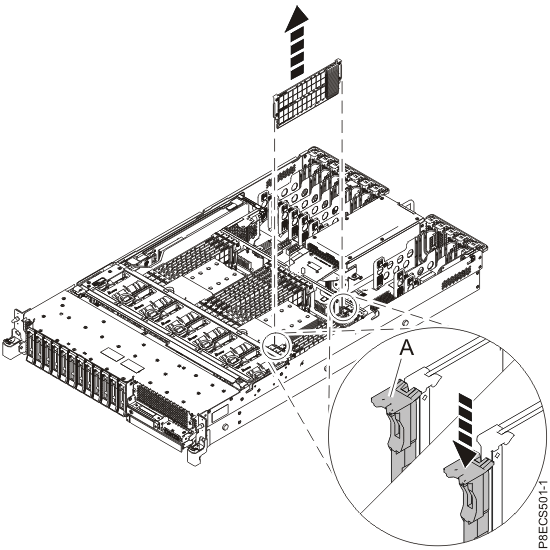
- Label and remove the system processor
modules and heat sinks, starting with P1-C32.
- Remove the air baffle by grasping the baffle and lifting
it out of the system as shown in Figure 24.
Figure 24. Removing the air baffle 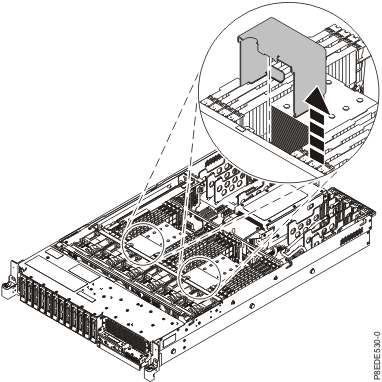
- Remove the heat sink.
- Loosen the heat sink actuation screw by turning the supplied 5.5
mm nut driver (part number 43W3032) counterclockwise until the screw becomes loose and
moves freely as shown in Figure 25.
- Grip the heat sink by the grooves on opposing sides and
remove it by lifting straight up.
- Inspect the heat sink for any dust or debris on it. If you must remove dust or debris from the heat sink, it must be done in another room or greater than 25 feet (7.62 meters) away from work area.
- Place the heat sink upside down on an electrostatic discharge (ESD) surface.
Figure 25. Removing the heat sink 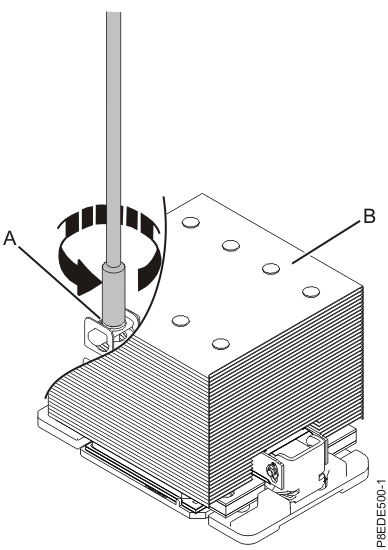
- Loosen the heat sink actuation screw by turning the supplied 5.5
mm nut driver (part number 43W3032) counterclockwise
- Remove dust and debris from the system processor module
area.
- If dust or debris is present, use the supplied air pump (part number 45D2645) to clean the system processor module area. Blow small bursts of air from the center toward the sides of the system processor module as shown in Figure 26.
Figure 26. Removing dust and debris from the system processor module area 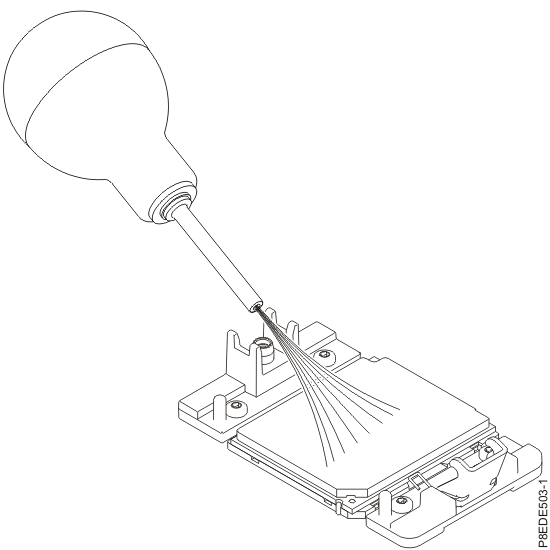
- Prepare the system processor module for removal.
- Using the supplied removal tool (part number 00E8483), align the
beveled corner of the tool over the beveled corner
of the system processor module as shown in Figure 27.
- Lower the tool over the system processor module by ensuring the
two guide pins are inserted into the alignment holes on each side of the tool.
Figure 27. Lowering the removal tool onto the system processor module 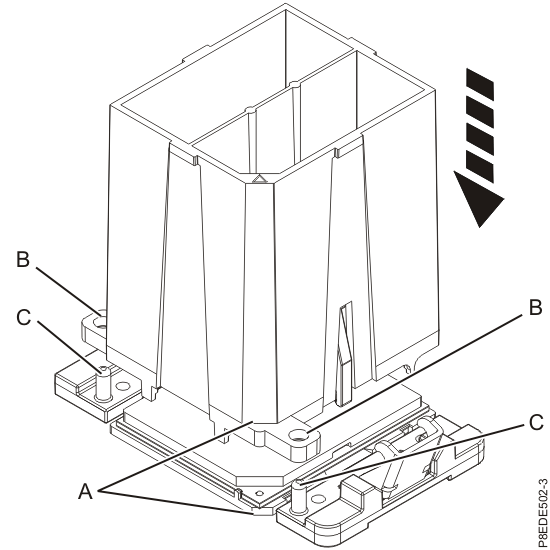
- With the removal tool sitting on top of the system processor
module, push down on the tool to lock the system processor module
into the tool, as shown in Figure 28. Make
sure that both of the tool jaws are locked on the system processor
module. Do not press the blue release tabs until directed to do so
later. Note: The tool drops slightly when you push down so that the jaws can grab the bottom of the system processor module.
Figure 28. Locking the system processor module into the tool 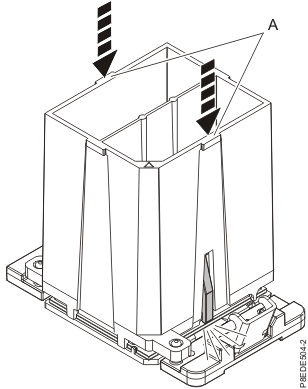
- Using the supplied removal tool (part number 00E8483), align the
beveled corner
- Holding the outside of the tool, lift the tool and system
processor module from the socket. Place them at an angle in the top
cover of the system processor module packaging (if available), or
other appropriate ESD surface, as shown in Figure 29. Note: Setting the tool and system processor module at an angle on the top cover of the system processor module packaging will make it easier to pick up and place in the packaging after you replace the system processor module.
Figure 29. Placing the tool at an angle on the top cover of the packaging 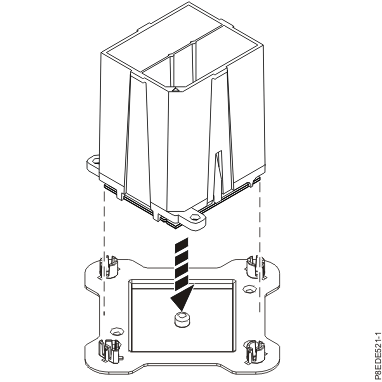
- Squeeze the two blue tabs to release the system processor
module from the tool. See Figure 30.
Note: To prevent the system processor module from falling, do not squeeze the two tabs before you place the tool on the top cover of the system processor module packaging.
Figure 30. Releasing the system processor module from the tool 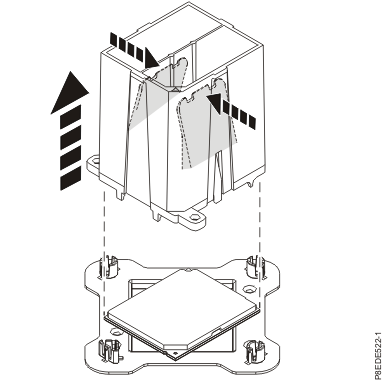
- Remove the air baffle by grasping the baffle and lifting
it out of the system as shown in Figure 24.
- Remove the system I/O card.
- Rotate the locking lever in the direction shown in Figure 31 to unlock
the system I/O card from the slot in the system rear bulkhead.
- Pull out the system I/O card from the slot by holding the card bracket and by supporting the bottom of the card.
Figure 31. Removing the system I/O card 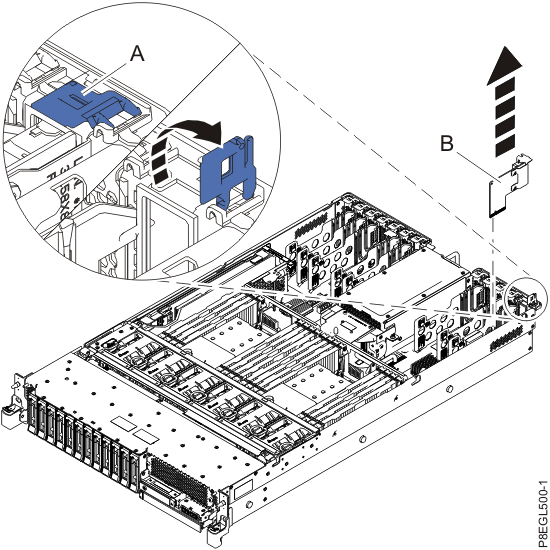
- Rotate the locking lever
- Disconnect and remove the power distribution
signal cable from the rear of the power supply
assembly and the system backplane connector. See Figure 32.
Figure 32. Removing the power distribution signal cable 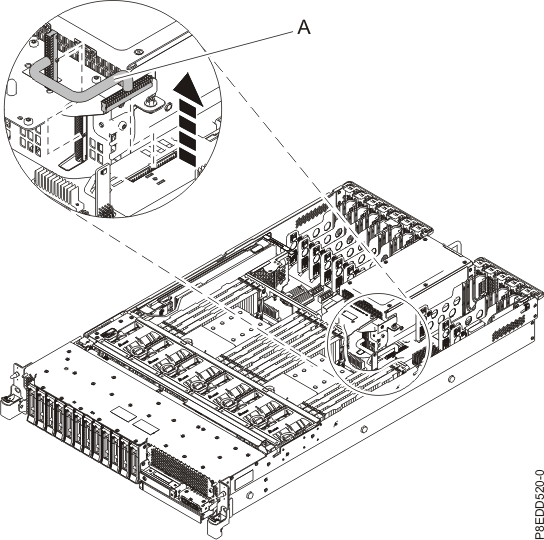
- Label and remove the PCIe adapters.
Table 2. Location and description of PCIe adapters Location Description C6 PCIe two-port card (Model 980, 984) C7 PCIe two-port card (Model 980, 984) C7 PCIe four-port card (Model 983) C8 I2C interface card C10 Ethernet adapter C11 Ethernet adapter, 10 Gb and 1 Gb (if installed) C12 RS485 serial interface card - To set the adapter latch at the target slot into the open position,
rotate the latch on the rear of the system, in the
direction shown in Figure 33.
- Carefully grasp the adapter by its top edge or tailstock, and
remove the adapter from the slot, as shown in Figure 33.
Attention: A pin on the tailstock of the adapter resembles a removable screw. Do not remove this pin. It is required for correct alignment and seating.Note: Remove and reinstall any adapter port filler plugs as required.
Figure 33. Removing a PCIe adapter from a rack-mounted system 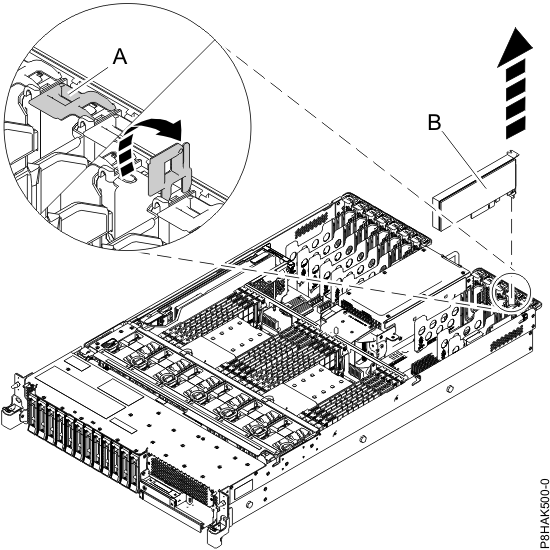
- To set the adapter latch
- Remove the PCI adapter dividers. Note: The PCI adapter divider between PCI adapter slots P1-C1 and P1-C2 is unique and has three light pipes. This divider must be replaced into the same location.
- Hold the top edge of the PCI adapter divider and flex the divider out of the bracket
and toward the rest of the divider. See Figure 34.
- Press down on the retaining latch at the back edge of
the divider . Pull the divider away from the system
chassis, then lift out to remove it from the system.
- Repeat this step to remove remaining PCI adapter dividers.
Figure 34. Removing the PCI adapter dividers 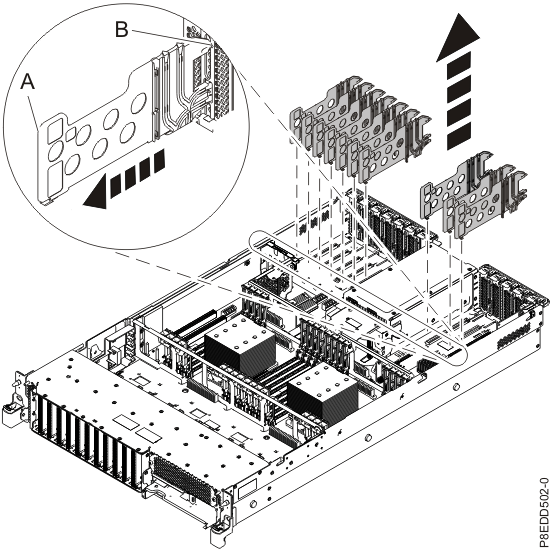
- Hold the top edge of the PCI adapter divider
- Remove the SAS cable guide. Grasp the tab of the guide and pull it out and away
from the side of the chassis. Pull the guide toward the front of the
system until the slots on the guide clear the pins on the side of the chassis, then remove
the guide. See Figure 35.
Figure 35. Removing SAS cable guide 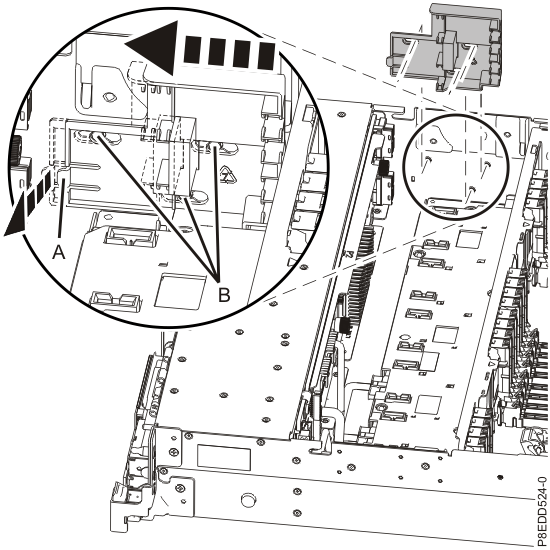
- Remove the system backplane.
- Using a Phillips screwdriver, unscrew and remove 12
screws that mount the system backplane to
the chassis as shown in Figure 36.
Figure 36. System backplane screw locations 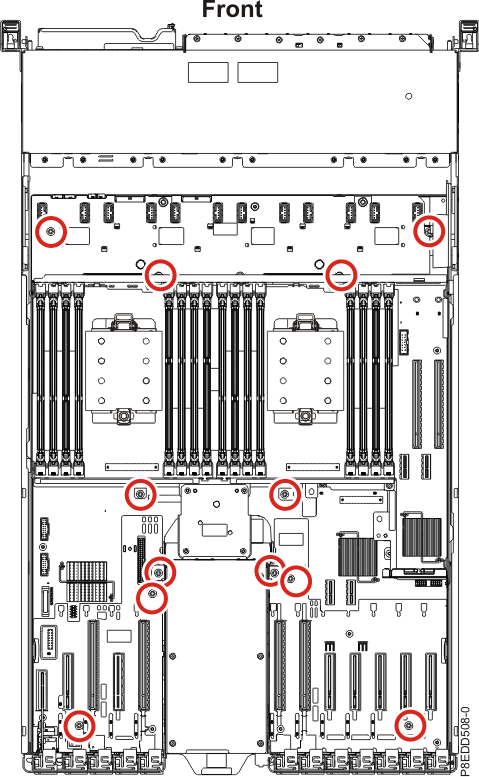
- Using a Phillips screwdriver, unscrew and remove four
screws from the sides of the system chassis
as shown in Figure 37.
- Grasp the system backplane by the top guide rail . Slide it forward in the direction
that is shown, then lift it up to remove it from the chassis. See Figure 37.
Figure 37. Removing the system backplane 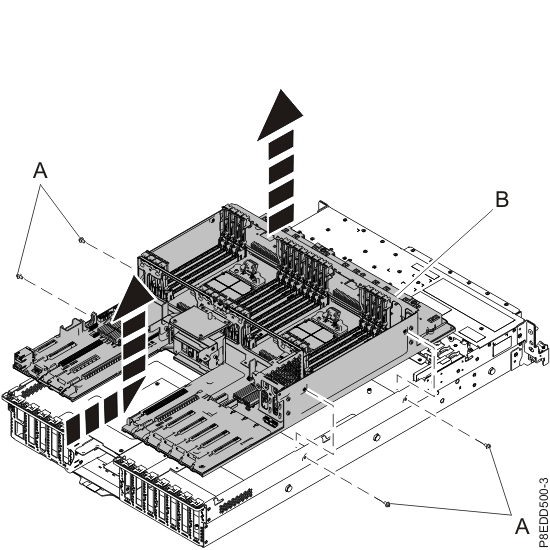
- Using a Phillips screwdriver, unscrew and remove 12
screws
Replacing the CEC enclosure system backplane
About this task
To replace the system backplane, complete the following steps:
Procedure
- Install the system backplane.
- Grasp the top guide rail and lower the backplane into position
while you are sliding it toward the rear as shown in Figure 38.
- Using a Phillips screwdriver, install and tighten four
screws to secure the backplane to the side
of the chassis as shown in Figure 38.
Figure 38. Installing the system backplane 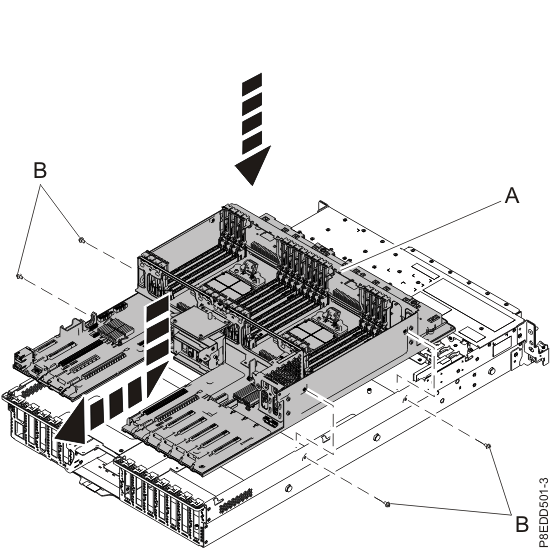
- Using a Phillips screwdriver, install and tighten 12
screws to secure the backplane to the base of the chassis. See Figure 39.
Figure 39. System backplane screw locations
- Grasp the top guide rail
- Replace the SAS cable guide by inserting the slots on the
guide over the pins on the chassis. Grasp the tab of the guide and push the guide toward
the rear of the system. Push the guide back until the slots are seated
on the pins and the tab of the cable guide latches. See Figure 40.
Figure 40. Replacing SAS cable guide 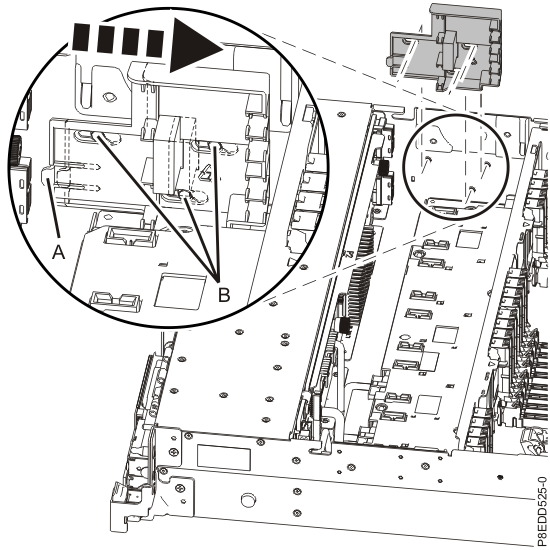
- Replace the PCI adapter dividers.
Note: One PCI adapter divider is unique. It has three light pipes and must be installed in the location between PCI adapter slots P1-C1 and P1-C2.
- Holding the top edge of the PCI adapter divider , align the divider with its slot in
the system.
- Slide the divider toward the retention notches as shown in Figure 41.
- Ensure that the tabs on the divider align with the notches on the system chassis. Note: The light pipes below the light-pipe plate must fit through the holes in the plate.
- Press on the divider until the lower edge guide pin slides into the slot to secure the
divider.
Figure 41. Installing the PCI adapter dividers 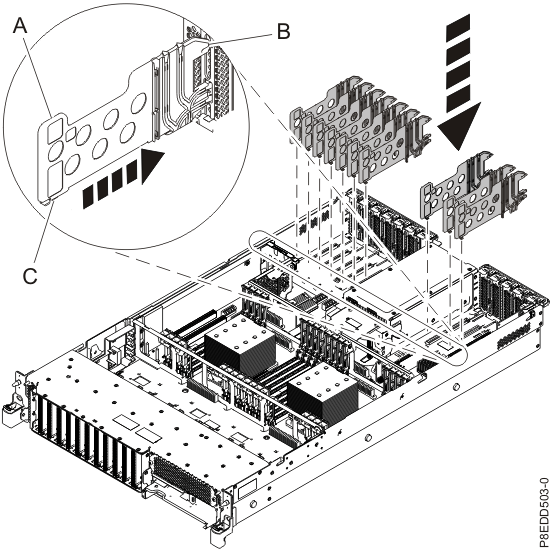
- Holding the top edge of the PCI adapter divider
- Replace the PCIe adapters.
Table 3. Location and description of PCIe adapters Location Description C6 PCIe two-port card (Model 980, 984) C7 PCIe two-port card (Model 980, 984) C7 PCIe four-port card (Model 983) C8 I2C interface card C10 Ethernet adapter C11 Ethernet adapter, 10 Gb and 1 Gb (if installed) C12 RS485 serial interface card - If the adapter latch at the target slot is not already
in the open position, pull the latch into the open position by rotating
the latch outwards from its clip on the back of the system, as shown
in Figure 42. Attention: A pin on the tailstock of the adapter resembles a removable screw. Do not remove this pin. It is required for correct alignment and seating.Note: Remove and reinstall any adapter port filler plugs as required.Note: If you are installing a 10 Gb Ethernet adapter, you might need to remove the dust covers from the SFPs. Replace the dust covers after installing the adapter.
- To lock the adapter in its slot, rotate the adapter
latch in the direction that is shown in Figure 42.
Figure 42. Installing or replacing a PCIe adapter in a rack-mounted system 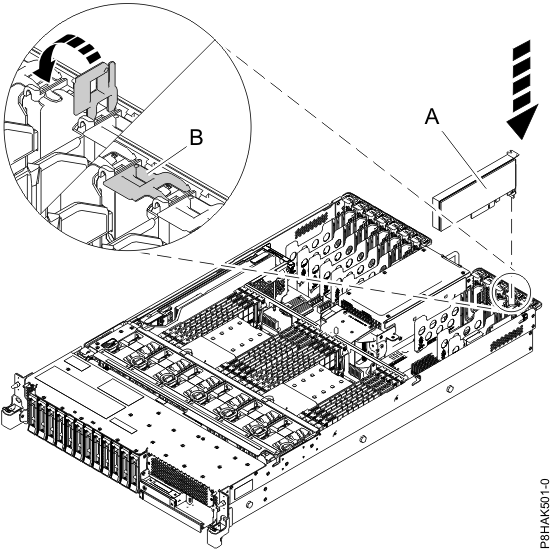
- If the adapter latch
- Reconnect the power distribution signal
cable to the rear of the power supply assembly
and the system backplane connector. See Figure 43.
Figure 43. Replacing the power distribution signal cable 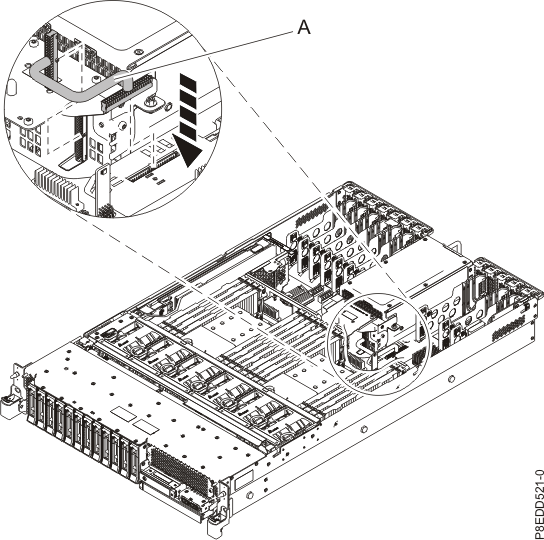
- Replace the system I/O card.
- With the blue locking latch in the open position, align the system
I/O card with the guide rails on the system
and slide the card straight into the card slot, as shown in Figure 44.
- Rotate the blue locking latch in the direction shown in Figure 44 to lock the system I/O card
in position.
Figure 44. Replacing the system I/O card in a rack-mounted system 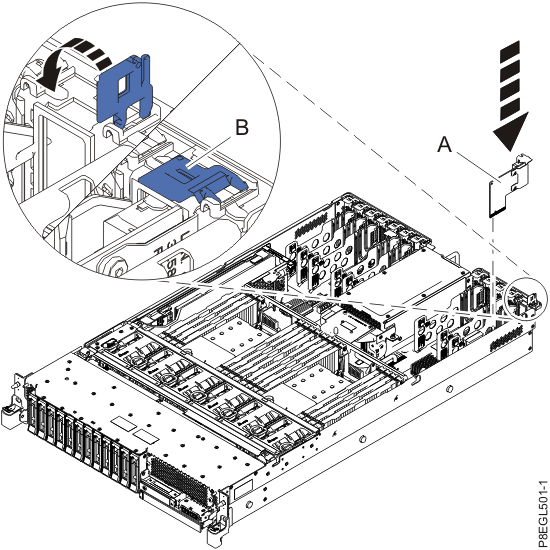
- With the blue locking latch
- Replace the system processor modules
and heat sinks, starting with P1-C32.
- Prepare the system processor module for installation:
- Remove the replacement processor module from the shipping tray.
Using the supplied removal tool (part number 00E8483), align the beveled
corner of the tool over the beveled corner
of the module, as shown in Figure 46.
- Lower the tool over the system processor module by ensuring that
the two guide pins are inserted into the alignment holes on each side of the tool, as shown
in Figure 46. Then, push
down on the tool to lock the system processor module into the tool,
as shown in Figure 45. Do not press
the blue release tabs until directed to do so later.
Figure 45. Preparing for system processor module installation 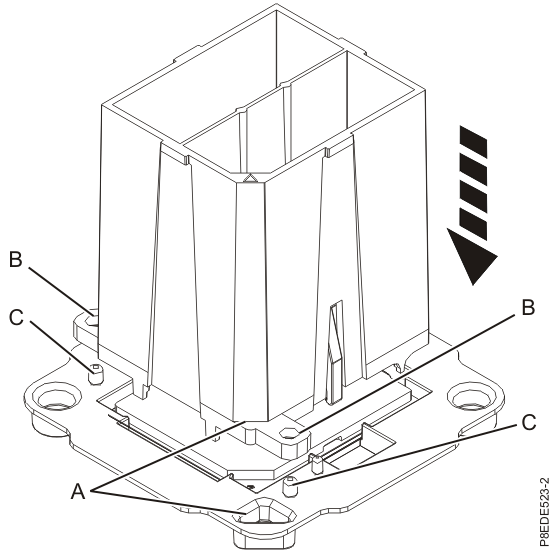
Figure 46. Locking the system processor module into the tool 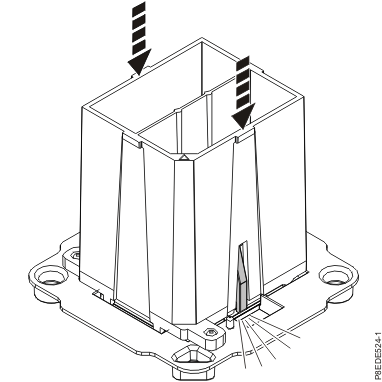
- Remove the replacement processor module from the shipping tray.
Using the supplied removal tool (part number 00E8483), align the beveled
corner
- Prepare for system processor module installation:
- Grasping the sides of the tool and system processor module, carefully lift it slightly out of the system processor module tray. Then, turn it over so that the system processor module side is up.
- Ensure that both jaws are firmly grabbing the system processor
module, as shown in Figure 47.
Note: If both jaws are not firmly grabbing the system processor module, press down on the corner of the system processor module closest to the jaw until it locks into place. Do not touch any part of the system processor module other than the corners.
Figure 47. Preparing for system processor module installation 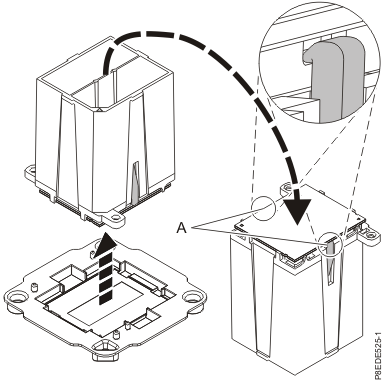
- Install the system processor module:
- Lower the tool and system processor module onto the socket, ensuring
that the two guide pins are inserted into the alignment holes on each
side of the tool, as shown in Figure 48. Note: Do not attempt to slide the tool and the system processor module in any direction while the system processor module is touching the socket. If the tool and the system processor module are not aligned with the guide pins, lift the tool and the system processor module and reposition them.
Figure 48. Installing the system processor module 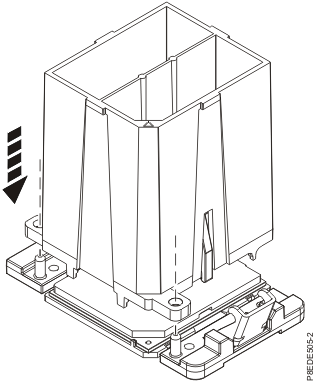
- After the tool and system processor module holes and guide pins
are properly aligned, squeeze and hold the two blue release tabs together until a firm stop is reached,
as shown in Figure 49.
Then, lift the tool off the system processor module.
Figure 49. Removing the system processor module tool 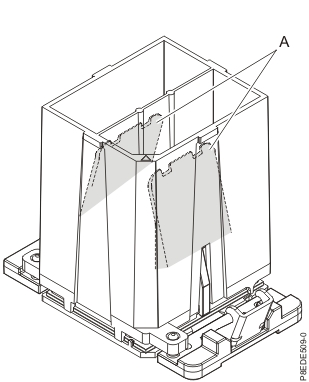
- Lower the tool and system processor module onto the socket, ensuring
that the two guide pins are inserted into the alignment holes on each
side of the tool, as shown in Figure 48.
- Inspect the thermal interface material (TIM) for visible
signs of damage, as shown in Figure 50.
Note: When the heat sink is removed from the failed system processor module, the TIM should be adhered to the heat sink. Unless damaged, the TIM that is adhered to the heat sink can be reused. Replacing the TIM is optional and is only performed if the TIM is damaged. Do not reuse the removed heat sink if the TIM is damaged. Either discard the heat sink and the damaged TIM locally or return them to IBM based on part-order-form part status. It is recommended that a spare TIM and heat sink, part number 00FV742, be on hand when replacing the system processor module.
Figure 50. Inspecting the thermal interface material 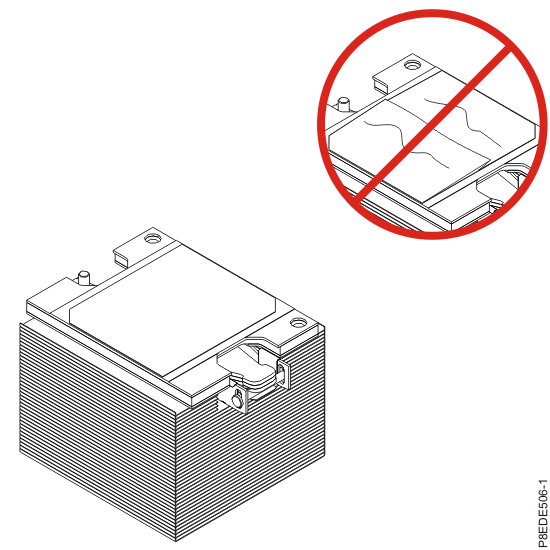
- Install the heat sink:
- Lower the heat sink over the system processor module, ensuring
that the two guide pins are inserted into the alignment holes
on each side of the tool, as shown in Figure 51.
- Ensure that the heat sink load arm is engaged. Note: If the load arm is not engaged, you must manually engage the load arm onto the heat sink while the load screw is being tightened. See Figure 52.
Figure 51. Installing the heat sink 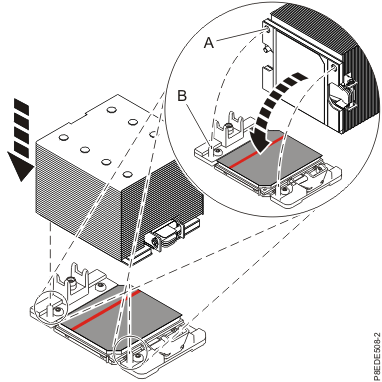
- Lower the heat sink over the system processor module, ensuring
that the two guide pins
- Secure the heat sink:
- Upon placing the heat sink on the system processor module, ensure that the heat sink load arm on the side of the heat sink becomes engaged, as shown in Figure 52.
- While you are holding the heat sink in place, use the supplied 5.5 mm nut driver (part number 43W3032) to tighten the heat sink actuation screw. Turn the screw clockwise a few turns.
- Is the load arm still engaged?
Yes: Continue turning the actuation screw clockwise until a firm stop is reached. If a torque tool is available, tighten the screw to 2.5 nm.
No: Unscrew the actuation screw. Hold the load arm onto the heat sink while you are tightening the screw until a firm stop is reached. If a torque tool is available, tighten the screw to 2.5 nm.
Note: If during this step, the heat sink moves noticeably, it is likely that the load arm is not engaged. If the heat sink moves noticeably, unscrew the actuation screw and hold the load arm onto the heat sink while you are tightening the screw until a firm stop is reached. If a torque tool is available, tighten the screw to 2.5 nm.
Figure 52. Securing the heat sink 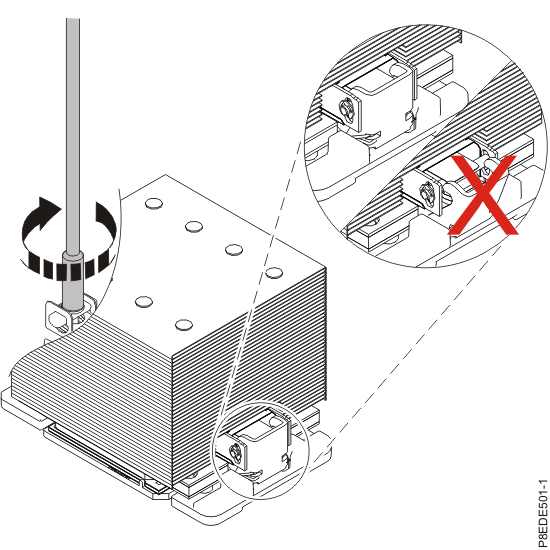
- Prepare the system processor module for installation:
- Replace the air baffle by lowering it into position as
shown in Figure 53.
Figure 53. Replacing the air baffle 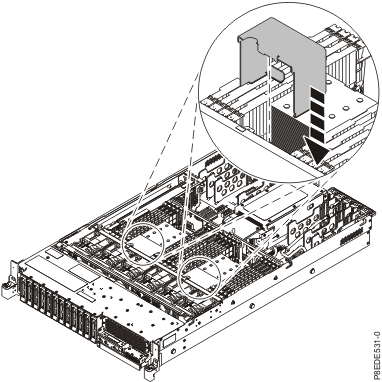
- Replace the memory modules and slot fillers.
Important: In a CEC enclosure with two system processor modules, the memory module pairs might be installed in a different order than the one shown on the inside of the service access cover.
Use the slot information that you recorded.
- Press the memory module firmly into the slot until the
locking tab locks in place. See Figure 54.
Figure 54. Installing or replacing a memory module 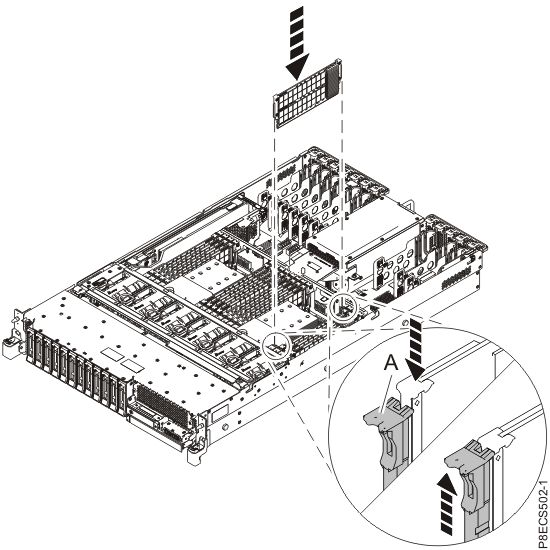
- Press the memory module firmly into the slot until the
locking tab
- Replace the VPD card. Insert the VPD card
into its slot in location P1-C13 on the system backplane as shown
in Figure 55. Push the VPD card
into place until it is fully seated.
Figure 55. Replacing the VPD card 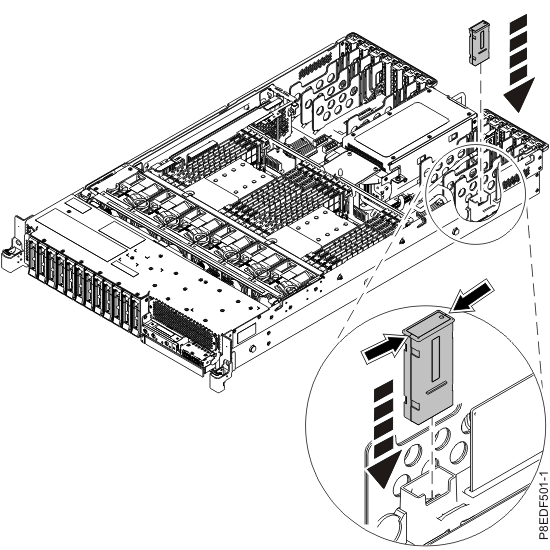
- Replace the time-of-day battery. Insert the
time-of-day battery in the slot on the system backplane, as shown
in Figure 56. Ensure to insert
the battery with the correct polarity as recorded during removing
of the battery. Note: The orientation of the + of the battery is towards the power supplies or middle of the system.
Figure 56. Inserting the time-of-day battery 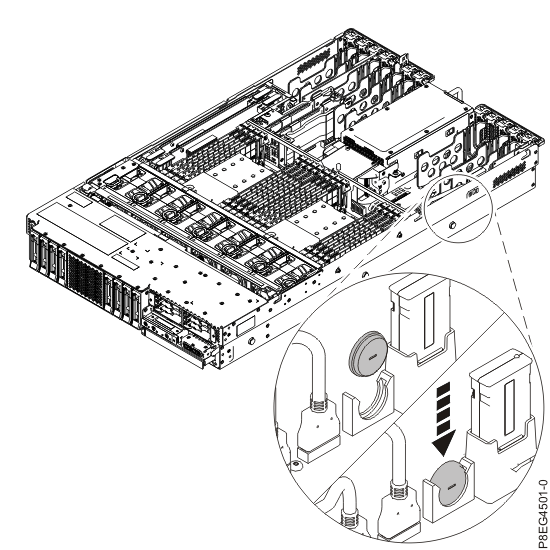
- Complete the disk drive backplane installation.
- Using the ledge at the top of the disk drive backplane and facing towards the front of the system, replace the backplane by tilting it towards the rear and lowering it down into the chassis.
- Align the backplane cutouts with the tabs in the chassis to insert it into the system.
- Shift the backplane slightly to the left to secure it in place, as is shown in Figure 57.
- Carefully tighten each of the disk drive backplane's
captive thumbscrews until each one is secured to the system's
chassis.
Figure 57. Replacing the disk drive backplane 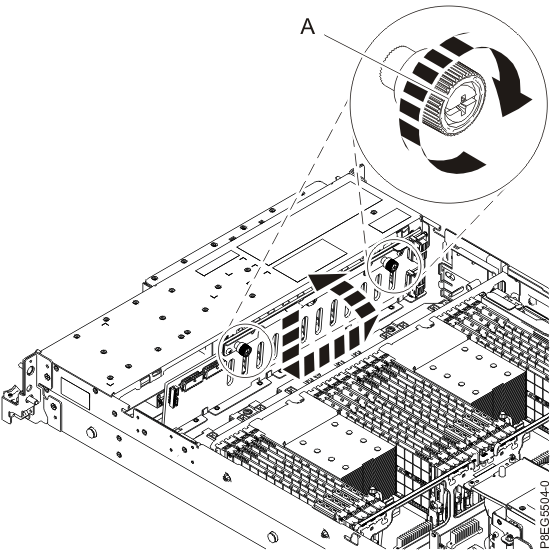
- Reconnect the signal and control panel cables , and the power Y cable to the disk drive backplane and the
system backplane as shown in Figure 58.
Figure 58. Reconnecting the power, signal, and control panel cables 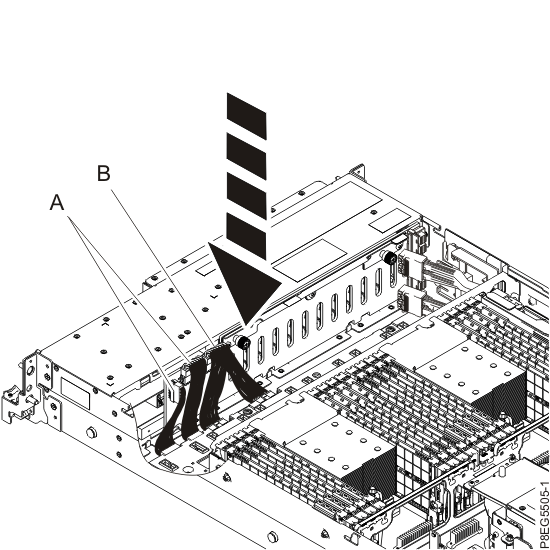
- Replace the PCIe3 x8 SAS RAID internal adapter
6 Gb. Do not connect the front SAS cables to the disk drive backplane
at this time.
- Complete the installation of the SAS RAID internal adapter
by fully seating it. Ensure that the adapter is installed on the locating
pin . Press the top-center edge of the
card down to firmly seat it into the system backplane connector, as
shown in Figure 61.
- Push the blue handles in the direction that is shown in Figure 59.
- Push the cable retention bracket in the direction that is shown in Figure 59.
Figure 59. Installing or replacing the SAS RAID internal adapter 
- Complete the installation of the SAS RAID internal adapter
by fully seating it. Ensure that the adapter is installed on the locating
pin
- Reseat the front SAS cables into the guide block on the
side of the chassis as shown in Figure 60.
Figure 60. Reseating the front SAS cables 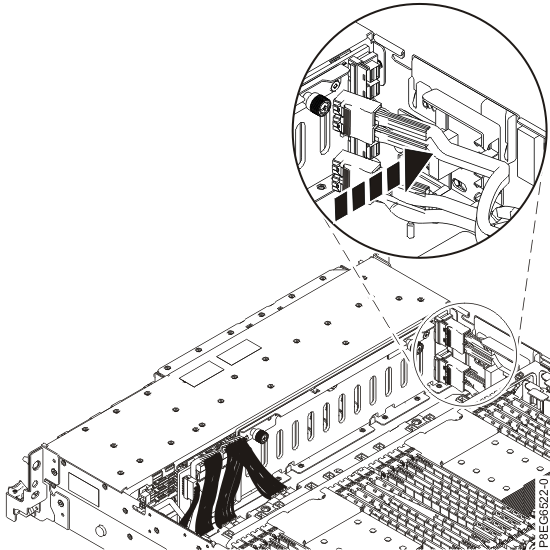
- Reconnect the front SAS cables to
the disk drive backplane as is shown in Figure 61. Push the connector in
until the connector latch clicks.
Figure 61. Reconnecting the front SAS cables 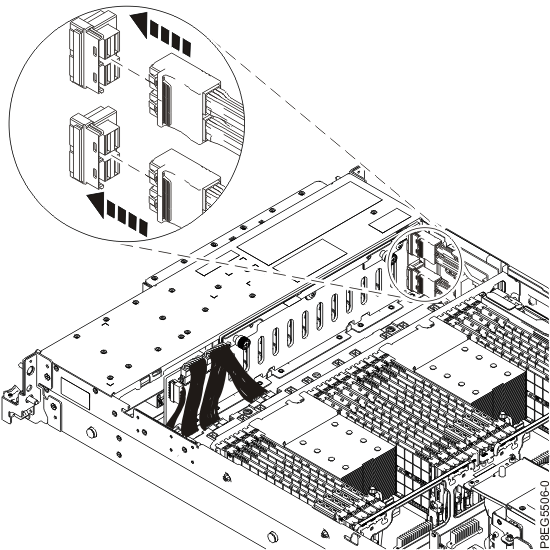 Note: With one PCIe3 x8 SAS RAID internal adapter (CCIN 57D7) in slot P1-C14 (base-storage feature), one SAS cable connects the lower disk drive backplane connector (J1) to the P1 connector on the adapter. A SAS cable connects the upper disk drive backplane connector (J2) to the P2 connector on the same adapter. See Figure 62.
Figure 62. Reconnecting the SAS cable in a base-storage configuration 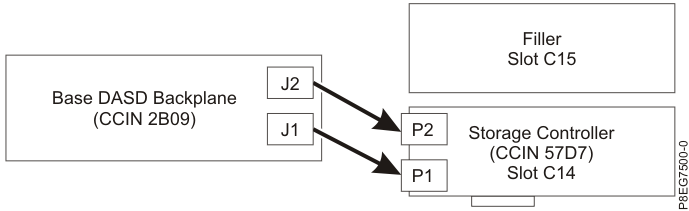
- Replace the fan cage with the fans installed.
- Lower the fan cage into the system by holding on to
the blue touch point latches , as shown in Figure 63.
- Rotate the latches as shown in Figure 63, to lock the fan cage in
place.
Figure 63. Replacing the fan cage in a rack-mounted system 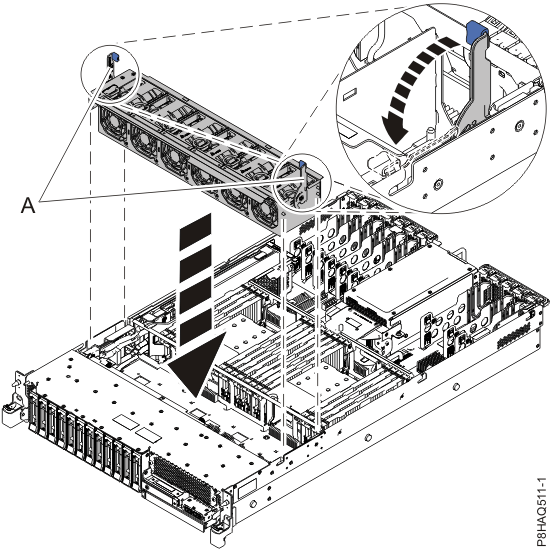
- Lower the fan cage into the system by holding on to
the blue touch point latches
Preparing the CEC enclosure for operation after removing and replacing the system backplane
About this task
To prepare the system for operation, complete the following steps:
Procedure
- Replace the service access cover.
- Slide the cover on to the system unit.
- Close the latch release by pushing it in the direction shown.
Figure 64. Installing the service access cover 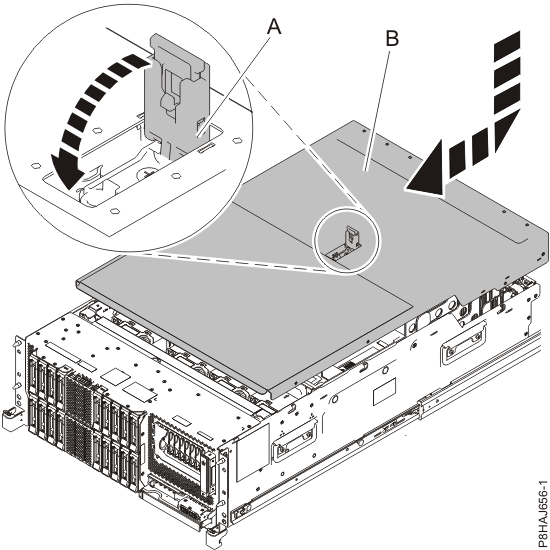
- Slide the cover
- Reseat the disk drives into their slots.
- Unlock the drive bay handle by pressing it and pulling it out
toward you. If the handle is not all the way out, the drive does not
slide into the system. See Figure 65.
- Slide the drive all the way into the system, and push
the drive bay handle in until it locks, as shown in Figure 65. Important: Ensure that the drive is fully seated and is all the way into the system.
Figure 65. Replacing a disk drive 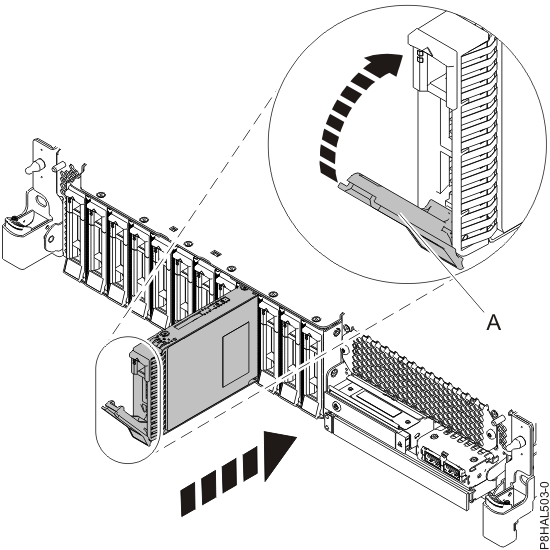
- Unlock the drive bay handle
- Replace the Slimline media device (DVD)
(if one was removed).
- Align the Slimline media device with the media bay, and support the
bottom of the device as you slide it halfway into the system. See Figure 66.
- Push the Slimline media device fully into the system until the device locks in place.
Figure 66. Replacing a Slimline media device 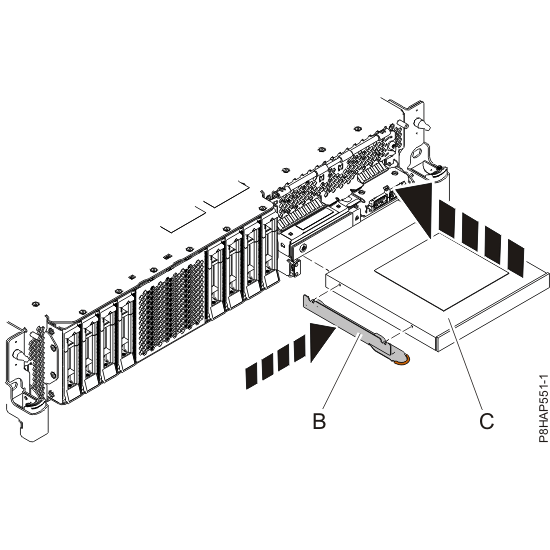
- Align the Slimline media device
- Replace the control panel.
- Align the control panel with the control panel slot.
- Slide the control panel into the slot, and press on the terracotta tab to lock it in place.
Figure 67. Replacing the control panel 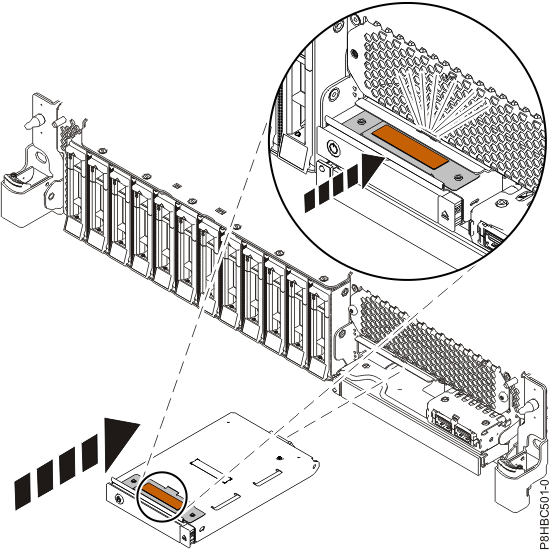
- Place the CEC enclosure into the operating
position.
- Ensure that you have the electrostatic discharge (ESD) wrist strap attached. If not, attach it now.
- Unlock the blue rail safety latches by lifting them upward.
- Push the system unit back into the rack until both system
unit release latches lock into position.
- Secure the enclosure to the rack with screws, if screws were removed when preparing the enclosure for service.
Figure 68. Placing the CEC enclosure into the operating position 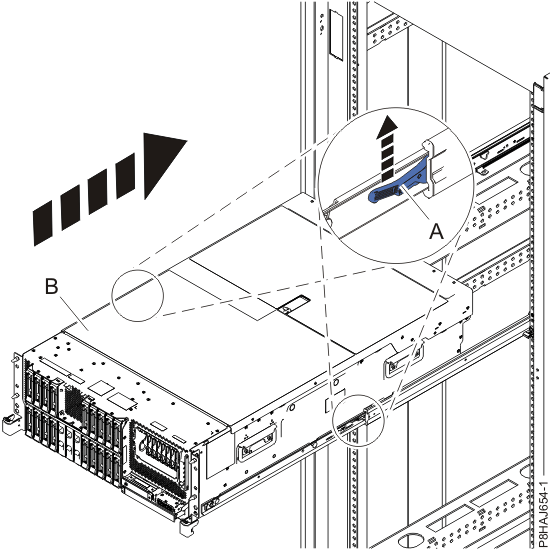
- Replace the front cover.
- Slide the cover onto the system.
- Close the release latches by pushing in the direction shown in Figure 69. The cover snaps into place and has an indentation where you can hold onto it more easily.
- Replace the shipping screws .
Figure 69. Installing the front cover 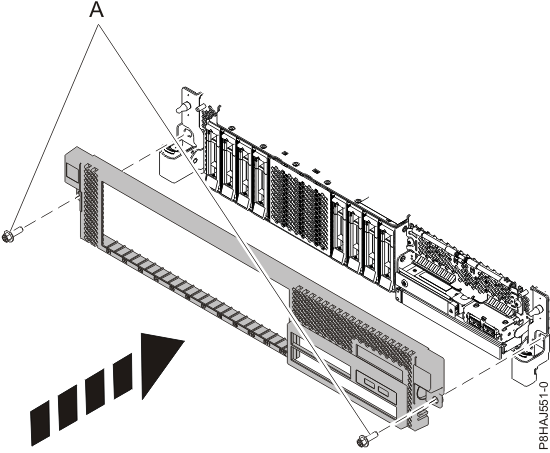
- Replace the power supplies. DO NOT
connect the power cords at this time.
Align each power supply with the bay and slide the power supply
into the system until the terracotta latch locks in place, as shown in Figure 70. Figure 70. Replacing a power supply 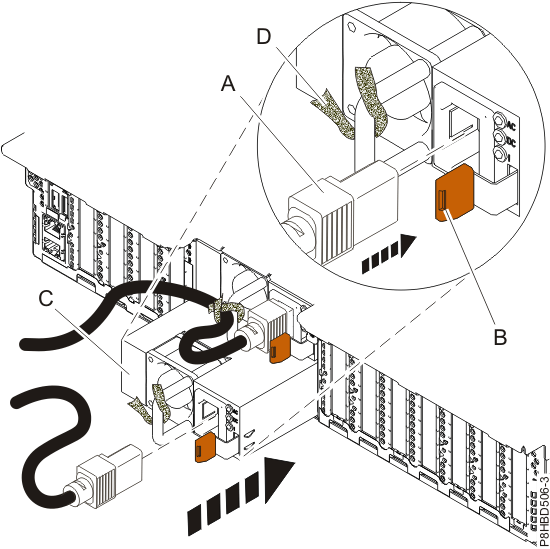
- Replace filler plugs (if removed)
at the rear of the CEC enclosure. See Figure 71.
- Replace the filler plugs in USB ports P1-C1-T2, P1-C1-T3 and serial port P1-C1-T1.
- Replace the filler plugs in Ethernet ports P1-C10-T3 and P1-C10-T4.
- Replace the filler plugs in Ethernet ports P1-C11-T1, P1-C11-T2, P1-C11-T3, and P1-C11-T4.
Figure 71. CEC enclosure location codes (rear view) (Models 980 and 984) - Reconnect the power cords to the CEC enclosure. See Figure 72.
- Fasten the power cords to the enclosure
using the hook-and-loop fasteners .
Figure 72. Connecting the power cords 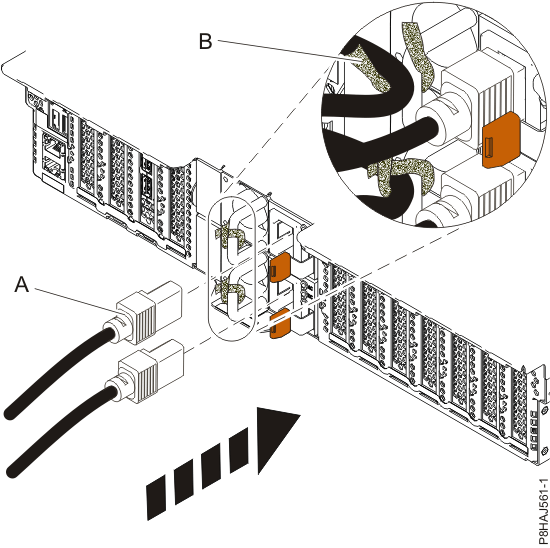
- Verify that the CEC enclosure has
power available. See Figure 73.
Figure 73. Location of the power supplies and LEDs (Models 980, 983, 984) - Wait up to 5 minutes for the CEC enclosure
control panel power button LED to flash. See Figure 74. Note: This ensures the CEC enclosure is in the power-off state.
Is the power button LED flashing?
- Yes, go to the next step.
- No, ensure the CEC enclosure power supplies are fully seated. The possible failing FRUs are the CEC enclosure system backplane, I2C interface card and cables, and control panel. You can also call the next level of support.
Figure 74. Control panel LEDs