Exchange the CEC enclosure vital product data (VPD) card
Before you begin
 Use approved ESD procedures to prevent damage.
Attention:
- This procedure is not a stand-alone procedure. Customer disruption and damage to the hardware might occur when microcode and power boundaries are not in the proper conditions for this service action.
- If a serviceable event FRU repair directed you to this procedure, the microcode and power boundaries are already set.
- If a serviceable event FRU repair did not direct you to this procedure, see MAP1230 Replace a FRU without using a serviceable event.
Notes:
- All the cables and FRUs to be removed must be uniquely identified so they can be reinstalled correctly.
- If an installed earthquake resistance kit prevents you from accessing this FRU, refer to MAP1600.
Preparing the CEC enclosure to remove and replace the VPD card
Procedure
-
Use the front and rear blue identify LEDs to determine the CEC enclosure to be repaired. Both
blue LEDs should be lit.
- CEC control panel blue identify LED
 as shown in Figure 1.
 - CEC enclosure rear blue identify LED
 as shown in Figure 2.
Note: If both the front and rear CEC enclosure identify LEDs are not lit, use the location code listed in the serviceable event FRU list. See MAP1245 Finding FRUs by using location codes.Figure 1. Control panel LEDs 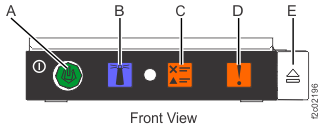
Figure 2. CEC enclosure rear LEDs 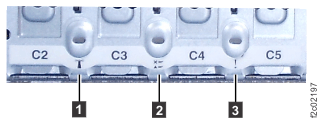
- CEC control panel blue identify LED
-
Verify that the CEC enclosure is in the power-off state. See Figure 3.
-
Are all DC (output) LEDs flashing?
- Yes, continue with the next step.
- No, do not continue with this FRU replacement. Go to MAP4841 CEC enclosure fails to power off during service processor repair (Models 961, 98x).
Figure 3. Location of the power supplies and LEDs (Models 981, 985, 986) 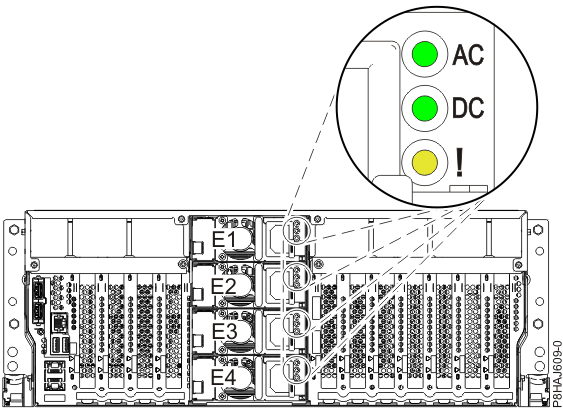
-
Are all DC (output) LEDs flashing?
-
Disconnect the power cords from the CEC with the DC
(output) LEDs flashing. See Figure 4.
Notes:
- Ensure that the power cords are correctly labeled.
- The power supply LEDs might continue to flash for up to 20 seconds while internal power is discharged.
- The power cord is fastened to the system by using the hook-and-loop fastener
 . Unstrap the fastener to allow
the enclosure to be placed in the service position.
. Unstrap the fastener to allow
the enclosure to be placed in the service position.
Figure 4. Removing the power cords (Models 981, 985, 986) 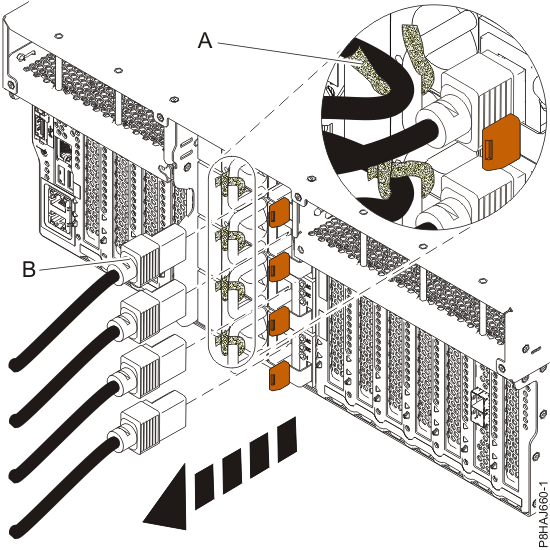
-
Observe the CEC enclosure control panel green power button LED . See Figure 5.
- If it is off, go to the next step.
- If it is flashing, the CEC enclosure is still in the power-off state. DO NOT CONTINUE. Ensure that you have unplugged the power cables.
Figure 5. Control panel LEDs -
Disconnect all remaining cables from the rear of the CEC enclosure. See Table 1 and Figure 7.
Table 1. CEC enclosure cable connections Connection Description P1-T3 (HMC 1) FSP Ethernet P1-T4 (HMC 2) FSP Ethernet P1-C3-T1, P1-C3-T2 PCIe to I/O enclosures (if C3 present) P1-C5-T1, P1-C5-T2 PCIe to I/O enclosures (if C5 present) P1-C6-T1, P1-C6-T2 PCIe to I/O enclosures P1-C7-T1, P1-C7-T2 PCIe to I/O enclosures P1-C8-T1, P1-C8-T2 i2c to RPCs P1-C10-T1, P1-C10-T2 LPAR Ethernet P1-C10-T3, P1-C10-T4 Customer network (optional feature, if used) P1-C11-T1, P1-C11-T2
P1-C11-T3, P1-C11-T4Customer network (optional feature, if used) P1-C12-T1, P1-C12-T2 RS485 to RPCs Figure 6. CEC enclosure location codes (rear view) 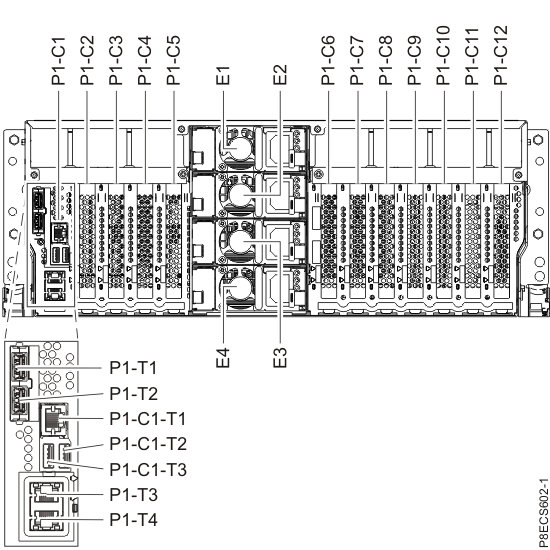
-
Remove the front cover.
-
Remove the two shipping screws (if present) that secure the
system to the rack.
-
Pull the cover away from the system. The cover has an indentation where you can hold onto it
more easily.
Figure 7. Removing the front cover 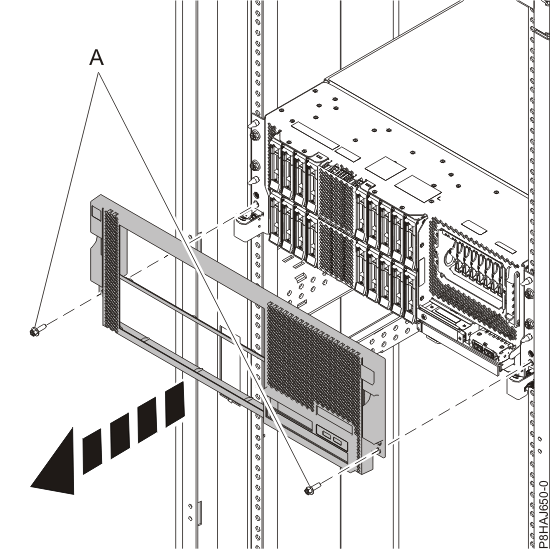
-
Remove the two shipping screws
-
Place the CEC enclosure into the service position.
-
Remove the front screws (if present) that secure the
enclosure to the rack.
Figure 8. Removing the front screws 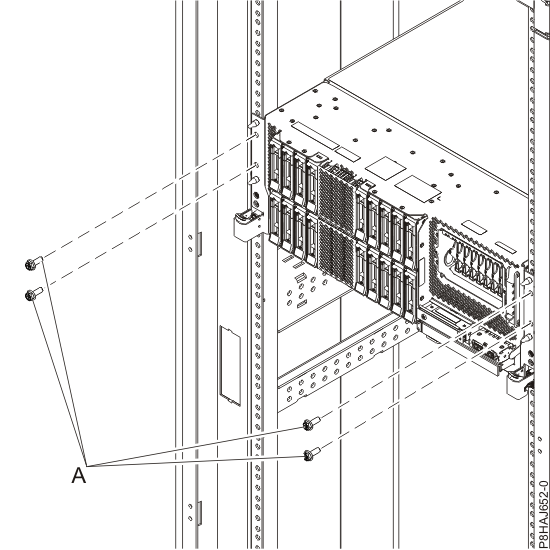
-
Release the side latches and pull the latches to slide
out the enclosure assembly.
Figure 9. Releasing the side latches 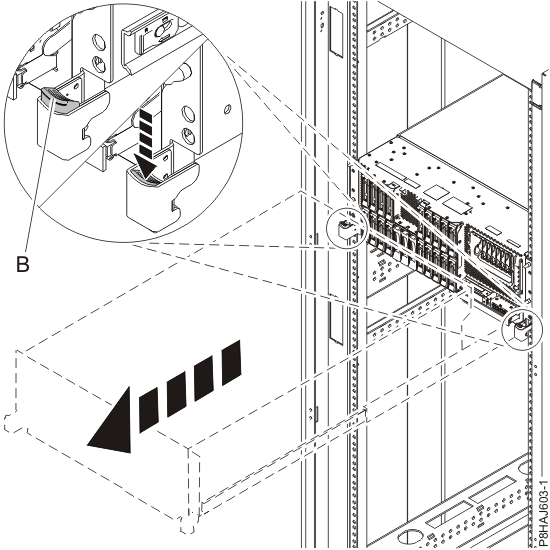
-
Remove the front screws
-
Remove the service access cover.
-
Release the latch by pushing the release latch in the direction shown.
-
Slide the cover off
the system unit. When the front of the service access cover has cleared the upper frame ledge, lift
the cover up and off the system unit.
Attention: For proper cooling and airflow, replace the cover before turning on the system.
Figure 10. Removing the service access cover 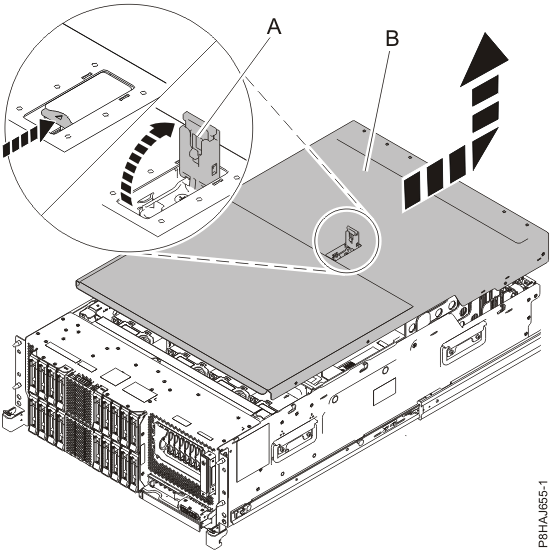
-
Release the latch by pushing the release latch
-
Attach the electrostatic discharge (ESD) wrist strap. Your system has an ESD pin on the
backplane as shown in Figure 6. Attach the ESD wrist
strap to the ESD pin
Attention:
- Attach an electrostatic discharge (ESD) wrist strap to an unpainted metal surface of your hardware to prevent the electrostatic discharge from damaging your hardware.
- When using an ESD wrist strap, follow all electrical safety procedures. An ESD wrist strap is used for static control. It does not increase or decrease your risk of receiving electric shock when using or working on electrical equipment.
- If you do not have an ESD wrist strap, just prior to removing the product from ESD packaging and installing or replacing hardware, touch an unpainted metal surface of the system for a minimum of 5 seconds.
Figure 11. Location of the ESD pin 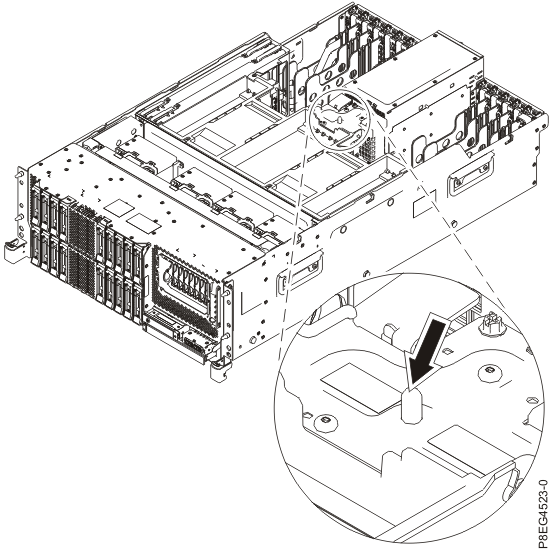
Removing the CEC enclosure VPD card
Procedure
To remove the CEC enclosure vital product data card, complete the following steps.
- Remove the VPD card. Grasp the VPD card by the plastic
housing and pull it out of its slot in location P1-C13 on the system
backplane as shown in Figure 12.
Figure 12. Removing the VPD card 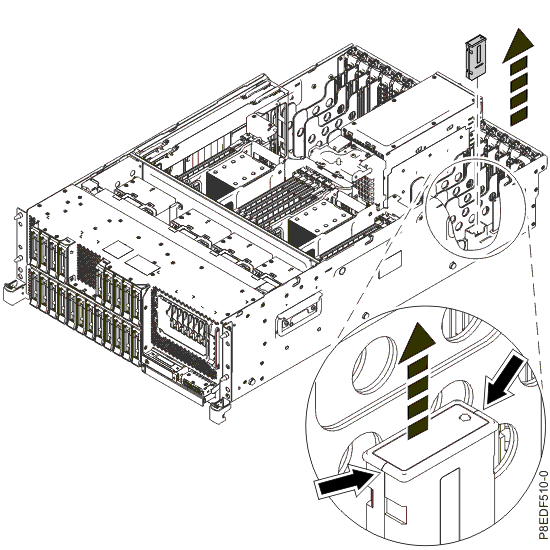
Replacing the CEC enclosure VPD card
Procedure
To replace the VPD card, complete the following steps.
- Replace the VPD card. Insert the VPD card into its slot
in location P1-C13 on the system backplane as shown in Figure 13. Push
the VPD card into place until it is fully seated.
Figure 13. Replacing the VPD card 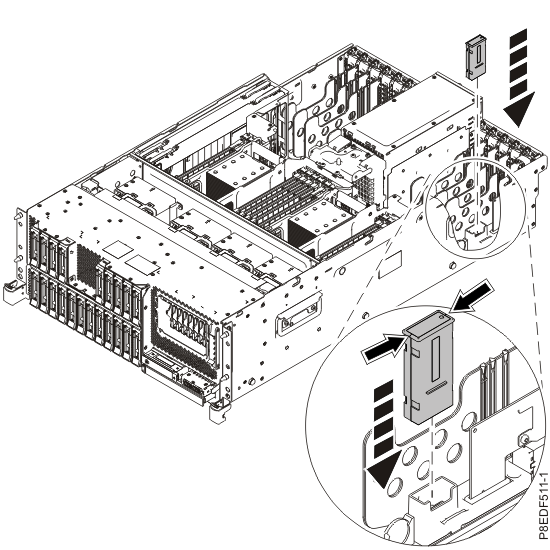
Preparing the CEC enclosure for operation after removing and replacing the VPD card
Procedure
To prepare the system for operation, complete the following steps.
- Replace the service access cover.
- Slide the cover on to the system unit.
- Close the latch release by pushing it in the direction shown.
Figure 14. Installing the service access cover 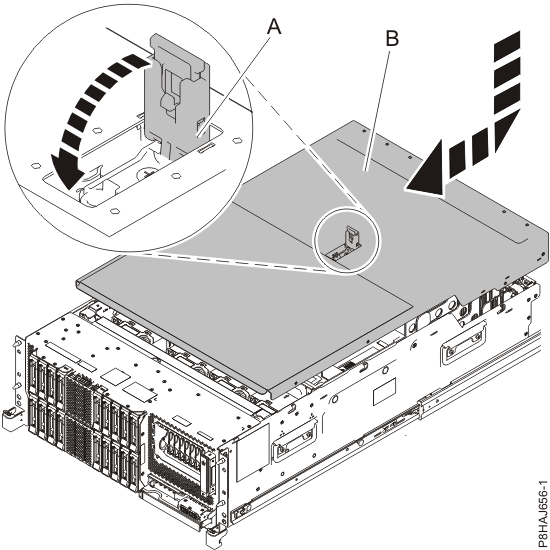
- Slide the cover
- Place the CEC enclosure into the operating position.
- Unlock the blue rail safety latches by lifting them upward.
- Push the system unit back into the rack until both system unit release latches
lock into position.
- Secure the enclosure to the rack with screws, if screws
were removed when preparing the enclosure for service.
Figure 15. Placing the CEC enclosure into the operating position 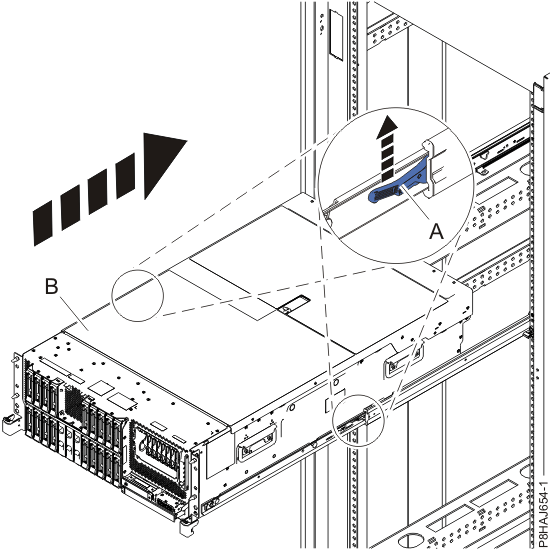
- Unlock the blue rail safety latches
- Replace the front cover.
- Gently push the cover in until the cover clips are seated in their respective mounting posts as shown in
the following figure. The cover snaps into place and has an indentation
where you can hold onto it more easily.
- Replace the shipping screws .
Figure 16. Installing the front cover 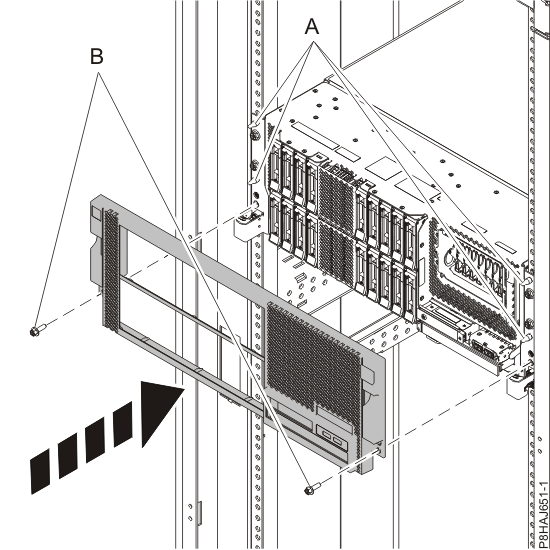
- Gently push the cover in until the cover clips
- Reconnect all cables, except for power cords. See Table 2 and Figure 17.
If optical Ethernet connections are used, use proper cleaning procedures.Important: The optical cable plugs (LC connectors) and ports (SFPs) must be cleaned before connecting them. Use cleaning tool 54Y4392 or IBM-approved alternative. After cleaning SFPs with the tool, use air bulb 45D2645 or IBM-approved alternative. For detailed procedures, refer to current DS8000 Info Alerts or contact your next level of support.
Table 2. CEC enclosure cable connections Connection Description P1-T3 (HMC 1) FSP Ethernet P1-T4 (HMC 2) FSP Ethernet P1-C3-T1, P1-C3-T2 PCIe to I/O enclosures (if C3 present) P1-C5-T1, P1-C5-T2 PCIe to I/O enclosures (if C5 present) P1-C6-T1, P1-C6-T2 PCIe to I/O enclosures P1-C7-T1, P1-C7-T2 PCIe to I/O enclosures P1-C8-T1, P1-C8-T2 i2c to RPCs P1-C10-T1, P1-C10-T2 LPAR Ethernet P1-C10-T3, P1-C10-T4 Customer network (optional feature, if used) P1-C11-T1, P1-C11-T2
P1-C11-T3, P1-C11-T4Customer network (optional feature, if used) P1-C12-T1, P1-C12-T2 RS485 to RPCs Figure 17. CEC enclosure location codes (rear view) (Models 981, 985, and 986) - Reconnect the power cords to the CEC enclosure. See Figure 18.
- Fasten the power cords to the enclosure using the hook-and-loop
fasteners .
Figure 18. Connecting the power cords 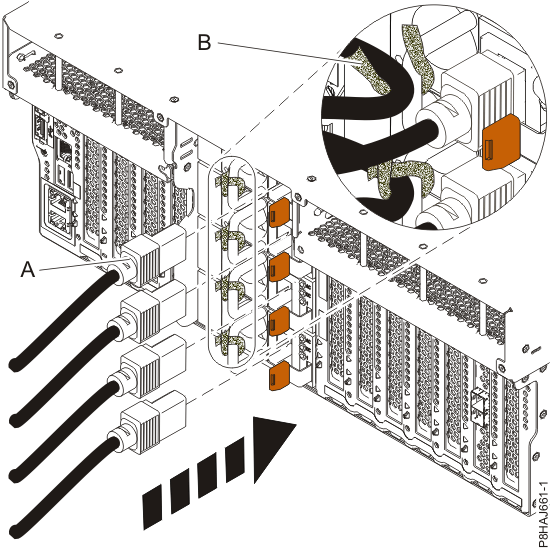
- Verify the CEC enclosure has power available. See Figure 18.
- Are all DC (output) LEDs flashing?
- Yes, continue with the next step.
- No, ensure the power cords are properly connected. If no connection problem is found, contact your next level of support.
Figure 19. Location of the power supplies and LEDs (Models 981, 985, 986)
- Are all DC (output) LEDs flashing?
- Wait up to 5 minutes for the CEC enclosure control panel
power button LED to flash. See Figure 20. Note: This ensures the CEC enclosure is in the power-off state.
- Yes, go to the next step.
- No, ensure the CEC enclosure power supplies are fully seated. The possible failing FRUs are the CEC enclosure system backplane, I2C interface card and cables, and control panel. You can also call the next level of support.
Figure 20. Control panel LEDs - Ensure that the CEC enclosure is in the power-off state
before you continue. At the CEC enclosure control panel, wait for
the CEC enclosure control panel power button LED to flash, and then continue at the next step. See Figure 21.
Figure 21. Control panel LEDs