Exchange the laptop tray cable bundle
Before you begin
 Use approved ESD procedures to prevent damage.
Attention:
- This procedure is not a stand-alone procedure. Customer disruption and damage to the hardware might occur when microcode and power boundaries are not in the proper conditions for this service action.
- If a serviceable event FRU repair directed you to this procedure, the microcode and power boundaries are already set.
- If a serviceable event FRU repair did not direct you to this procedure, see MAP1230 Replace a FRU without using a serviceable event.
Notes:
- All the cables and FRUs to be removed must be uniquely identified so they can be reinstalled correctly.
- If an installed earthquake resistance kit prevents you from accessing this FRU, refer to MAP1600.
Remove the laptop tray cable bundle
Procedure
- Disconnect the power cable from the J8 connector on PJA
E41 and PJA E42. See Figure 1, Figure 2, and Figure 3.
Figure 1. Ethernet switch tray locations (Model 961, rack version 1) 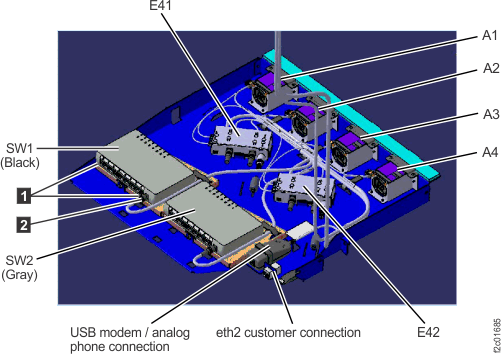
Figure 2. Ethernet switch tray locations (Model 961 rack version 2 rear) 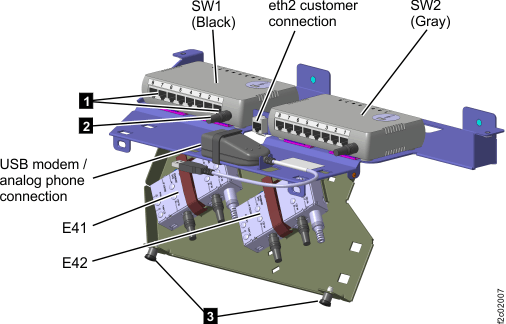
Figure 3. 20V power distribution 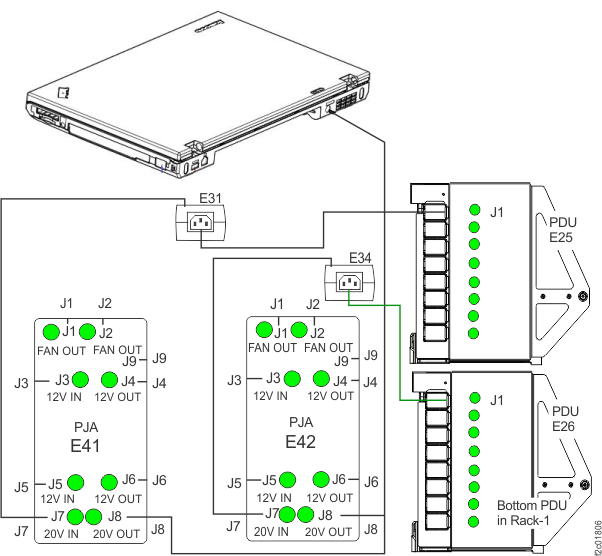
- At the laptop unit, disconnect
the power and communication cables.
- For T520 and T530 management consoles, disconnect the
following (see Figure 4):
- Power

- Left side, upper USB for eth0 black private network

- Left side, lower USB for eth3 gray private network

- Rear USB for modem

- eth2 customer network

- Power
- For T540 management consoles, disconnect the following (see Figure 5 and Figure 6):
Figure 4. ThinkPad T520, T530 laptop unit cable connections 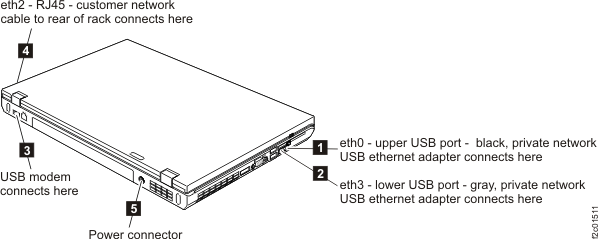
Figure 5. ThinkPad T540 laptop unit cable connections (left and rear) 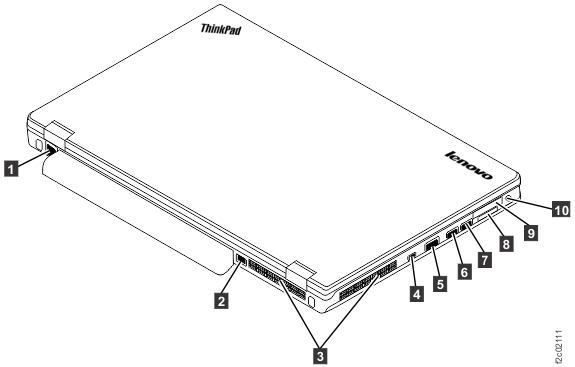
Figure 6. ThinkPad T540 laptop unit cable connections (right) 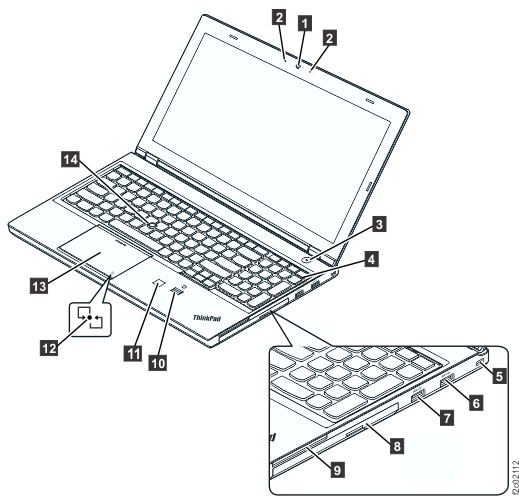
- For T520 and T530 management consoles, disconnect the
following (see Figure 4):
- Disconnect the gray USB cable from the USB Ethernet adapter with the gray Ethernet cable
connected to it. See Figure 7.
Disconnect the black USB cable from the USB Ethernet adapter with the black Ethernet cable
connected to it. See Figure 7.
Figure 7. Laptop USB to Ethernet adapter 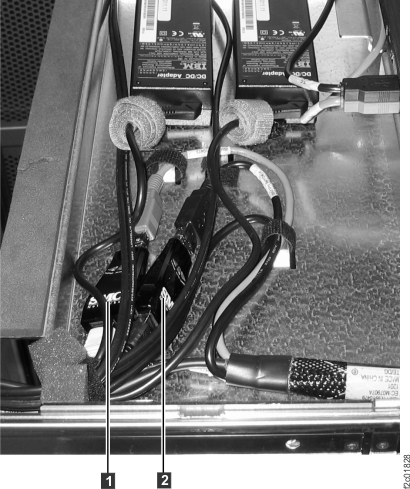
 (
( (
(Install the laptop tray cable bundle
Procedure
- Route the cable bundle through the cable management arm. Allow some slack in the cable so it is not pulled tight when the cable management arm is flexed.
- Connect all ends of the cable bundle at the rear of the rack.
- Connect the gray USB cable to the USB Ethernet adapter with the gray Ethernet cable
connected to it. See Figure 7.
- Connect the black USB cable to the USB Ethernet adapter with the black Ethernet cable
connected to it. See Figure 7.
- Route the cable bundle around the laptop and then connect all cables to the laptop.
- The laptop should automatically power on and after several minutes display the login screen. Login, display and repair any new open serviceable events related to the laptop.
- To verify the black and gray private networks, refer to MAP7001 Using the network topology tool.
- To test the modem and customer network connections, refer to Testing management console communications.
- Ensure the customer can access the management console.
- Exit this service information center parts exchange procedure and return to the procedure that sent you here.