MAP6107 Two MCs, reloading the management console LIC bundle VRMF 6.0.0.xxx for MC 1 or MC 2, no critical console data backup DVD
Use this MAP to reinstall the management console LIC bundle VRMF 6.0.0.xxx on MC 1 or MC 2 when a critical console data backup DVD is not available.
MAP6107 Section-1
Procedure
- Ensure that you were sent here from MAP6100 Reloading the management console licensed internal code (LIC).
- Table 1 lists
the four CDs that you need to reload the HMC code. The CDs are in
the HMC Recovery Kit. Note: A kit number is on each CD, below the IBM logo (for example, KIT: 23R0133). Ensure that all of the CDs have the same kit number.
Table 1. HMC Recovery Kit: CDs required to reload the HMC LIC bundle VRMF 6.0.0.xxx Order of use CD label Description Installation time (approximate) 1 HMC Base Recovery CD #1
Version: SQ4_BASE_050413.21Base operating system and base HMC code 18 minutes 2 HMC Base Recovery CD #2
Version: SQ4_BASE_050413.21Base operating system and base HMC code 8 minutes 3 HMC Base Recovery CD #3
Version: SQ4_BASE_050413.31Base operating system and base HMC code 4 minutes 4 HMC Extensions Recovery CD Unique code support for 2107 2 minutes Notes 1 - The version number shown is an example. - Do you have a copy of the most recent version of the customer
configuration worksheet? Note: The customer configuration worksheet should be stored in the Rack-1 document enclosure.
- Yes, go to step 5.
- No, go to the next step.
- Can you successfully log on to the HMC that you are repairing?
- Yes, perform the procedure in MAP6105 Display and record the HMC customer configuration and network settings information to display and record the needed information. Then return here and go to the next step.
- No, you must contact the customer to get a new copy of the information before continuing to the next step.
- Determine the level of code for the LIC bundle that is
currently installed on this HMC by logging in to the HMC that you
are repairing.
Can you login successfully?
- Yes, go to the next step.
- No, go to step 7.
- Display the level of HMC code.
- In the HMC Navigation area, under the Management Environment, expand the HMC (identified by hostname).
- Open Licensed Internal Code Maintenance > HMC Code Update.
- In the right content area, the Status section displays the level of HMC code.
- Go to step 8.
- Consider the following information when trying to determine
the level of HMC code and then go to the next step:
- If this HMC has VPN network access to download LIC bundles, a set of Update CDs might not be stored in Rack-1. Even if a set of Update CDs is stored in Rack-1, the code level of those CDs might not match the code level that is installed.
- If this HMC does not have VPN network access, one or more sets of Update CDs might be stored in Rack-1.
- Refer to customer account records that track the installed level of LIC bundles.
- Contact your next level of support to see if they can determine the code level by referring to call home MRPD reports, PE packages, or other means.
- Shut down and power off the management console. See MAP6640 Shutting down, restarting, and logging off the management console.
- At the rear of the management console server,
disconnect the following three Ethernet cables. See Figure 1 (X335 server)
or Figure 2 (X336
server) or Figure 3 (X3550 server).
- DS8000® network cable, black (eth0)
- DS8000 network cable, gray (eth3)
- Customer network cable (eth2)
Later, after you have reloaded the HMC code and all of the network settings have been restored, you will reconnect the cables.
Figure 1. Ethernet connectors on the rear of the X335 management console server 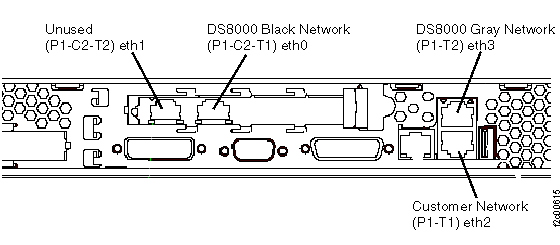
Figure 2. Ethernet connectors on the rear of the X336 management console server 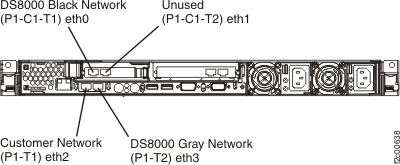
Figure 3. Ethernet connectors X3550 management console server (rear view) 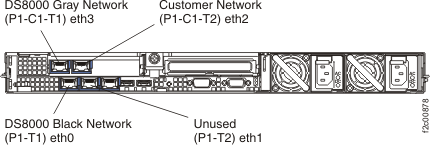
- Power on the management console and immediately
insert HMC Recovery CD #1. The management console powers
on, boots from the CD, and then displays the Hardware Management
Console - Hard Disk Install / Upgrade screen. This takes
about two minutes. Note: If the management console does not boot from the CD, use the X335/X336 Hardware Maintenance Manual and Troubleshooting Guide or the IBM® System x3550 Type 7978 and 1913 Problem Determination and Service Guide to isolate the problem. The guide is on the DS8000 service documentation CD. (The CD is part of the ship group).
- Press F8 to continue the Install/Recovery process.
- The Hard Disk Restore/Reload screen
is immediately displayed. Ensure that it includes the following text
and then press F1:
Press F1 to continue with the RESTORE / RELOAD process. Press ESC to exit the process. - In about 18 minutes, the CD is ejected and the message Phase 1 of the Restore process is Complete is displayed. Follow the on-screen instructions to insert the HMC Recovery CD #2. Press Enter.
- In about 8 minutes, the CD is ejected and the following
screen is displayed:
Please select one of the following options:
1 -- Install additional software from CD media
2 -- Finish the installation at a later time
Please enter your selection:
Type 1 and press Enter. When prompted, insert the HMC Base Recovery CD #3. Press Enter.
- In about 4 minutes, the CD is ejected and the following
screen is displayed.
Please select one of the following options:
1 -- Install additional software from CD media
2 -- Finish the installation at a later time
Please enter your selection:
Type 1 and press Enter. When prompted, insert the HMC Extensions Recovery CD. Press Enter.
- In about 2 minutes, the following screen is displayed:
Note: Some LIC bundle levels will not eject the CD. To manually open the media tray and remove the CD, insert a paper clip through the pinhole in the DVD-RAM drive.
Please select one of the following options: 1 -- Restore critical console data from DVD media Only select this option if you are performing a Hard Disk Recover. 2 -- Finish the installation Please enter your selection: - Type 2 to finish the installation and press Enter.
- The management console reboots
and the following screen is displayed:
WELCOME TO THE HMC ROLE SELECTION MENU ENTER A MENU OPTION FROM LIST 1) ASSIGN HMC AS PRIMARY 2) ASSIGN HMC AS SECONDARY 99) EXIT- Ensure MC 1 is on the label on the front of the keyboard/display tray.
- Type 1 and press Enter.
- When prompted, type Yes to confirm and then press Enter.
- When prompted, type the keyboard selection menu number that is
appropriate and press Enter.Note: If you do not make a selection within one minute, it will default to menu option 1 and then continue to the management console logon screen.
- Log on to the management console with user
ID
CEand passwordserv1cece.Was the logon successful?
- Yes, go to the next step.
- No, begin problem isolation at Start here.
- Use MAP6106 Restoring the HMC customer communication and network settings to restore the HMC communication and customer resources settings. Then return here and go to the next step.
- At the rear of the management console server, reconnect the three Ethernet cables that you disconnected in step 9.
- Contact your next level of support. They will remotely connect into the HMC that is not being repaired and remove the old "node information" for the HMC that is being repaired. The HMC command line procedure is outlined in a PE database document.
- Ensure both of the DS8000 private network connections (Interface eth0 and Interface eth3) are working properly. Use the Network Topology Tool to ensure that the LPAR nodes are displayed. See MAP7000 Entry point For storage facility private network problems.
- The DS Storage Manager code (also known as ICAT),
the IBM graphical user interface, that allows the customer to access
the storage manager must be installed. The CDA process is used to
ensure the HMC LIC bundle matches
the level on the storage facility and also to load the DS Storage
Manager code.
- Determine the bundle level of code that is installed on the storage facility. Check the Rack-1 document enclosure (front upper left) to see if any LIC code update kits have been installed beyond the original level of code that is on the HMC Recovery CD.
- Use the normal code update CDA process to acquire the needed LIC bundle level and
then install it.Note: DO NOT RUN the CDA pre-verify as it might fail because the storage facility might be at a higher LIC bundle level than the HMC after the recovery CDs were installed. After the HMC code has been updated, the CDA pre-verify should run clean.