Exchange the storage enclosure midplane
Before you begin
 Use approved ESD procedures to prevent damage.
Attention:
- This procedure is not a stand-alone procedure. Customer disruption and damage to the hardware might occur when microcode and power boundaries are not in the proper conditions for this service action.
- If a serviceable event FRU repair directed you to this procedure, the microcode and power boundaries are already set.
- If a serviceable event FRU repair did not direct you to this procedure, see MAP1230 Replace a FRU without using a serviceable event.
Notes:
- All the cables and FRUs to be removed must be uniquely identified so they can be reinstalled correctly.
- If an installed earthquake resistance kit prevents you from accessing this FRU, refer to MAP1600.
Remove the storage enclosure from the rack
Before you begin
Notes:
- Ensure that you have been directed here by a management console guided FRU replacement procedure. The FC-AL fabric for this and the directly associated storage enclosures must be in the proper state to protect the customer from data loss.
- This procedure requires an 8 mm socket wrench.
Procedure
- At the rear of the storage enclosure, remove both power
supplies.
- As each power supply is removed, note which power supply is in each location so they can be reinstalled in the same location.
- For vertical mount storage enclosures (locations B01, B02, B03, B04), loosen the top clamp screws and slide clamp up. See Figure 1.
- Disconnect both power input cables. See Figure 2.
- Push the orange retaining clip towards the black pull handle, and pull the power supply straight out from the enclosure. See Figure 3.
Figure 1. Storage enclosure top clamp 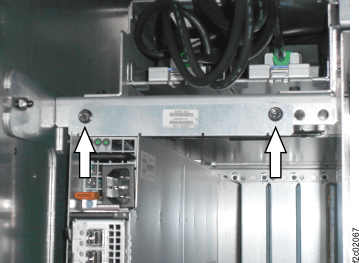
Figure 2. RAID controller card connections 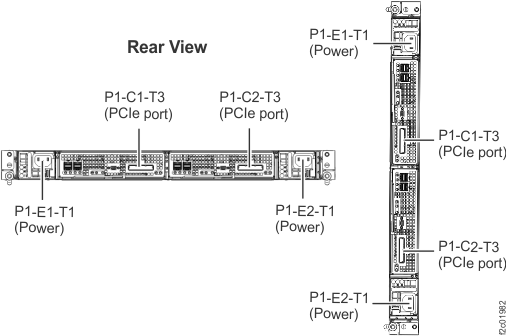
Figure 3. Storage enclosure power supply and midplane (rear view) Note: Models 98x do not have the vertical enclosure option.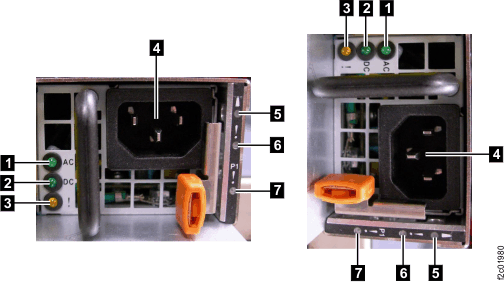
- At the rear of the storage enclosure, remove both RAID
controller cards.
- As each RAID controller card is removed, note which RAID controller is in each location so they can be reinstalled in the same location.
- Disconnect both PCIe cables. See Figure 2.
- Open the release lever
 . See Figure 4.
 - Support both sides of the RAID controller card
 while you slide it out of
the enclosure.
while you slide it out of
the enclosure.
Figure 4. Removing a RAID controller card (horizontal shown, vertical similar) 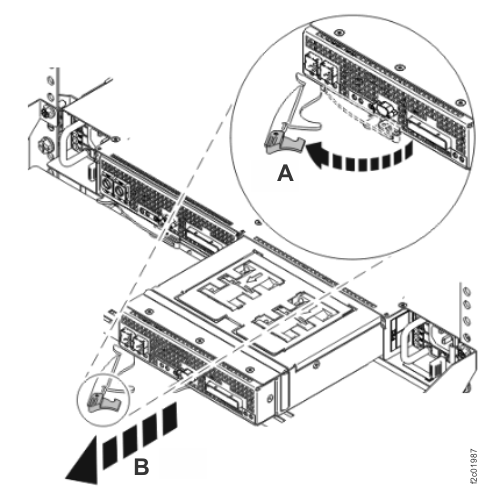
- At the front of the rack, remove each flash drive or slot
baffle from the storage enclosure and set in a safe place. Important: You must ensure that each one is plugged in the same position in the new storage enclosure. It is recommended that you write down the serial number and position of each part before removing them. See Figure 5.
- Remove the bezels
 .
. - Gently press the latch
 to release the drive handle.
- Pull the handle
 out and up or to the right.
This action partly ejects the drive out of its slot.
out and up or to the right.
This action partly ejects the drive out of its slot. - Gently slide the drive straight out of the slot.
Figure 5. Removing a flash drive (horizontal shown, vertical similar) 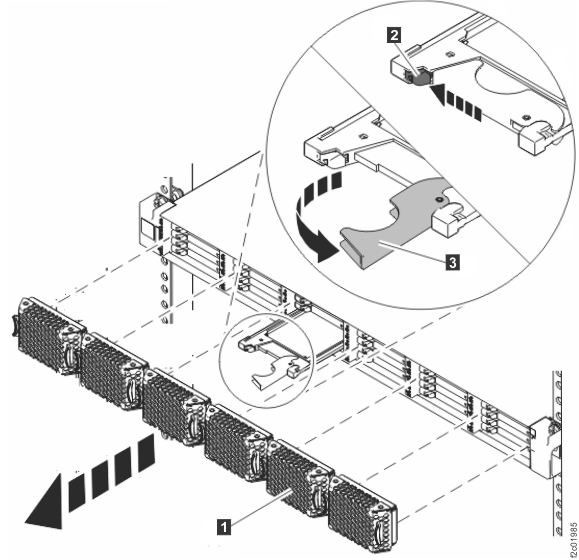
- Remove the bezels
Remove the midplane from the storage enclosure
Procedure
- Turn the enclosure upside down and place the enclosure
on a flat surface.
Figure 6. Turning the enclosure upside down 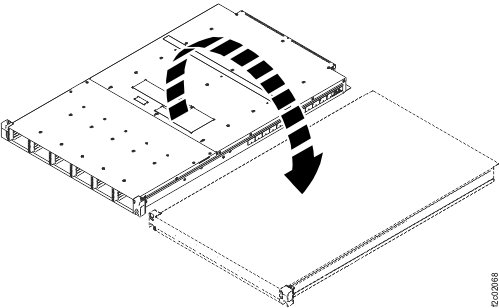
- Using the correct size Torx bit or driver,
remove the 10 screws from the bottom of the enclosure that are closest
to the front of the enclosure.
Figure 7. Removing the screws from the bottom of the enclosure 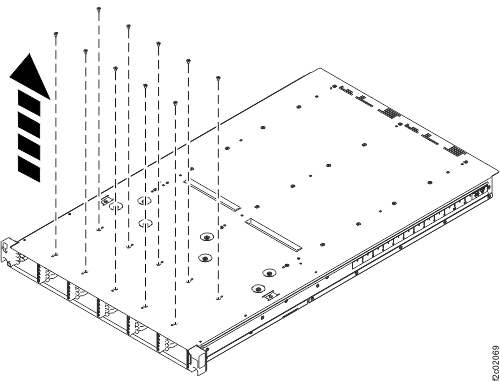
- Turn the enclosure topside up.
Figure 8. Turning the enclosure topside up 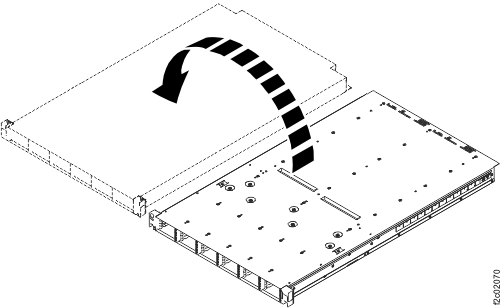
- Remove the 19 screws that secure the top
front cover to the enclosure.
Figure 9. Removing the screws from the top front cover of the enclosure 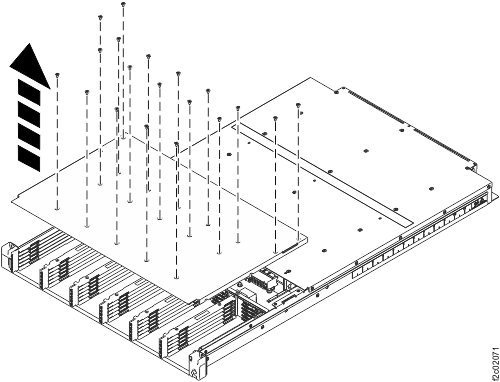
- Remove the two screws on the right side
of the enclosure and the two screws on the left side of the enclosure
that secure the flash drive rails to the enclosure.
Figure 10. Removing the screws on the right and left sides of the enclosure 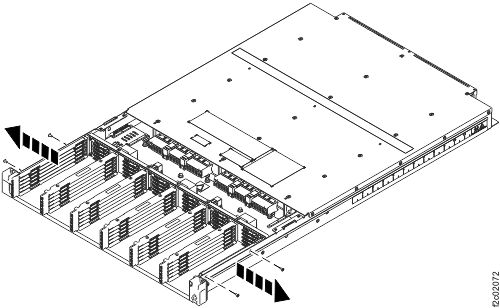
- Remove all seven flash drive rails. Note: The EMC springs on the flash drive rails can be easily bent. Avoid touching the EMC springs when handling the flash drive rails.
Figure 11. Removing the flash drive rails 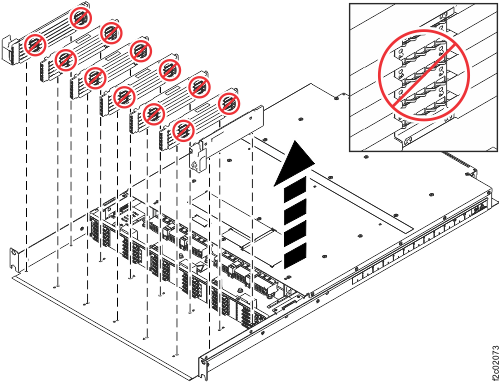
- Remove the seven screws that secure the
midplane to the enclosure. Do not remove the two screws at the center
that attach the midplane to its underplate assembly; the screws are
identified in the following figure.
Figure 12. Removing the midplane screws 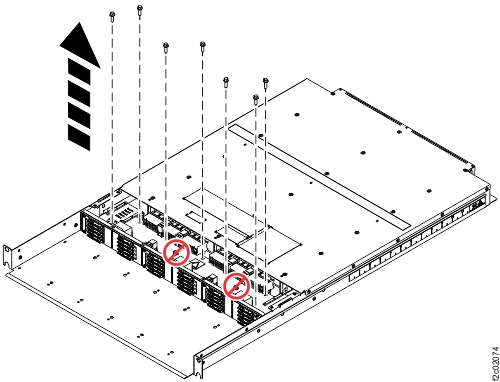
- Lift the midplane slightly and pull it forward to remove
it from the enclosure.
Figure 13. Removing the midplane 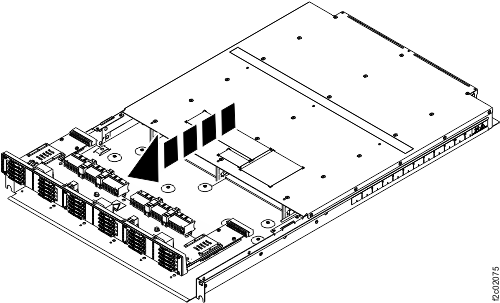
Install the midplane into the storage enclosure
About this task
To install a midplane, complete the following steps:
Procedure
- Install the new midplane, ensuring that the alignment pins
are properly seated. When seating the midplane on the alignment pins,
do not slide the midplane past the alignment pins in the direction
of the rear of the chassis. Attention: Sliding the midplane past the alignment pins might result in damage to the midplane.
Figure 14. Installing the midplane 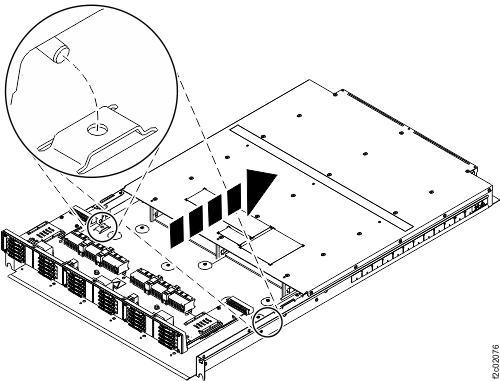
- Secure the midplane assembly to the enclosure by using
the seven screws that you removed in step 8 in the Remove the midplane from the storage enclosure section.
Figure 15. Installing the midplane screws 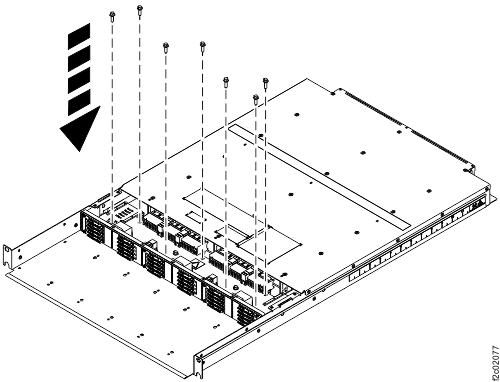
- Place the remaining five flash drive rails into position,
ensuring that the alignment pins on the bottom of each flash drive
rail are properly seated in the enclosure. Note: Ensure that the flash drive rails are positioned so that the drive location numbers are in ascending order from left to right.
Figure 16. Installing the flash drive rails 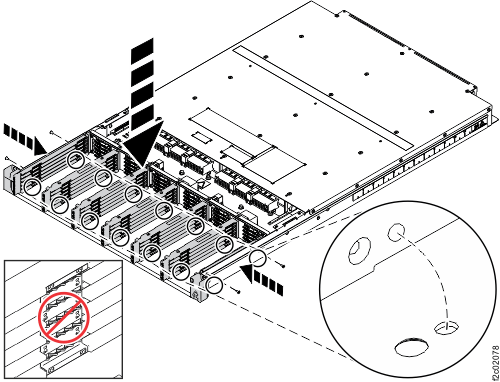
- Secure the top front cover to the enclosure by using the
19 screws that you removed in step 4 in the Remove the midplane from the storage enclosure section. Leave these screws slightly
loose for easier alignment when you secure the bottom screws.
Figure 17. Installing the screws in the top front cover of the enclosure 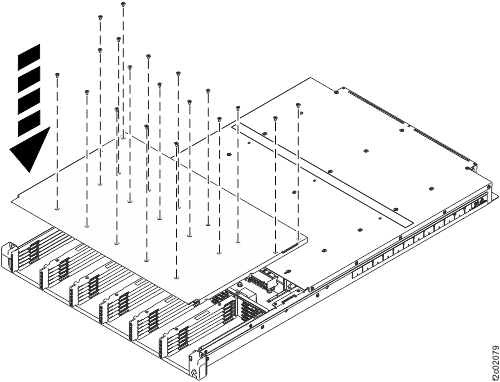
- Turn the enclosure upside down.
Figure 18. Turning the enclosure upside down - Secure the flash drive rails to the enclosure by using
the 10 screws that you removed in step 2 in the Remove the midplane from the storage enclosure section. Ensure that the alignment
pins on the bottom of each flash drive rail are properly seated in
the enclosure.
Figure 19. Installing the screws to the bottom of the enclosure 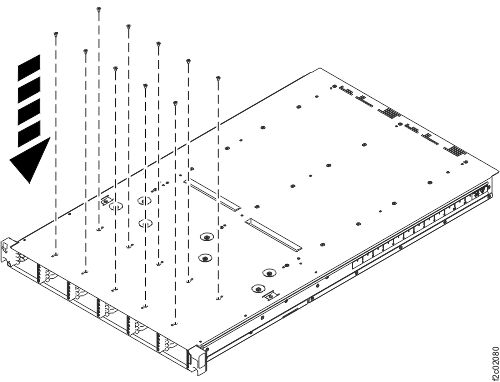
- Turn the enclosure topside up and tighten the top cover
screws. Note: To ensure that the PCIe enclosure maintains its proper shape, tighten the screws closest to the center of the enclosure first. Tighten the screws toward the front of the enclosure last.
Figure 20. Turning the enclosure topside up