Exchange the DC-UPS DC supply unit (DSU)
Before you begin
CAUTION:
This assembly contains mechanical moving parts. Use care when
you service this assembly. (C025)
 Use approved ESD procedures to prevent damage.
Attention:
- This procedure is not a stand-alone procedure. Customer disruption and damage to the hardware might occur when microcode and power boundaries are not in the proper conditions for this service action.
- If a serviceable event FRU repair directed you to this procedure, the microcode and power boundaries are already set.
- If a serviceable event FRU repair did not direct you to this procedure, see MAP1230 Replace a FRU without using a serviceable event.
Notes:
- All the cables and FRUs to be removed must be uniquely identified so they can be reinstalled correctly.
- If an installed earthquake resistance kit prevents you from accessing this FRU, refer to MAP1600.
Remove the DC-UPS DC supply unit (DSU)
Procedure
- Open the left rear cover. Remove the two screws
 that secure the right rear cover (trained
service personnel access area only).
that secure the right rear cover (trained
service personnel access area only).
Open the right rear cover. See Figure 1.Note: The screws must be reinstalled when the cover is closed to prevent customer access.Figure 1. Removing retaining screws on right rear machine cover 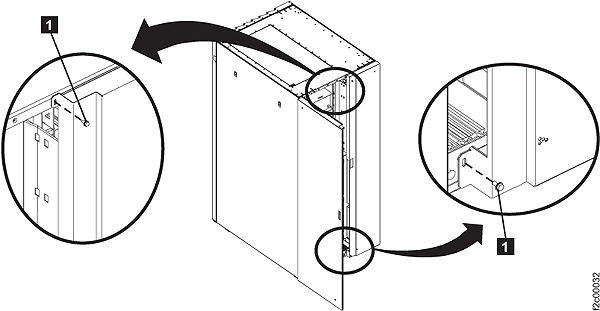
- To locate this FRU, take one of the following actions and then return here and
continue to replace the FRU:
- If this FRU has a FRU identify indicator, use the FRU identify indicator,
which is listed in MAP1240 Locating FRUs by using identify indicators.
If not, use the location
code.Note: There might be cases where the FRU failure or fencing conditions prevent the FRU LED indicator from being lit even if the FRU has power.
- Use the location code, which is listed in MAP1245 Finding FRUs by using location codes.
- If there is no FRU identify indicator or location code, you were sent here by an isolation MAP or symbolic FRU procedure. Use the information in that procedure and the figures in this procedure to locate the proper part to exchange.
Figure 2. Base rack locations, front and rear 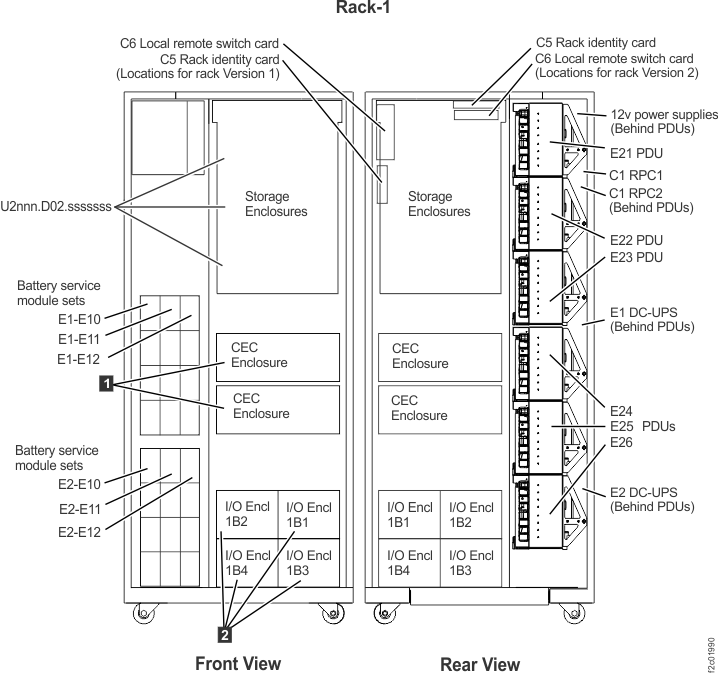
- If this FRU has a FRU identify indicator, use the FRU identify indicator,
which is listed in MAP1240 Locating FRUs by using identify indicators.
If not, use the location
code.
- Most, but not all, FRUs have identify indicators. Use the flashing amber or solid blue FRU identify indicators to ensure that you are working
on the correct enclosure or FRU.
- The
light path
identify LEDs are a hierarchy of LEDs that can identify the rack, enclosure, FRU, and even the FRU connector to which a cable is connected. - For more information, refer to MAP1240 Locating FRUs by using identify indicators.
- The
- Remove the right rear cover. See Figure 3.
- On the upper and lower door hinges, loosen the screw and pivot the retention plate
 that secures hinge pin
  .
. - Lift the hinge pins up to remove them.
- Remove the rear cover and place it in a safe location.
- Temporarily store the hinge pins in the rack or cover hinges.
Figure 3. Removing rear left cover (right rear cover similar) 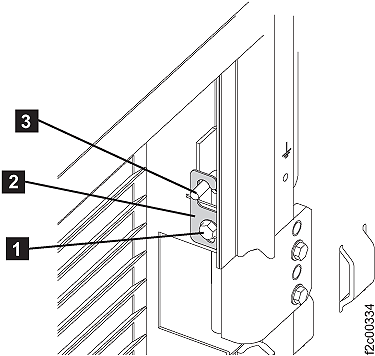
- On the upper and lower door hinges, loosen the screw
- Unfasten and then rotate all six power distribution
units (PDUs) away from the rear of the rack. See Figure 4.
Figure 4. Power distribution units in normal position (rack rear view) 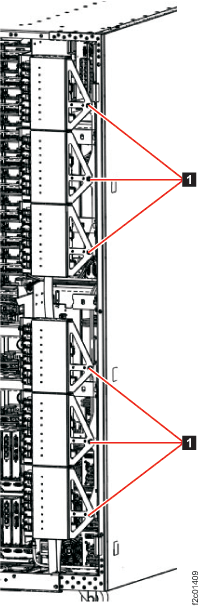
- Use a PDU service tool to keep the upper three PDUs in
the open position. Use a second PDU service tool to keep the lower
three PDUs in the open position. See Figure 5 and Figure 6.
- The PDU service brackets are stored in the Rack-1 front upper left documents enclosure.
- The upper three and lower three PDUs swing out as separate groups. Each group of three has a removable PDU alignment bracket.
- The PDU service tool should be installed at the bottom of the middle PDU of each group of three PDUs.
- The PDU service tool bottom tab is inserted between the upper and
lower PDUs.
- The PDU service tool fingers and straddle the PDU support bracket.
- Figure 6 shows the tool properly installed. The tool is delicate, do not put unnecessary force on the PDU group.
Figure 5. PDU service tool 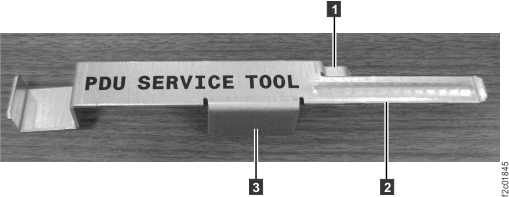
Figure 6. PDU service tool installed 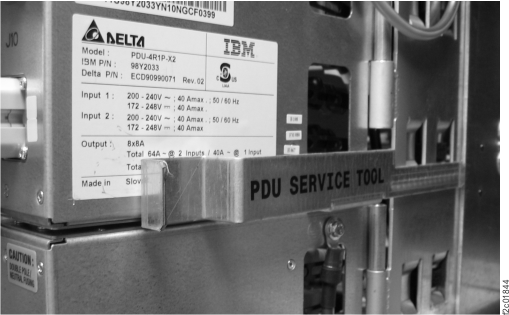
- Remove the upper and/or lower cable bracket as needed to allow access to the DC-UPS DSU upper
and lower sections. See Figure 7. Remove
the cable ties as
needed. Loosen and do not remove the screws . Remove the bracket.
Figure 7. Cable bracket 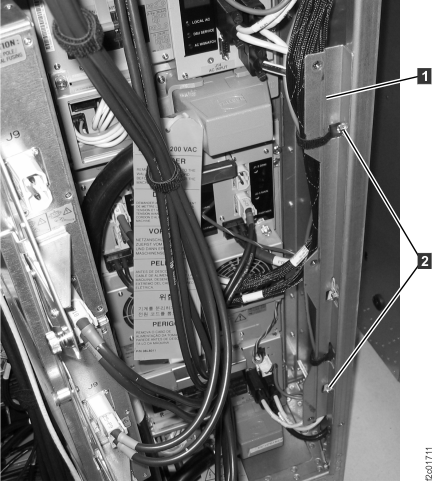
- If you are removing the upper DC-UPS DSU, remove
the rear door latch bracket . It is held in place by two hex head
screws . See Figure 8.
Figure 8. Rear door latch bracket 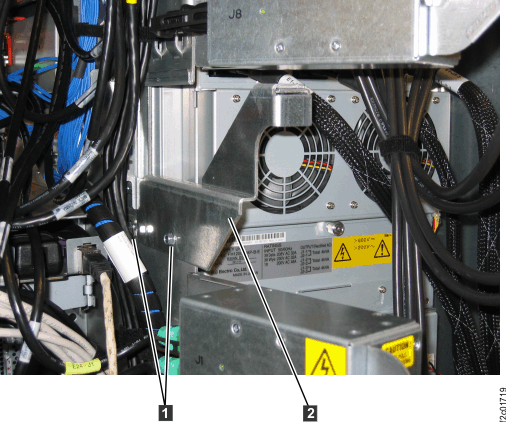
- READ THIS ENTIRE STEP BEFORE PERFORMING IT.
- Confirm the location of the DC-UPS DSU being repaired. The DSU Service LED is flashing.
- Disconnect the cable from Ex-J9 at the bottom right of the OTHER DC-UPS DSU - the one NOT being repaired. See Figure 9.
- With the J9 cable disconnected, the DSU Service LED is now out on the DC-UPS being repaired.
Note: This protects the DC-UPS DSU not being repaired from any possible problem caused by the connector pins at the other end of the cable making accidental contact with frame ground.Figure 9. Location codes for the DC-UPS (Models 961, 96E) (rear) 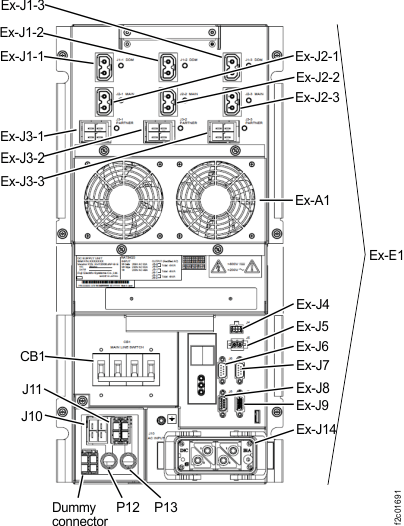
- Have the customer remove power to the DC-UPS DSU being
repaired.
- Observe the rear of the DC-UPS DSU.
Is the LOCAL AC LED (Figure 10) indicator off?
- Yes, the customer has removed power from the correct DC-UPS DSU. Continue with the next step.
- No, stop. The customer has not removed power from the correct DC-UPS DSU. Notify the customer. When you can answer yes above, continue with the next step.
- Observe the rear of the DC-UPS DSU.
- At the DC-UPS DSU being
repaired, set the CB1 main line switch
 to Off (down). See Figure 10. This is the DC-UPS DSU which
still has the signal cable attached at Ex-J9.
to Off (down). See Figure 10. This is the DC-UPS DSU which
still has the signal cable attached at Ex-J9. Figure 10. DC-UPS DC supply unit (DSU) 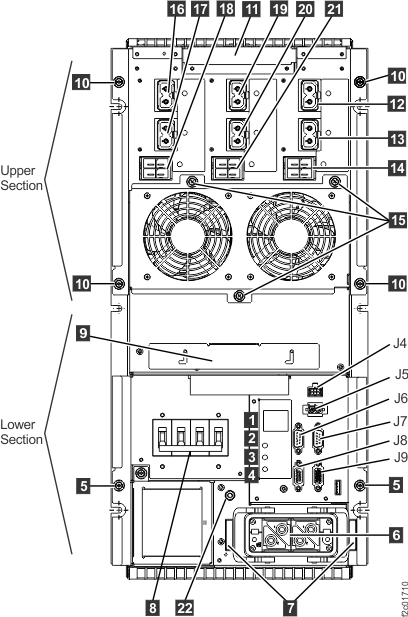
- At the DC-UPS DSU being repaired, disconnect the
mainline power cable. Push the two release levers
 . See Figure 10.
 - If you are replacing the lower DC-UPS DSU (E2),
do the following:
- Loosen the cable ties , for the power cables that cross behind
the DC-UPS DSU.
See Figure 11.
- In the following steps, move those cables out of the way as needed.
Figure 11. Power cables behind lower DC-UPS DSU (E2) 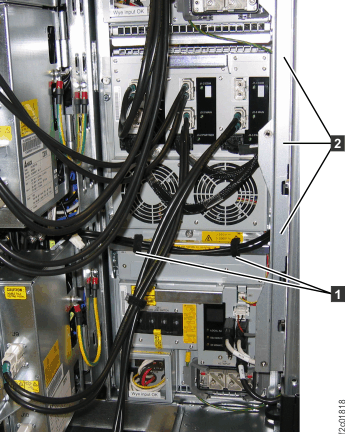
- Loosen the cable ties
- At the DC-UPS DSU being repaired, disconnect the
DSU-to-DSU power cables from J3-1, J3-2 and J3-3 (
 ,
,  and
and  ). See Figure 10.
Restrain the cables to allow the DSU to be removed and prevent the recessed connector contacts from touching other metal objects such as the DC-UPS chassis.WARNING: High voltage is present at the recessed contacts of the shielded connectors on the DSU-to-DSU power cables.Note: If a J3-1, J3-2 or J3-3 cable connector will not release, check the following.
Each connector has two release latches interconnected by a plastic tab. If that tab breaks, you need to release both latches. - Locate the green and yellow ground cable
 to the left of the mainline power
connector. See Figure 10.
to the left of the mainline power
connector. See Figure 10.
Does the new DC-UPS DSU FRU have a green and yellow ground cable?
- Yes, at the DC-UPS DSU being repaired, disconnect the green and yellow ground cable at the rack end. Continue at the next step.
- No, disconnect the green and yellow ground cable from the DC-UPS DSU being repaired. Continue at the next step.
- Gently slide each primary battery service
module 1 inch (2.54 cm) out of its enclosure so it undocks from the
DC-UPS.
- At the front of the rack, remove the retaining screw (Figure 12) at the top of each
primary battery service module in the DC-UPS being repaired: Ex-E12,
Ex-E11(if present), Ex-E10 (if present). See Figure 13.
- Do not disconnect the power cable from primary battery
service module connector J20 .
Figure 12. Battery service module set 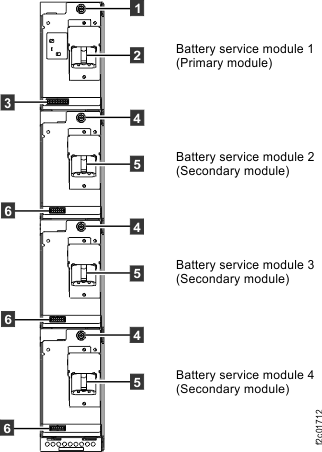
Figure 13. Base rack locations, front and rear - At the front of the rack, remove the retaining screw
- At the rear of the rack, unscrew the four screws
 securing the upper section of the DC-UPS DSU to the
sheet metal chassis. See Figure 10.
securing the upper section of the DC-UPS DSU to the
sheet metal chassis. See Figure 10. - Remove the upper section of the DC-UPS DSU.
- Unscrew the two screws
 securing the lower section of the DC-UPS to the
sheet metal chassis. See Figure 10.
securing the lower section of the DC-UPS to the
sheet metal chassis. See Figure 10. - Remove the lower section of the DC-UPS DSU. See Figure 15.
- Hold the left side release lever up.
- Pull on the lower handle and begin to slide the lower section
out.
- After the lower section is clear of the release level, support the bottom with your other hand (Figure 15).
- Remove the lower section from the rack.
Figure 15. DC-UPS DSU lower section left side release lever 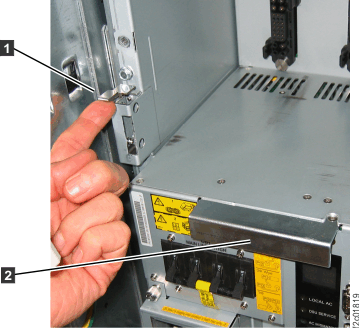
- Hold the left side release lever
 . See
. See 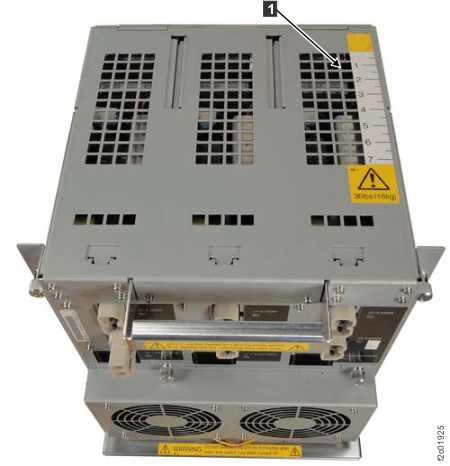
Compare the new and old DC-UPS DC supply unit (DSU) input phase selection settings
About this task
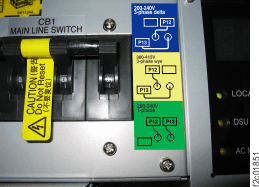
The DC-UPS DSU input phase selection settings must be correct for the type of power the customer is providing. If the settings are incorrect, the DC-UPS fails to power on.
Procedure
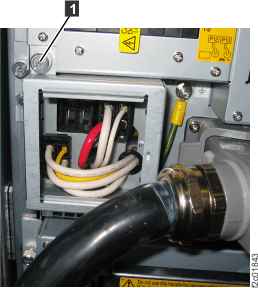
- Determine the input phase selection settings for the old DC-UPS DSU.
Install the DC-UPS DC supply unit (DSU)
Procedure
- Install the lower section of the DC-UPS DSU.
- Ensure the CB1 main line switch is Off (down).
- Slide the lower section in.
- Raise the retaining latch as needed to ensure the section is
fully seated. See Figure 15.
- Ensure the two screws are securely tightened.
- If the new DC-UPS did not
include the fan assembly on the upper section, transfer the fan assembly
from the original DC-UPS DSU. The fan
assembly is held in place by the three screws
 . See Figure 10.
 - At the front of the rack, insert the primary
battery service modules. Install the retaining screw at the top of each
battery service module. See Figure 12.
- At the rear of the DC-UPS DSU being repaired,
connect the DSU-to-DSU power cables at J3-1, J3-2 and J3-3 (, and ). See Figure 10. Take care that
the recessed contacts of the connectors do not touch other metal objects
such as the DC-UPS chassis. WARNING: High voltage is present at the recessed contacts of the shielded connectors on the DSU-to-DSU power cables.
- At the DC-UPS DSU being
serviced, ensure the CB1 main line switch is Off (down).
- If you are repairing Rack-2, 3 or 4, observe the rack operator
panel LEDs on the upper right of the rack front cover. See Figure 18.
- The upper green LED is for the upper DC-UPS (E1).
- The lower green LED is for the lower DC-UPS (E2).
Is the green LED for the DC-UPS you just repaired lit solid or slow flashing?
- Yes, continue at the next step.
- No, ensure the cable is properly connected to the DC-UPS DSU J8 connector.
The cable can be hot-plugged.
If the LED is now properly lit, continue at the next step.
If the LED is not lit, the possible failing FRUs are:- Rack identity card to DC-UPS cable
- Rack identity card
- Rack identity card to operator panel LED assembly cable
- Rack operator panel LED assembly
Note: E1-J8 (Upper DC-UPS DSU) cable goes to C5-J1 (rack identity card).
E2-J8 (Lower DC-UPS DSU) cable goes to C5-J2 (rack identity card).
C5-J3 (rack identity card) cable goes to rack operator panel LED assembly.
Figure 18. Rack operator panel LEDs on upper right of rack front cover 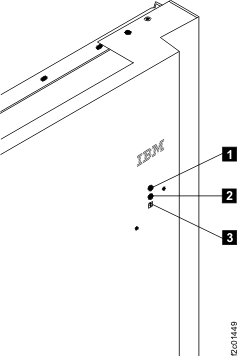
- The upper green LED
- If you removed the rear door latch bracket , reinstall it now. See Figure 8.