Exchange the I/O enclosure device adapter card, optical (4-port)

Before you begin

Icon for electrostatic discharge wrist strapUse approved ESD procedures to prevent damage.

Attention:
  • This procedure is not a stand-alone procedure. Customer disruption and damage to the hardware might occur when microcode and power boundaries are not in the proper conditions for this service action.
  • If a serviceable event FRU repair directed you to this procedure, the microcode and power boundaries are already set.
  • If a serviceable event FRU repair did not direct you to this procedure, see MAP1230 Replace a FRU without using a serviceable event.
Notes:
  • All the cables and FRUs to be removed must be uniquely identified so they can be reinstalled correctly.
  • If an installed earthquake resistance kit prevents you from accessing this FRU, refer to MAP1600.

Remove the I/O enclosure device adapter card, optical (4-port)

Procedure

  1. To locate this FRU, take one of the following actions and then return here and continue to replace the FRU:
    • If this FRU has a FRU identify indicator, use the FRU identify indicator, which is listed in MAP1240 Locating FRUs by using identify indicators. If not, use the location code.
      Note: There might be cases where the FRU failure or fencing conditions prevent the FRU LED indicator from being lit even if the FRU has power.
    • Use the location code, which is listed in MAP1245 Finding FRUs by using location codes.
    • If there is no FRU identify indicator or location code, you were sent here by an isolation MAP or symbolic FRU procedure. Use the information in that procedure and the figures in this procedure to locate the proper part to exchange.
  2. Most, but not all, FRUs have identify indicators. Use the flashing amber or solid blue FRU identify indicators to ensure that you are working on the correct enclosure or FRU.
  3. At the rear of the rack, ensure that the FC-AL cables are properly labeled and disconnect them from the small form-factor pluggables (SFPs) in the card being removed.
    Note: An FC-AL cable that has been replaced will have no location label. Mark the cable so you can reconnect it to the same port later in this procedure.
    Attention: The device adapter card is pretested as an assembly. DO NOT remove or relocate SFPs from the card.
  4. Unlatch the two blue levers Callout label 1 to the left of the card being removed. See Figure 1.
    Figure 1. I/O enclosure device adapter card, optical (4-port) blue retention levers
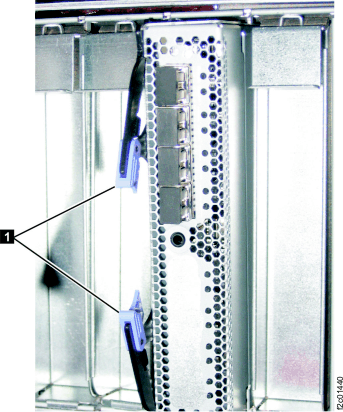
    I/O enclosure adapter retention levers
  5. Slide the card assembly out.

Install the I/O enclosure device adapter card, optical (4-port)

Procedure

  1. Slide the card in and use the two blue levers to latch it in place.
    Important: The optical cable plugs (LC connectors) and ports (SFPs) must be cleaned before connecting them. Use cleaning tool 54Y4392 or IBM-approved alternative. After cleaning SFPs with the tool, use air bulb 45D2645 or IBM-approved alternative. For detailed procedures, refer to current DS8000 Info Alerts or contact your next level of support.
  2. For the FC-AL cables:
    • If you are doing a normal repair, use the labels to properly connect the FC-AL cables.
      • For FC-AL cables having labels which include the physical location code (example: R1-XC2-P1-C6-T2), see Figure 2.
      • For FC-AL cables having labels with only the three-character connection designators (example: 4A1), see Figure 3.
    • If you are installing the card as part of an MES, do not connect the FC-AL cables until directed later.
    Figure 2. FC-AL location codes for the device adapter card FC-AL ports
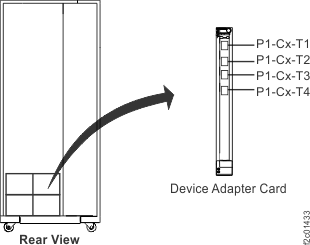
    Model 951 Location codes for the device adapter card
    Figure 3. FC-AL connection designators for the device adapter card FC-AL ports
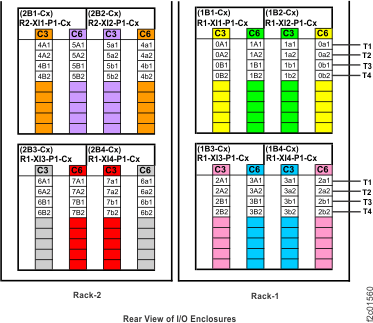
    FC-AL connection designators for the device adapter card FC-AL ports
  3. Exit this service information center parts exchange procedure and return to the procedure that sent you here.