Exchange the I/O enclosure PCIe and PCN card

Before you begin

Icon for electrostatic discharge wrist strapUse approved ESD procedures to prevent damage.

Attention:
  • This procedure is not a stand-alone procedure. Customer disruption and damage to the hardware might occur when microcode and power boundaries are not in the proper conditions for this service action.
  • If a serviceable event FRU repair directed you to this procedure, the microcode and power boundaries are already set.
  • If a serviceable event FRU repair did not direct you to this procedure, see MAP1230 Replace a FRU without using a serviceable event.
Notes:
  • All the cables and FRUs to be removed must be uniquely identified so they can be reinstalled correctly.
  • If an installed earthquake resistance kit prevents you from accessing this FRU, refer to MAP1600.

Remove the I/O enclosure PCIe and PCN card

Procedure

  1. To locate this FRU, take one of the following actions and then return here and continue to replace the FRU:
    • If this FRU has a FRU identify indicator, use the FRU identify indicator, which is listed in MAP1240 Locating FRUs by using identify indicators. If not, use the location code.
      Note: There might be cases where the FRU failure or fencing conditions prevent the FRU LED indicator from being lit even if the FRU has power.
    • Use the location code, which is listed in MAP1245 Finding FRUs by using location codes.
    • If there is no FRU identify indicator or location code, you were sent here by an isolation MAP or symbolic FRU procedure. Use the information in that procedure and the figures in this procedure to locate the proper part to exchange.
  2. Most, but not all, FRUs have identify indicators. Use the flashing amber or solid blue FRU identify indicators to ensure that you are working on the correct enclosure or FRU.
  3. If you are repairing I/O enclosure 1B3 or 1B4 in a model 984, 985, 986, or 988, confirm that redundant PJA power is available.
    1. If you are repairing an enclosure other than 1B3 or 1B4, or an enclosure in models other than 984, 985, 986, or 988, continue to step 4.
    2. If you are repairing enclosure 1B3 or 1B4 in models 984, 985, 986, or 988, at the rear of the rack, check all LEDs on the partner PJA. Confirm that the green LEDs are lit for all ports on the partner PJA. See Table 1.
      Attention:

      Performing this repair on the models that are listed removes power to one PJA. If the partner PJA is not fully operational, power might be lost to the Ethernet switches, management consoles, or management console display.

      Table 1. Partner PJAs for I/O enclosure repair
      I/O enclosure to repair Provides power to PJA Partner PJA to check
      U1500.1B3.sssssss-P1 (R1-XI3) E42 E41
      U1500.1B4.sssssss-P1 (R1-XI4) E41 E42
    3. Are all port LEDs lit on the partner PJA?
      • Yes, continue with the next step.
      • No, stop this repair. Correct the problem with the partner PJA before you continue this procedure.
  4. At the front of the rack, for the I/O enclosure that is being repaired, unplug the power input cable from power supplies E1 and E2. See Figure 1.
    Figure 1. I/O enclosure locations (front) (models 98x, 8xE)
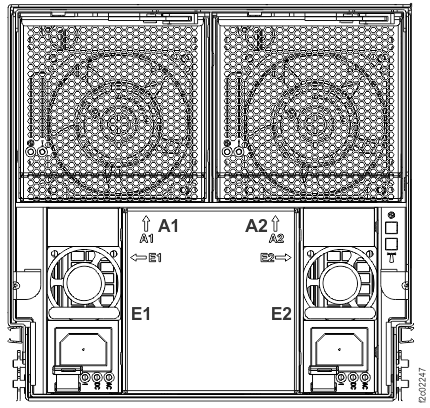
    I/O enclosure locations (front) (models 98x)
  5. At the rear of the rack, ensure that the PCIe and PCN cables are properly labeled and then disconnect them from the card that is being removed. See Figure 2.
    1. Disconnect the two PCIe cables from C7 ports T1 and T2. Gently pull the release handle and then unplug the cable.
    2. Disconnect the PCIe optical transceivers, if present, from C7 ports T3 and T4. Leave each host cable (if present) attached to its transceiver. Gently pull the release handle and then unplug each transceiver.
      Note: Depending on configuration, there might be zero, one, or two host PCIe optical transceivers and host cables that are connected to ports T3 and T4.
    3. Disconnect the storage enclosure PCIe cables, if present, from C7 ports T5 and T6. Gently pull the release handle and then unplug the cable.
      Note: Depending on configuration, there might be zero, one, or two storage enclosure PCIe cables that are connected to ports T5 and T6.
    4. Disconnect the two PCN cables from C7 ports T7 and T8. Gently pull the release handle and then unplug the cable.
    5. Disconnect the power cable, if present, from port T10. Gently pull the release handle and then unplug the cable.
    6. Continue to next step.
    Figure 2. I/O enclosure locations (rear) (models 98x, 8xE)
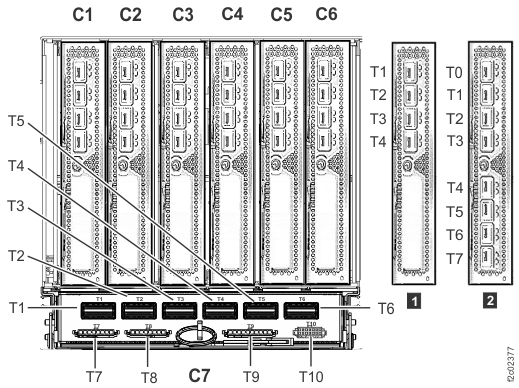
    I/O enclosure locations (rear) (models 98x)
  6. Unlatch the blue lever at the bottom of the card and then pull the ring to slide the card out of the I/O enclosure. See Figure 2.
  7. Slide the card out.

Install the I/O enclosure PCIe and PCN card

Procedure

  1. Slide the card in and use the blue lever to latch it in place.
  2. Connect the PCN cables to ports T7 and T8.
  3. Connect the PCIe cables to ports T1 and T2.
  4. Will you run a wrap test on the PCIe optical transceivers (zHyperLink, if present) as part of this repair?
    • Yes, proper cleaning procedures must be followed when attaching the wrap plug as well as when reattaching the host cables.
      Important: The optical cable plugs (MPO or MTP connectors) and transceiver ports must be cleaned before you connect them. Use cleaning tool 43W3044 or IBM-approved alternative. Cleaning procedures are provided with the tool. After you clean the transceiver ports with the tool, use air bulb 45D2645 or IBM-approved alternative. For detailed procedures, refer to current DS8000 Info Alerts or contact your next level of support.

      Go to step 5.

    • No, a wrap test will not be run, or optical transceivers are not present. Go to step 5.
  5. Connect the PCIe optical transceivers (zHyperLink) and their attached host cables, if present, to ports T3 and T4.
  6. Connect the storage enclosure PCIe cables, if present, to ports T5 and T6.
  7. Connect the power cable, if present, to port T10.
  8. At the front of the rack, connect the power input cable to each power supply in the I/O enclosure.
  9. Exit this service information center parts exchange procedure and return to the procedure that sent you here.