Exchange the laptop DVD-RAM drive
Before you begin
 Use approved ESD procedures to prevent damage.
Attention:
- This procedure is not a stand-alone procedure. Customer disruption and damage to the hardware might occur when microcode and power boundaries are not in the proper conditions for this service action.
- If a serviceable event FRU repair directed you to this procedure, the microcode and power boundaries are already set.
- If a serviceable event FRU repair did not direct you to this procedure, see MAP1230 Replace a FRU without using a serviceable event.
Notes:
- All the cables and FRUs to be removed must be uniquely identified so they can be reinstalled correctly.
- If an installed earthquake resistance kit prevents you from accessing this FRU, refer to MAP1600.
Remove the laptop DVD-RAM drive
Procedure
- At the rear of the laptop, lift the release knob and rotate
the laptop 90 degrees clockwise. This will provide access to the
drive.
Figure 1. Laptop release knob 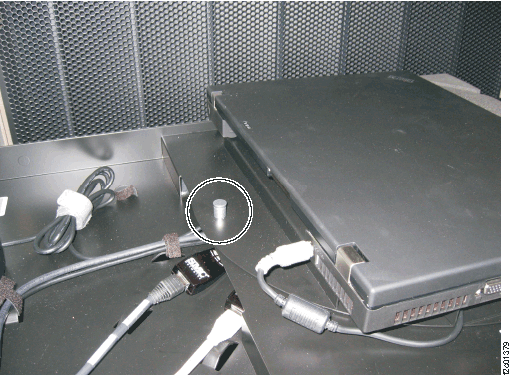
- Remove the DVD-RAM drive from the laptop.
- Refer to IBM® DS8000® series Service Documents CDROM in the installation ship group. It should be stored in the front upper left open compartment of Rack-1.
- Start the CD and open the laptop service documentation PDF.
Note: If you need to remove the laptop from the rack then refer to Exchange laptop unit internal parts.Figure 2. Laptop DVD-RAM drive 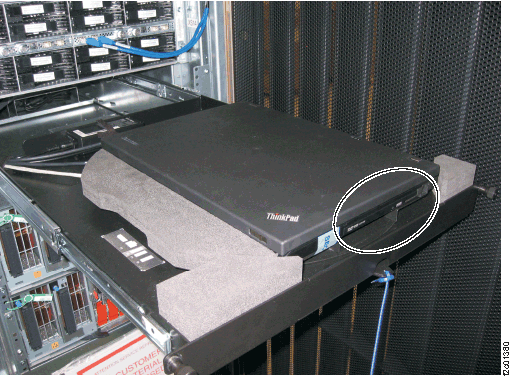
Install the laptop DVD-RAM drive
Procedure
- Install the new DVD-RAM drive.
- Rotate the laptop counter clockwise to the normal position and ensure the rear latch is secured.
- Power on and log in to the laptop management console.
- Exit this procedure and return to the procedure that sent you here.