Exchange the management console display/keyboard
Before you begin
 Use approved ESD procedures to prevent damage.
Attention:
- This procedure is not a stand-alone procedure. Customer disruption and damage to the hardware might occur when microcode and power boundaries are not in the proper conditions for this service action.
- If a serviceable event FRU repair directed you to this procedure, the microcode and power boundaries are already set.
- If a serviceable event FRU repair did not direct you to this procedure, see MAP1230 Replace a FRU without using a serviceable event.
Notes:
- All the cables and FRUs to be removed must be uniquely identified so they can be reinstalled correctly.
- If an installed earthquake resistance kit prevents you from accessing this FRU, refer to MAP1600.
Remove the management console display/keyboard
About this task
Procedure
-
Power off the management console display, use the power button
 . Ensure the power LED
  is off.
Figure 1. Management Console Power LED and Switch 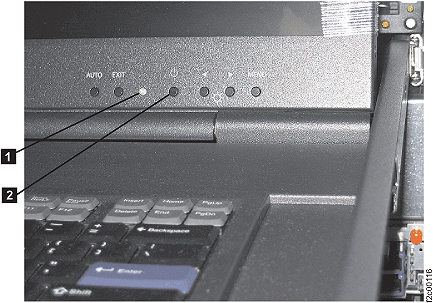
-
At the rear of the rack, disconnect the management console server power cable .
-
At the rear of the rack, disconnect the management console keyboard/display integrated cable
from the management
console server.
Figure 2. Management console rear connectors 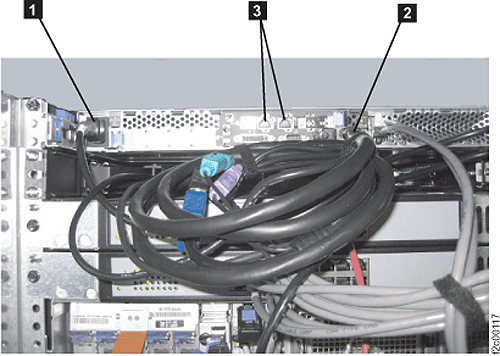
- Disconnect the management console keyboard/display
power cable from the rack power cable.
Figure 3. Management console keyboard/display power cable 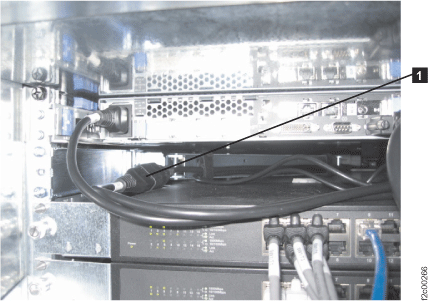
-
Disconnect the three connectors between the management console
keyboard/display integrated cable
 and the management console
keyboard/display cable .
Set the integrated cable aside for now.
and the management console
keyboard/display cable .
Set the integrated cable aside for now.
Figure 4. Management console keyboard/display integrated cable 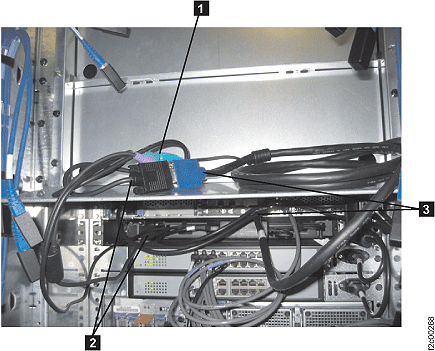
- At the front of the rack:
- Loosen the two black thumbscrews .
- Move the keyboard/display out from the rack (leave the display in the down
position).
- Remove the four screws that fasten the keyboard/display rails to
the rack.
Figure 5. Management console keyboard/display rail screws 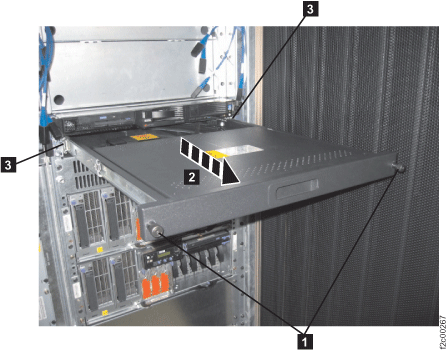
- Loosen the two black thumbscrews
- At the rear of the rack, move the 208V multi-cable away from the
right rear rail. Loosen the two screws .
Figure 6. 208VDC multi-cable 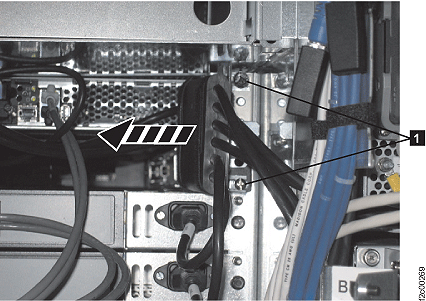
- Remove the 4 screws holding the rear rails (right two screws shown).
Figure 7. Management console rear rail screws 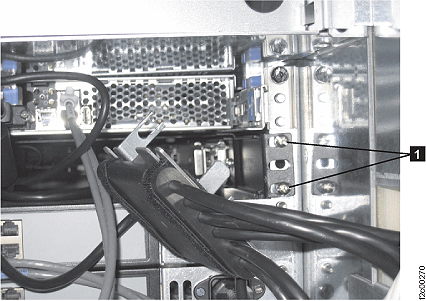
-
Squeeze the rails towards each other, so they can clear the rack rails they were fastened to.
Then push them in towards the front of the rack just a little (management console keyboard/display
shown on table for clarity only).
Figure 8. Management console rear rails 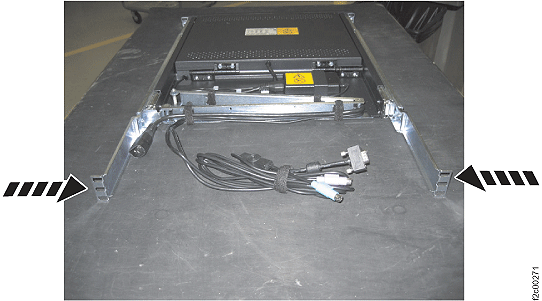
Install the management console display/keyboard
About this task
Note: Ensure the management console has been shutdown. Go to step 3 above, then return here.
Procedure
- Loosen, but do not remove, the rail length adjustment screw on each rail. This will allow you in a later step to adjust the length
once it is in the rack.
Figure 9. Management console rear rail length adjustment screw 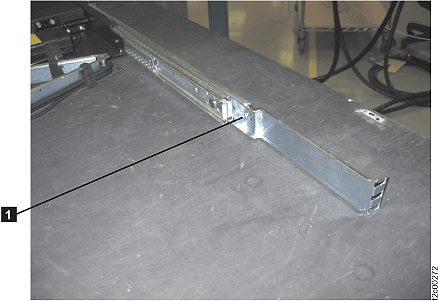
- Install the 208V multi-cable sliding it under the two screws and then tighten the screws. See Figure 6.
-
Connect the three connectors between the management console
keyboard/display integrated cable and the management console
keyboard/display cable .
See Figure 4.
-
Connect the management console keyboard/display power cable to the rack power cable The
management console server will automatically power on. See Figure 3.
- Put the keyboard/display in the service position with the display
up. Press the display power key and ensure the power LED is on. See Figure 1.