Exchange the management console server
Before you begin
 Use approved ESD procedures to prevent damage.
Attention:
- This procedure is not a stand-alone procedure. Customer disruption and damage to the hardware might occur when microcode and power boundaries are not in the proper conditions for this service action.
- If a serviceable event FRU repair directed you to this procedure, the microcode and power boundaries are already set.
- If a serviceable event FRU repair did not direct you to this procedure, see MAP1230 Replace a FRU without using a serviceable event.
Notes:
- All the cables and FRUs to be removed must be uniquely identified so they can be reinstalled correctly.
- If an installed earthquake resistance kit prevents you from accessing this FRU, refer to MAP1600.
About this task
Remove the management console server
Procedure
- Power off the management console display,
use the power button
 . Ensure the power LED
  is off.
 Figure 1. Management Console Power LED and Switch 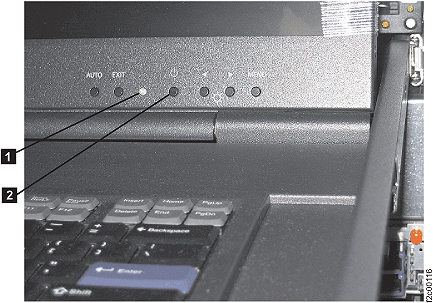
- At the rear of the rack, disconnect the management console server
power cable .
- Disconnect the following cables:
- Each Ethernet cable
 and verify that the cable label port number
is correct.
and verify that the cable label port number
is correct. - The keyboard/display integrated cable .
Figure 2. Management console rear connectors 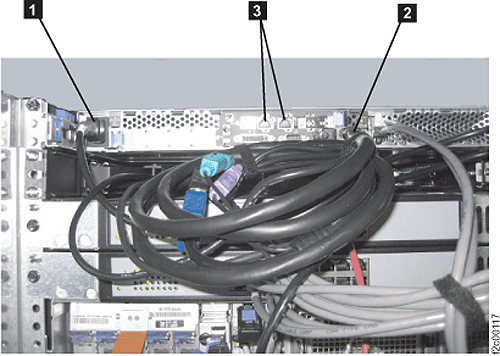
- Each Ethernet cable
- Disconnect the management console server
power cable .
Install the management console server
Procedure
- At the rear of the rack, connect the following cables:
- Ethernet cable (verify that the cable label port number is
correct).
- The keyboard/display integrated cable.
- Ethernet cable
- Connect the management console power
cable . See Figure 2.
Note: The management console will automatically power on and boot up.