Exchange the CEC enclosure processor module
Before you begin
 Use approved ESD procedures to prevent damage.
Attention:
- This procedure is not a stand-alone procedure. Customer disruption and damage to the hardware might occur when microcode and power boundaries are not in the proper conditions for this service action.
- If a serviceable event FRU repair directed you to this procedure, the microcode and power boundaries are already set.
- If a serviceable event FRU repair did not direct you to this procedure, see MAP1230 Replace a FRU without using a serviceable event.
Notes:
- All the cables and FRUs to be removed must be uniquely identified so they can be reinstalled correctly.
- If an installed earthquake resistance kit prevents you from accessing this FRU, refer to MAP1600.
Remove the CEC enclosure processor module
Procedure
- Move the management console laptop
from the service position
 to the DC-UPS service position
  , as shown in Figure 1. Refer to Management console service positions (Model 961).
 Figure 1. Alternate service position 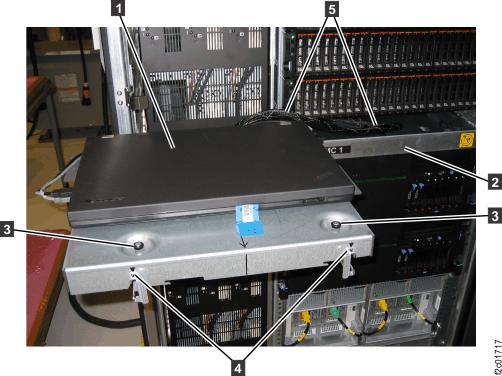
- Push the now empty management console
tray fully into the rack. See Figure 1. This allows
access to the top and rear of the CEC enclosure.
- Use the CEC enclosure front and rear
blue identify LEDs to determine the CEC enclosure to be repaired.
Both blue LEDs should be solidly lit.
- CEC control panel blue identify LED
 , as shown in Figure 2
 - CEC enclosure rear blue identify LED
 , as shown in Figure 3
Note: If both the front and rear CEC enclosure identify LEDs are not lit, use the location code listed in the serviceable event FRU list. See MAP1245 Finding FRUs by using location codes.Figure 2. CEC enclosure control panel assembly (Model 961) 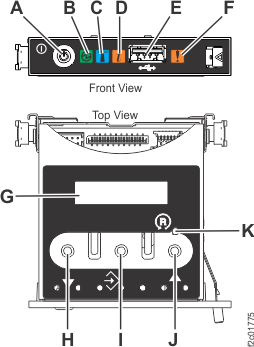
Figure 3. CEC enclosure rear LED indicators 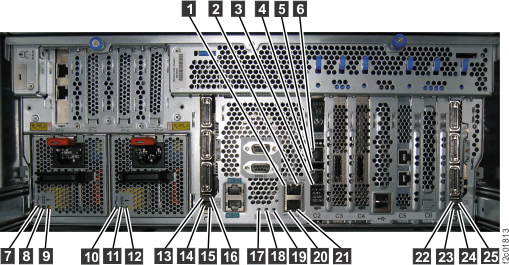
- CEC control panel blue identify LED
- Verify the CEC enclosure is in the
power-off state. See Figure 4.
- At the rear of the CEC enclosure, view both CEC enclosure power supply DC GOOD LEDs.
- Are both DC GOOD (output) LEDs blinking?
- Yes, continue with the next step.
- No, do not continue with this FRU replacement. Go to MAP4841 CEC enclosure fails to power off during service processor repair (Models 961, 98x).
Figure 4. CEC enclosure power supply LEDs (Model 961) 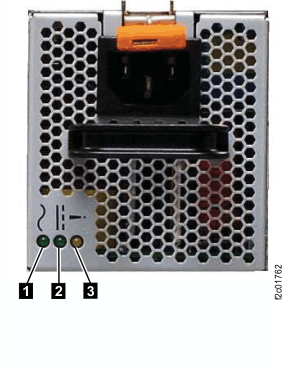
- Disconnect the power cables (E1-J1 and
E2-J1) from the CEC with the DC Good LEDs blinking. See Figure 5. Note: The CEC enclosure power supply LEDs continue to blink for up to 20 seconds while internal power is discharged.
- Each power cable is looped once around the CEC enclosure power supply handle and secured with a cable tie.
- Remove the cable tie, unplug the cable and unwrap it from the handle.
Figure 5. Location codes for the CEC enclosure (rear view) (Model 961) 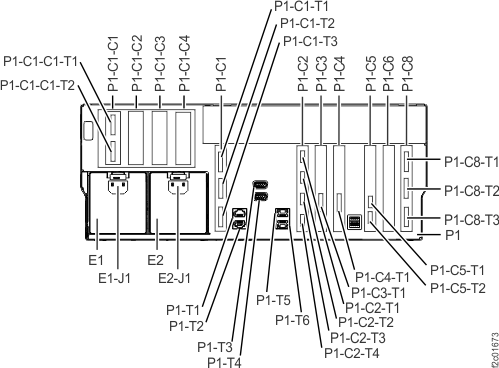
- Observe the CEC enclosure control panel
green power present icon
 . See Figure 6.
- If it is off, go to the next step.
- If it is slow blinking, the CEC enclosure is still in the power-off state. DO NOT CONTINUE. Ensure that you have unplugged the power cables.
Figure 6. CEC enclosure control panel 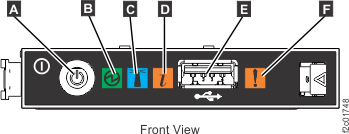
- At the front of the CEC enclosure,
remove the two screws
 (if present) that secure the CEC enclosure to the rack. See Figure 7.
 Figure 7. Preparing the CEC enclosure for service position 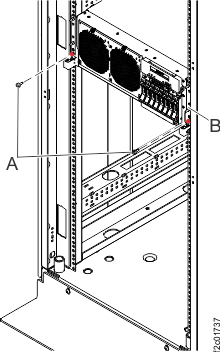
- Pull the CEC enclosure fully out
to the service position.
- Hold the CEC enclosure release latches down on both the left and right sides,
and pull the CEC enclosure full out. See Figure 8.
- Ensure both slide rails both latch in the full out position.
Figure 8. Pulling the CEC enclosure out to the service position 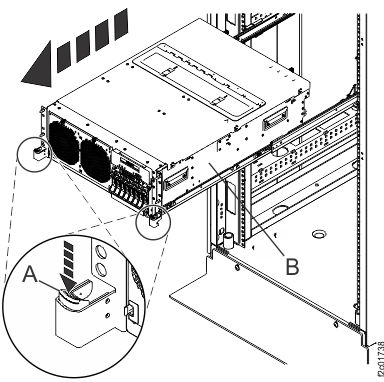
- Hold the CEC enclosure release latches
- Remove the CEC enclosure service
access cover. See Figure 9.
- Loosen the two thumbscrews located at the back of the cover.
- Slide the cover toward the back of the CEC enclosure. When the front of the service access cover has cleared the upper frame ledge, lift the cover up and off the CEC enclosure.
Figure 9. Removing the service access cover 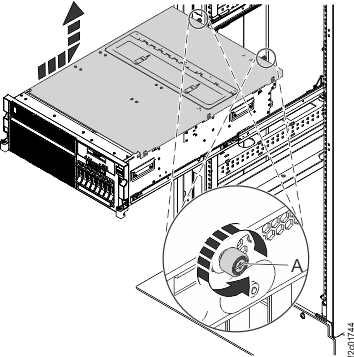
- Loosen the two thumbscrews
- Locate the processor module tool
kit. It should be in the carton received with the new
processor module. See Figure 10.
Figure 10. Processor module tool kit 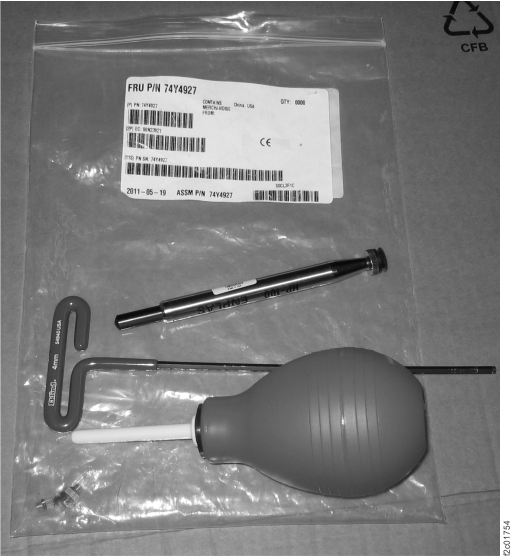
- Locate the CEC enclosure processor module, P1-C10 or P1-C11.
See Figure 11.
Figure 11. CEC enclosure location codes (top) (Model 961) 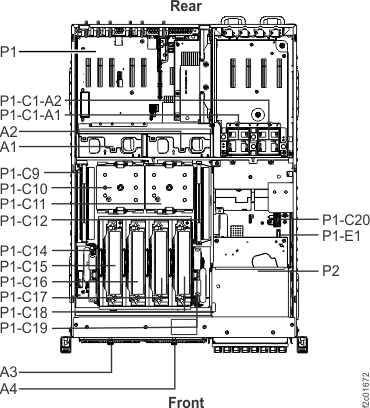
- Remove the processor heat sink. See Figure 12.
- Loosen the heat sink actuation screw by turning the
hex driver (supplied) counterclockwise . The screw will break free with a
noise, so be ready for that.
Figure 12. Removing the heat sink 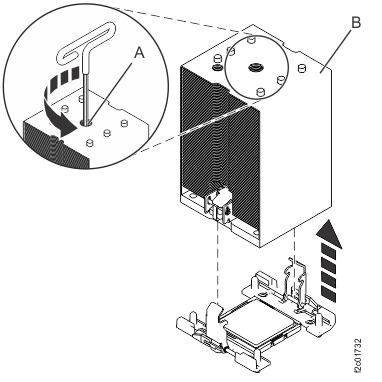
- Loosen the heat sink actuation screw by turning the
hex driver (supplied) counterclockwise
- Clean any dust around the processor module
using an air bulb. You must wait for any dust to settle before moving
to the next step. See Figure 13.
Figure 13. Dusting the processor area 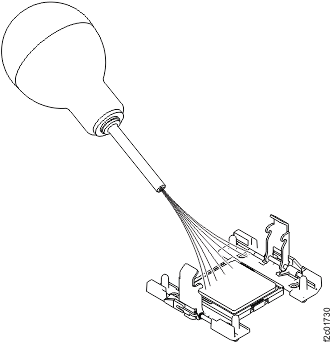
- Remove the processor module. See Figure 14.
- Press and hold the vacuum pen button and place it in the center of the
processor module, then release the vacuum pen button. Releasing the
vacuum pen button creates suction.
- While gripping the processor module by the sides, release
the vacuum from the pen by pushing the button . Place the processor module lid-side
(aluminum side) down on your static-free work surface. Note: Inspect the processor socket for debris. If debris is present, use the air pump to gently clean from the center and move outward. Do not touch the processor socket with your fingers, a brush, or the end of the air pump.
Figure 14. Removing the system processor modules 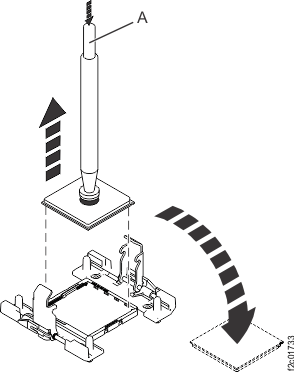
- Press and hold the vacuum pen button
Install the CEC enclosure processor module
Procedure
- Install the processor module.
- Press and hold the vacuum pen button and place it in the center of the
processor module, then release the vacuum pen button. Releasing the
vacuum pen button creates suction. Lift the processor module up. See Figure 15.
Figure 15. Removing the system processor modules from the packaging 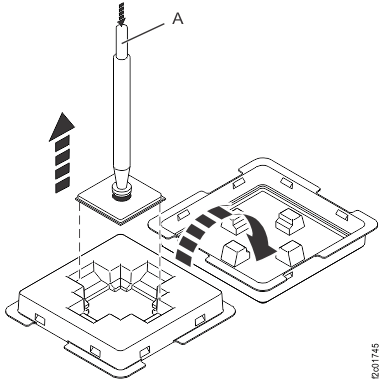
- Inspect the bottom of the processor module for any visible
damage or debris. If debris is present, you can use the air pump to
remove it. See Figure 16.
Note: Do not touch or use a brush on the processor module.
Figure 16. Removing debris from the system processor modules 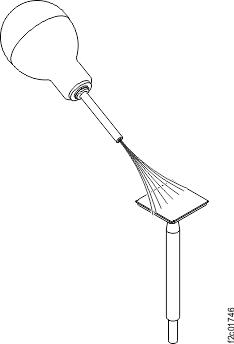
- Lower the system processor modules on to the board using
the two keyed notches on the processor module and two keyed
corners on the processor socket for alignment.
Release the vacuum from the pen by pushing the button . See Figure 17.
Figure 17. Installing the system processor modules 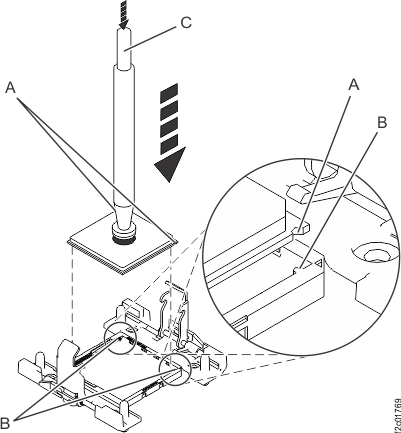
- Press and hold the vacuum pen button
- Inspect the thermal interface material
(TIM) for damage. The expectation is that when the heat sink is removed
from the failed processor module, the TIM is attached to the heat
sink. Unless damaged, the TIM attached to the heat sink can be reused.
See Figure 18.
Note: Replacing the TIM is optional and is only performed when there is damage. Do not reuse the removed heat sink with TIM if it has damage. Either discard the heat sink and damaged TIM locally or return to IBM® based on part-order-form part status.
Figure 18. Inspecting the thermal interface material 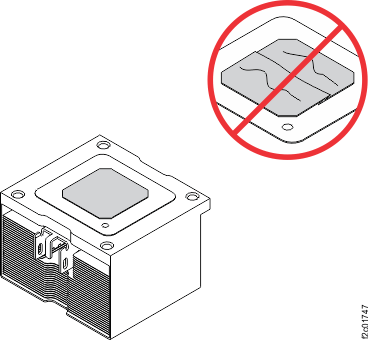
- If damaged, replace the thermal interface
material (TIM) and heat sink. See Figure 19.
Figure 19. Installing the TIM onto the processor lid 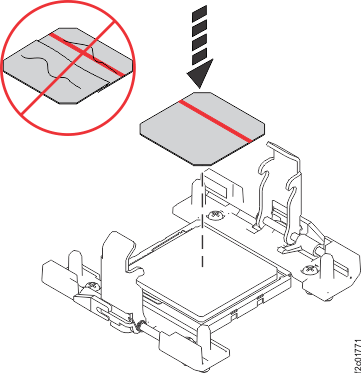
- Install the heat sink.
- Lower the heat sink with tool inserted onto the processor
housing using the guide holes on the heat sink to align properly with the guide pins . See Figure 20.
- As you continue to turn the heat sink center load screw
with the load arms engaged, the heat sink is pulled firmly into contact
with the top of the processor module.
Figure 20. Installing the heat sink 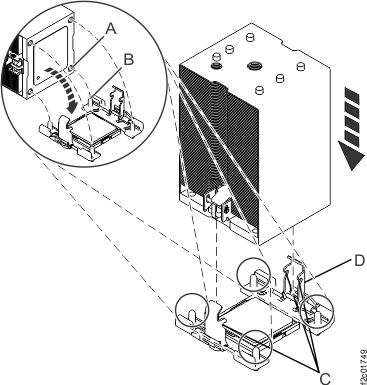
- Tighten the center load screw clockwise using the hex driver (supplied)
until a firm stop is reached. The firm stop occurs when the screw
reaches the bottom of the hole.
- Hold the top of the heat sink and gently try to move
it side to side. See Figure 21.
- If the heat sink moves noticeably, then the load arms are not engaged and the processor
will overheat. Unscrew the center load screw and try this step again.
If it fails again, you will need to manually push the load arms in
while you turn the center load screw. If you are working alone you
can carefully latch one load arm at a time. If you have an assistant,
they can use their fingers to push the load arms in while you tighten
the load screw.Note: To allow access to the load arms, you might need to remove memory cards and a CEC enclosure middle fan.
- If the heat sink does not move, continue this step.
Figure 21. Tightening the heat sink center load screw 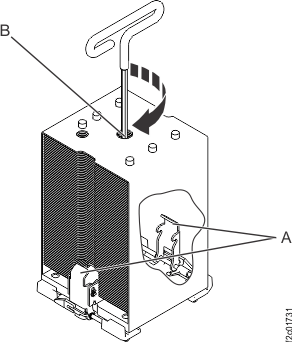
- If the heat sink moves noticeably, then the load arms
- Lower the heat sink with tool inserted onto the processor
housing using the guide holes on the heat sink
- Install the service access cover.
See Figure 9.
- Place the service access cover on top of the system, about 25 mm (1 in.) from the upper chassis ledge.
- Hold the service access cover against the system unit and slide it toward the front of the system. The tabs of the service access cover slide beneath the upper chassis ledge.
- Align the two thumbscrews located on the back of the service
access cover with the two holes on the back of the system chassis.
- Tighten the thumbscrews to secure the service access cover.
- Connect the power cables (E1-J1, E2-J1)
to both CEC enclosure power supplies. See Figure 22.
- Loop the power cable around the power supply handle and connect it.
- Secure the cable with the cable tie.
Is the DC Good green LED blinking on one or both power supplies?
- Yes, go to the next step.
- No, ensure the power cables are properly connected. If no cable problem is found, call the next level of support.
Figure 22. CEC enclosure power supply cable loops 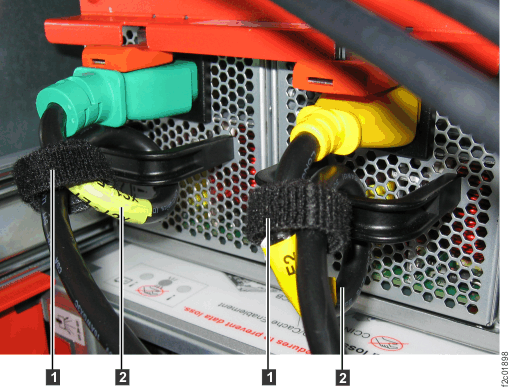
- Return the management console
laptop to the standard service position on the slide-out tray. See Figure 1.
- Slide the empty management console tray out to the service position.
- Move the laptop assembly from the DC-UPS service position to the standard service position . Carefully route the cable bundle.
- Push the DC-UPS service position rails fully in.
- Slide the empty management console tray