Installing and testing the Rack-2 I/O enclosure device adapter card pairs
About this task
Attention: Do not plug the FCAL cables into the connectors on the device adapter (DA)
cards during this installation; they will be connected during the installation of the storage
enclosures.
Procedure
The Rack-2 device adapter cards are already present and physically installed in the Rack-2 I/O
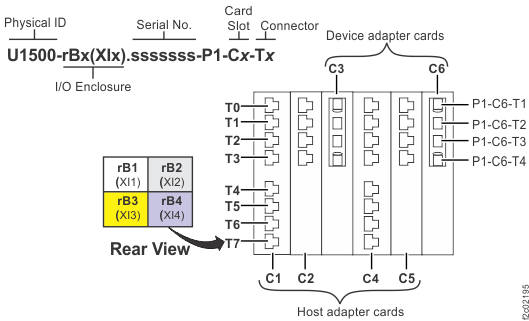
enclosures. They are either in I/O enclosure slot 3 or slot 6. See Figure 1.
Notes:
Rack-2 (Model 98E) will always have four I/O enclosures.
Rack-2 (model 98B) will always have two I/O enclosures (or zero if no device adapter cards are
present).
The number of device adapter card pairs that are already physically installed in the Rack-2 I/O
enclosures depend on the number of storage enclosures in Rack-2.
Figure 1. Location codes for device adapter and host adapter cards
From the left navigation pane, click Storage Facility Management.
Select Machine Type/Machine Serial.
From the lower task area, select MES Install/Remove.
Select Install IO Enclosures or Components.
When the Were you sent here from the MES or installation instructions screen is
displayed, click Yes.
Click the radio button for Install device adapter, and then click
Submit.
In the Single Choice Message Box, the storage facility image is already
selected; click Submit.
In the Action Panel, select only the Rack-2 I/O drawer (I/O enclosures)
that have device adapter cards already physically installed. Use the CTRL key to multi-select.
Note: If the I/O drawer does not have one or two device adapter cards that are already physically
installed, do not select it.
Click Submit.
In the Action Panel, select all the Rack-2 I/O enclosure slots where the
device adapters are physically present. Use the CTRL key to multi-select.
Click Submit.
Service action starting…
When the PBESDWarning 10 screen is displayed:
Disregard the instructions on this screen. This screen is common to the device adapter card MES
procedure where the device adapter cards are not already physically installed.
Click Next.
The Deactivating applications screen is displayed.
The InsMesInstructions screen (that indicates to return to the MES or
Installation instructions) will display for each device adapter card being installed. Click
Next.
This step can take up to 1 hour. Each DA card takes 6 - 7 minutes. Do not assume that this
process is hung. Allow the installation process to continue.
Many screens will subsequently display for the process of powering on the FRUs, verification,
activating applications, and error logging.
When the ServiceActionCompleteForInstallPanelBean window indicates that
the installation is complete and prompts you to return to the MES or installation instruction, click
Next and go to the next step.
If the installation completed successfully go to step 17; if not, go to the next step.
If the device adapter installation process does not complete successfully, use the following
steps to determine whether or not the DA card is installed and recognized. Check the
Exchange Parts menu to see whether the DA card that you installed is listed
on the IO Enclosure FRUs menu.
Cards that are logically installed can be repaired by using the standard guided repair
procedures.
Cards that are not logically installed cannot be repaired by using the normal service
procedures. Contact your next level of support to determine how to proceed.
If the device adapter is mis-plugged into an HA slot, an SRC will be posted: BE1E255A -
An adapter discovery failed because an incorrect adapter card was plugged into the slot. Contact your next level of support.
If the device adapter is not installed in the target slot, then an SRC is posted:
BE370000 - PCI slot is powered off. Contact your next level of support.
After you correct the problem, go to the next step.
Display and repair open serviceable events.
View the storage facility status. If any of the system check results display as FAILED, view
the details and refer to MAP1100 View storage facility state (end of call). Before you continue the installation, all fields should display as
PASSED.