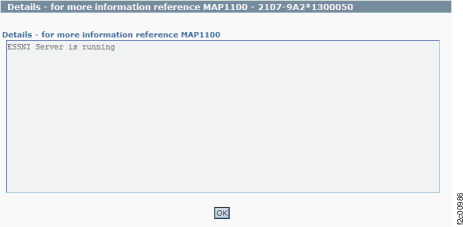
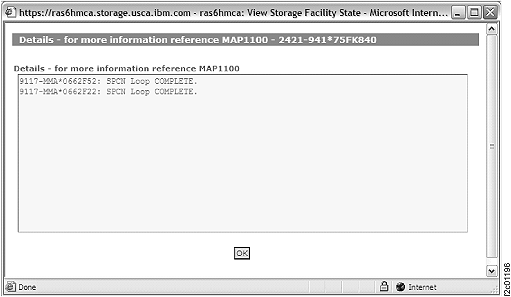
MAP1100 View storage facility state (end of call)

An all-in-one service utility function that displays the storage facility state, similar to the 2105 End of Call.

MAP1100 Section-1

Procedure

  1. Display the storage facility state by using one of the following methods:
    • View all status for the storage facility, go to step 2.
    • View the status for one resource type, go to step 4.
  2. View the storage facility state (end of call).
    1. Start the View Storage Facility State task:
      • In the Service interface, click Storage Facility Management > storage facility:
        1. From the navigation area, click Storage Facility Management > storage facility.
        2. From the bottom Task area, click Service Utilities > View Storage Facility State.
      • In the DS8000 storage management GUI system area, click Service > Storage System > View Storage Facility State.
    2. After several minutes, a window displays the status (passed/failed) of 25 or more system checks. See Figure 1 for an example.
      Notes:
      • If the Large File Transfer status is FAILED, the remaining System Check Types below it cannot be displayed.
        See MAP1100 Section-11, Large File Transfer for further information.
      • System check types that are displayed vary with storage facility model and code version.
    3. To display further details, select a row and click Details.
    4. To display more information, go to step 3.
    Figure 1. Window: View Storage Facility State
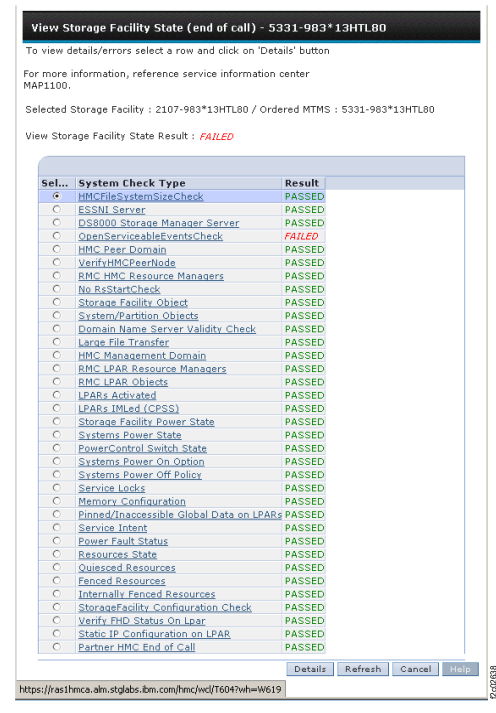
    Window: View Storage Facility State
  3. View the status for one resource. See Table 1.
    Table 1. Storage facility state display MAP1100 section descriptions
    System check type Go to
    HMCFileSystemSizeCheck MAP1100 Section-2, HMCFilesystemSizeCheck
    ESSNI Server MAP1100 Section-3, ESSNI Server
    DS8000® Storage Manager Server MAP1100 Section-4, DS8000 Storage Manager Server
    OpenServiceableEventsCheck MAP1100 Section-5, OpenServiceableEvents Check
    HMC Peer Domain MAP1100 Section-6, HMC Peer Domain
    VerifyHMC PeerNode MAP1100 Section-7, Verify HMC Peer Node
    RMC HMC Resource Managers MAP1100 Section-8, RMC HMC Resource Managers
    NorsStart Check MAP1100 Section-45, norsStart check
    Storage facility Object MAP1100 Section-9, Storage Facility Object
    System/Partition Objects MAP1100 Section-10, System/Partition Object
    Domain Name Server Validity Check MAP1100 Section-49 DNS Server Validity Check
    Large File Transfer MAP1100 Section-11, Large File Transfer
    HMC Management Domain MAP1100 Section-12, HMC Management Domain
    RMC LPAR Resource Managers MAP1100 Section-13, RMC LPAR Resource Managers
    RMC LPAR Objects MAP1100 Section-14, RMC LPAR Objects
    LPARs Activated MAP1100 Section-15, LPARs Activated
    LPARs IMLed (CPSS) MAP1100 Section-16, LPARs IMLed (CPSS)
    Storage Facility Power State MAP1100 Section-17, Storage Facility Power State
    Systems Power State MAP1100 Section-18, Systems Power State
    Power Control Switch State MAP1100 Section-42, Power Control Switch State
    Systems Power On Option MAP1100 Section-19, Systems Power-on Option
    Systems Power Off Policy MAP1100 Section-20, Systems Power Off Policy
    Service Locks MAP1100 Section-21, Service Locks
    Memory Configuration MAP1100 Section-40, Memory Configuration
    DA Load State MAP1100 Section-22, DA Load State
    Pinned Data on LPARs MAP1100 Section-23, Pinned Data on LPARs
    Service Intent MAP1100 Section-24, Service Intent
    SPCN Loop Status MAP1100 Section-44, SPCN Loop Status
    RIO Loop Status MAP1100 Section-46 RIO Loop Status
    Power Fault Status MAP1100 Section-43, Power Fault Status
    Resource State MAP1100 Section-28, Displaying Resource States
    Resource State Details MAP1100 Section-25, Display Details for a Resource State
    Quiesced Resources MAP1100 Section-26, Quiesced Resources
    Fenced Resources MAP1100 Section-27, Fenced Resources
    Internally Fenced Resources MAP1100 Section-48 Internally Fenced Resources
    Storage Facility Configuration Check MAP1100 Section-50 Storage Facility Configuration Check
    Verify FHD Status on LPAR MAP1100 Section-51 Verify FHD Status on LPAR
    Static IP Configuration on LPAR MAP1100 Section-52 Static IP Configuration on LPAR
    Partner HMC End of Call MAP1100 Section-53 Partner HMC End of Call
  4. View the status for one resource type. See Table 2.
    Table 2. MAP1100 section descriptions
    Resource Go to
    Storage Facility power state MAP1100 Section-29, Storage Facility Power State
    CEC enclosure - two in each Storage Facility MAP1100 Section-30, CEC enclosure
    Storage Facility Partitions - two per CEC enclosure on models 9A2/9B2, one per CEC enclosure on all other models MAP1100 Section-31, Storage Facility Partitions
    Storage Facility Image LPAR (referred to as Server) - (one per CEC on each SFI) MAP1100 Section-32, Storage Facility Image LPARs
    Storage Facility Image - two in models 9A2/9B2, one in all other models MAP1100 Section-33, Storage Facility Images
    Host Adapter port / HA card port MAP1100 Section-35, Host Adapters and Ports
    Device Adapter MAP1100 Section-36, Device Adapter
    Rack Power system (RPC cards, PPS, rack batteries) MAP1100 Section-37, Display Rack Power System Resources
    DDM MAP1100 Section-38, DDMs State
    FCIC card MAP1100 Section-39, FCIC Card State

MAP1100 Section-2, HMCFilesystemSizeCheck

Procedure

  1. Figure 2 is an example of the detail window for the HMCFileSystemSizeCheck (in this example, an error condition is not shown).
    Figure 2. Window: HMCfilesystemSizeCheck details
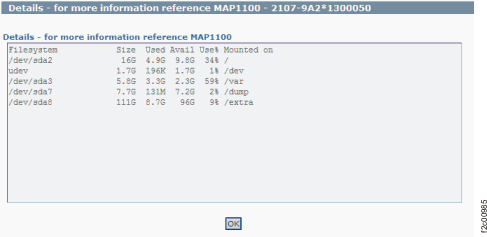
    Window: HMCfilesystemSizeCheck details
  2. Description: Most likely one of the file systems on the HMC boot drive is more than 95% full. Normally the file system size is automatically managed and kept to a proper size. The Details window might show which file system is almost full.
  3. Action: Contact your next level of support. The next level of support must remotely connect to remove the files that filled the file system.

MAP1100 Section-4, DS8000 Storage Manager Server

Procedure

  1. Figure 4 is an example of the detail window for the DS8000 Storage Manager server (in this example, an error condition is not shown).
    Figure 4. Window: DS8000 Storage Manager server details
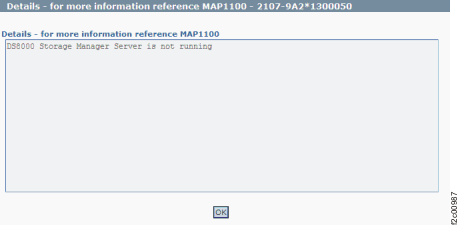
    Window: DS8000 Storage Manager server details
  2. Description: The DS8000 Storage Manager server is not running.
  3. Action: Start the DS8000 Storage Manager server. See MAP1140 DS Storage Manager server, displaying the state, start, and stop.

MAP1100 Section-5, OpenServiceableEvents Check

Procedure

  1. Figure 5 is an example of the detail window for the open serviceable event details.
    Figure 5. Window: Open serviceable events details
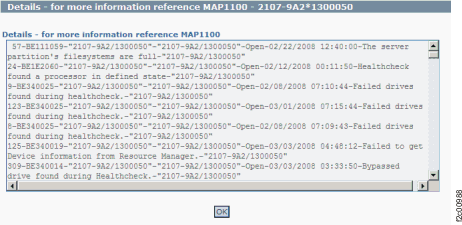
    Window: Open serviceable events details
  2. Description: One or more open serviceable events were found.
  3. Action: Display and repair the open serviceable events. See MAP1210 Displaying and repairing a serviceable event.

MAP1100 Section-6, HMC Peer Domain

Procedure

  1. Figure 6 is an example of the detail window for the HMC peer domain (in this example, an error condition might not be shown).
    Figure 6. Window: HMC peer domain details
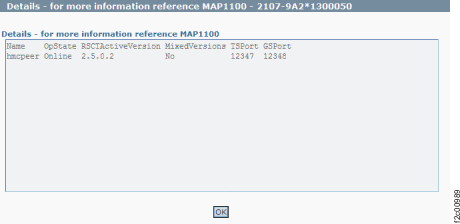
    Window: HMC peer domain details
  2. Description: Check whether there is an HMC peer domain present and online.
  3. Action: Contact your next level of support. (The condition might have already called home if the code level that is installed has Health Check.)
  4. For the next level of support only: The command :/usr/sbin/rsct/bin/lsrpdomain is run and is looking for the HMC peer domain that is named hmcpeer to be online. If hmcpeer does not exist, this condition usually indicates that the DS8000 management console (HMC) extensions code is not properly installed.

MAP1100 Section-7, Verify HMC Peer Node

Procedure

  1. Figure 7 is an example of the detail window for the HMC peer node (in this example, an error condition is not shown).
    Figure 7. Window: HMC peer node details
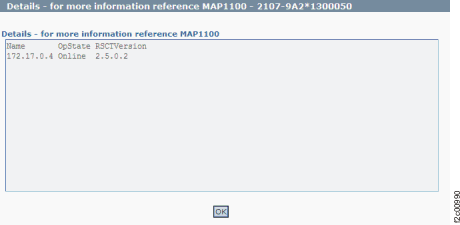
    Window: HMC peer node details
  2. Description: An HMC node IP address that is expected to be online was found offline.
  3. Action: Display and repair any open serviceable events that are related to the private networks. If there are none, contact your next level of support. The next level of support must remotely connect to repair this condition.
  4. For next level of support only: The command :/usr/sbin/rsct/bin/lsrpdomain is run and is looking for the IP address to be "Online" for each active HMC in this storage complex.

MAP1100 Section-8, RMC HMC Resource Managers

Procedure

  1. Figure 8 is an example of the detail window for the RMC HMC resource managers (in this example, an error condition is not shown).
    Figure 8. Window: RMC HMC resource managers details
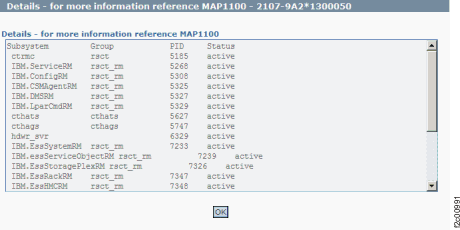
    Window: RMC HMC resource managers details
  2. Description: One or more resource managers were found inactive.
  3. Action: Contact your next level of support. The next level of support must remotely connect to repair this condition.
  4. For next level of support only: The command :/var/esshmc/log/lssrc -a is run and looks for active status for the following objects:
    • IBM.ConfigRM
    • ctrmc
    • cthags
    • cthats
    • IBM.ServiceRM
    • IBM.DMSRM
    • IBM.EssDrawerRM
    • IBM.EssHMCRM
    • IBM.EssStoragePlexRM
    • IBM.EssSystemRM
    • IBM.EssRackRM
    • IBM.essServiceObjectRM

MAP1100 Section-9, Storage Facility Object

Procedure

  1. Figure 9 is an example of the detail window for the storage facility object (in this example, an error condition is not shown).
    Figure 9. Window: Storage facility object details
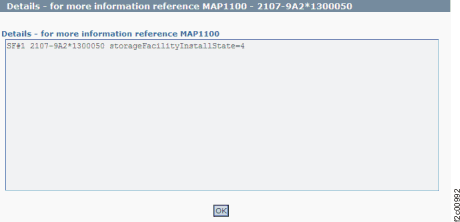
    Window: Storage facility object details
  2. Description: The status of the storage facility installation state is not "installed".
  3. Action: Ensure that the storage facility installation is complete. If the installation fails, contact your next level of support. The next level of support must remotely connect to repair this condition.
  4. For next level of support only: The IBM.EssStorageFacility object for the storageFacilityInstallState must be 4 (installed). If this value is not 4, the check fails. See Table 3 for the storage facility states that are possible:
    Table 3. Storage facility states
    State Meaning
    0 New hardware
    1 Hardware ready
    2 Ready for SFI Genesis
    3 Ready for field installation
    4 Field installation complete
    5 Error

MAP1100 Section-10, System/Partition Object

Procedure

  1. Figure 10 is an example of the detail window for the System/partition object (in this example, an error condition is not shown).
    Figure 10. Window: System/partition object details
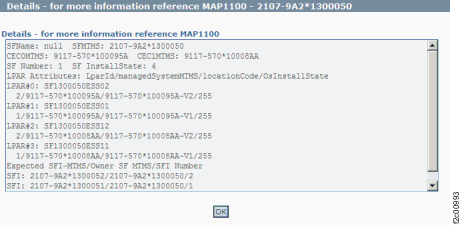
    Window: System/partition object details
  2. Description: The storage facility installation state status is not showing as installed.
  3. Action: Contact your next level of support. The next level of support must remotely connect to repair this condition.
  4. Next level of support only:
    1. Check the IBM.EssStorageFacilitySystem objects on HMC. This check verifies the number of CECs and checks for consistency of CEC MTMS between IBM.EssStorageFacility and IBM.EssStorageFacility System.
    2. Check IBM.EssStorageFacilityPartition objects on HMC to validate number of partitions.

MAP1100 Section-11, Large File Transfer

Procedure

  1. Figure 11 is an example of the detail window for large file transfers (in this example, an error condition is not shown).
    Figure 11. Window: Large file transfer details
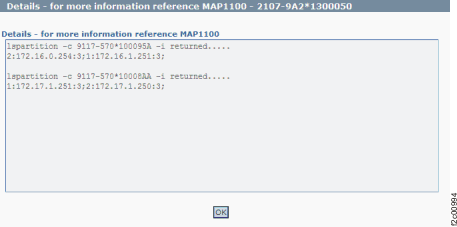
    Window: Large file transfer details
  2. Description: A partition state was found to not be Active.
    Note: If the Large File Transfer status is FAILED, the remaining System Check Types below it cannot be displayed.
    MAP4070 CEC memory problem
  3. Action:
    • In the System Check Type column, reference the OpenServiceableEventsCheck result.
    • If the result is FAILED, display and repair any open serviceable events that are related to the CEC enclosures. If the repair is successful, you can retry the View Storage Facility State. If the repair fails, contact your next level of support. The next level of support must remotely connect to repair this condition.
    • If the result is PASSED, contact your next level of support. The next level of support must remotely connect to repair this condition.
  4. Next level of support only: The command -/opt/hsc/bin> lspartition -all is run and the following output is checked for the Active state to be 3:
    <#0> Partition:<1,ras22c1lpar.storage.usca.ibm.com, 9.52.166.121> Active:<3>, OS:<AIX>, 5.3>

MAP1100 Section-12, HMC Management Domain

About this task

Note: If the Large File Transfer (the 10th System Check Type status from the top) is FAILED, this System Check Type cannot be displayed.

Procedure

  1. Figure 12 is an example of the detail window for the HMC management domain (in this example, an error condition is not shown).
    Figure 12. Window: HMC management domain details
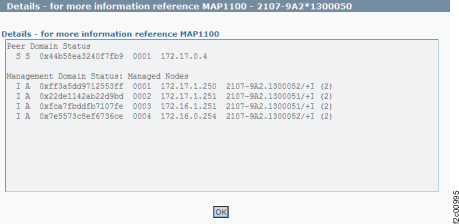
    Window: HMC management domain details
  2. Description: A problem with the status of the HMC private networks is detected.
  3. Action: Display and repair any open serviceable events that are related to the private networks. If there are none, run the HMC network topology tool and look for any node problems that must be repaired. See MAP7001 Using the network topology tool. If there are no problems with the topology, contact your next level of support. The next level of support must remotely connect to repair this condition.
  4. Next level of support only: The command -/usr/sbin/rsct/bin # /usr/sbin/rsct/bin/rmcdomainstatus -s ctrmc was run. An example of the output that is displayed follows:
    Management Domain Status: Managed Nodes
     I A  0xffdbc04234edc7c6  0002  9.43.250.171  2107-921.7516361/+ (2)
     I A  0xb040e7641b08303d  0001  9.43.250.169  2107-921.7516361/+ (2)

    The nodes that are managed by the HMC are displayed. These nodes are the LPARs of the SFIs.

    Note: When the management domain is operational and there are no communication issues, the SFI MTMS is displayed in the last column under Management domain.

MAP1100 Section-13, RMC LPAR Resource Managers

About this task

Note: If the Large File Transfer (the 10th System Check Type status from the top) is FAILED, this System Check Type cannot be displayed.

Procedure

  1. Figure 13 is an example of the detail window for the RMC LPAR resource managers (in this example, an error condition is not shown).
    Figure 13. Window: RMC LPAR resource managers details
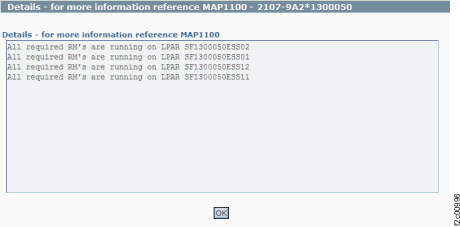
    Window: RMC LPAR resource managers details
  2. Description: One or more resource managers are not active.
  3. Action: Contact your next level of support. The next level of support must remotely connect to repair this condition.
  4. Next level of support only: The command :/var/esshmc/log/lssrc -a is run and looks for active status for the following resource managers:
    • IBM.ConfigRM
    • ctrmc
    • cthats
    • cthags
    • IBM.ServiceRM
    • IBM.CSMAgentRM
    • IBM.essServerRM
    • IBM.essLPARServicesRM
    • IBM.essSADevicesRM
    • IBM.EssSAHARM
    • IBM.essHostAgentRM
    • IBM.essStorageAgentRM

MAP1100 Section-14, RMC LPAR Objects

About this task

Note: If the Large File Transfer (the 10th System Check Type status from the top) is FAILED, this System Check Type cannot be displayed.

Procedure

  1. Figure 14 is an example of the detail window for the RMC LPAR objects (in this example, an error condition is not shown).
    Figure 14. Window: RMC LPAR object details
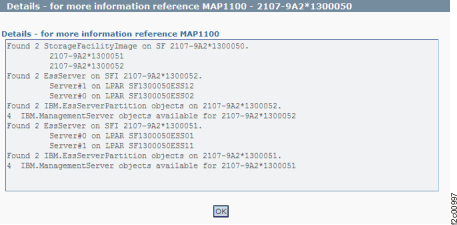
    Window: RMC LPAR object details
  2. Description: A code internal communication problem occurred.
  3. Action: Contact your next level of support. The next level of support must remotely connect to repair this condition.
  4. Next level of support only: The code checks for any communication problems when it tries to access the following objects:
    • IBM.EssStorageFacilityImage
    • IBM.Essserver
    • IBM.EssserverPartition
    • IBM.EssManagementServer
    The details view indicates the location of the problem.

MAP1100 Section-15, LPARs Activated

About this task

Note: If the Large File Transfer (the 10th System Check Type status from the top) is FAILED, this System Check Type cannot be displayed.

Procedure

  1. Figure 15 is an example of the detail window for the LPARs that are activated (in this example, an error condition is not shown).
    Figure 15. Window: LPARs activated details
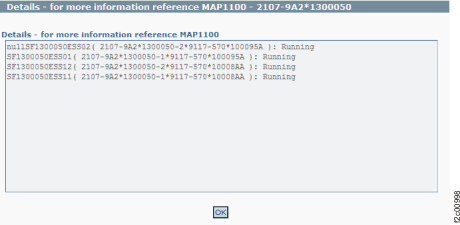
    Window: LPARs activated details
  2. Description: An LPAR does not have a status of running.
  3. Action: Display and repair any open serviceable events that are related to the CEC enclosures. If there are none, contact your next level of support. The next level of support must remotely connect to repair this condition.
  4. Next level of support only: The command /opt/hsc/bin/lssyscfg -r lpar -m <MTMS like 9117-MMA*100096A> -F state,name is run and checks for each LPAR to have "Running" status.

MAP1100 Section-16, LPARs IMLed (CPSS)

About this task

Note: If the Large File Transfer (the 10th System Check Type status from the top) is FAILED, this System Check Type cannot be displayed.

Procedure

  1. Figure 16 is an example of the detail window for the LPARs IMLed (CPSS) (in this example, an error condition is not shown).
    Figure 16. Window: LPARs IMLed (CPSS) details
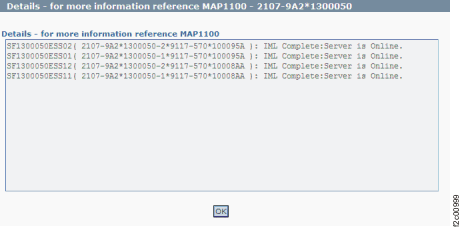
    Window: LPARs IMLed (CPSS) details
  2. Description: An LPAR has status other than "IML Complete."
  3. Action: Display and repair any open serviceable events that are related to the CEC enclosures. If there are none, contact your next level of support. The next level of support must remotely connect to repair this condition.
  4. Next level of support only: Check the /usr/lpp/searas/bin/queryIMLCompleteState on each IBM.EssServer (each LPAR) object. If anything other than 0 is returned, the LPAR status is other than IML Complete.

MAP1100 Section-17, Storage Facility Power State

About this task

Note: If the Large File Transfer (the 10th System Check Type status from the top) is FAILED, this System Check Type cannot be displayed.

Procedure

  1. Figure 17 is an example of the detail window for the storage facility power state (in this example, an error condition is not shown).
    Figure 17. Window: Storage facility power state details
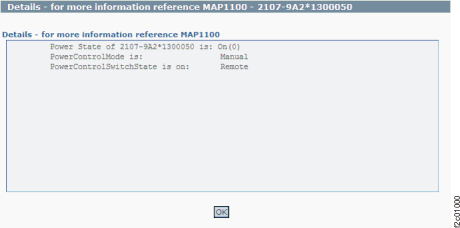
    Window: Storage facility power state details
  2. Description: The storage facility power state is not as expected.
  3. Action: Ensure that any power setting changes have time to complete and that no repair actions are in progress. Contact your next level of support. The next level of support must remotely connect to repair this condition.
  4. Next level of support only:
    lsrsrc IBM.EssStorageFacility powerStateResource
    Persistent Attributes for IBM.EssStorageFacility 
    resource 1:
    		powerState = 0
    
    POSSIBLE VALUES:
    ****************
    state_ON = 0;
    state_OFF = 1;
    state_POWERING_ON = 2;
    state_POWERING_OFF = 3;
    state_ERROR = 4;
    
    ERROR EVALUATION
    ****************
    States 0 to 3 are acceptable, other values are flagged as errors

MAP1100 Section-18, Systems Power State

About this task

Note: If the Large File Transfer (the 10th System Check Type status from the top) is FAILED, this System Check Type cannot be displayed.

Procedure

  1. Figure 18 is an example of the detail window for the systems power state (in this example, an error condition is not shown).
    Figure 18. Window: Systems power state details
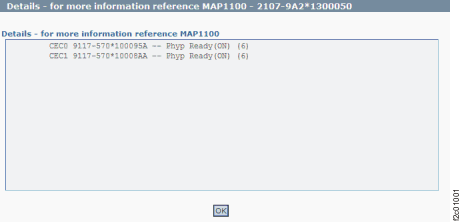
    Window: Systems power state details
  2. Description: The systems power state is not as expected.
  3. Action: Ensure that any power settings changes have time to complete and that no repair actions are in progress. Contact your next level of support. The next level of support must remotely connect to repair this condition.
  4. Next level of support only:
    - lsrsrc -Ad IBM.EssStorageFacilitySystem powerRunState
    Resource Dynamic Attributes for IBM.EssStorageFacilitySystem
    resource 1:
            powerRunState = 6
    resource 2:
            powerRunState = 6
    
    NORMAL STATES:
    StorageFacilitysystem_STANDBY = 1;
    StorageFacilitysystem_POWERING_ON = 3;
    StorageFacilitysystem_POWERING_OFF = 5;
    StorageFacilitysystem_PHYP_READY = 6;
    StorageFacilitysystem_PHYP_STANDBY = 7;
    
    ERROR STATES:
    StorageFacilitysystem_NO_POWER = 0;
    StorageFacilitysystem_INIT_FAIL = 2;
    StorageFacilitysystem_ERROR_DUMP = 4;
    StorageFacilitysystem_STATE_UNDETERMINED = -1;

MAP1100 Section-19, Systems Power-on Option

About this task

Note: If the Large File Transfer (the 10th System Check Type status from the top) is FAILED, this System Check Type cannot be displayed.

Procedure

  1. Figure 19 is an example of the detail window for the systems power on option (in this example, an error condition is not shown).
    Figure 19. Window: Systems power on options details
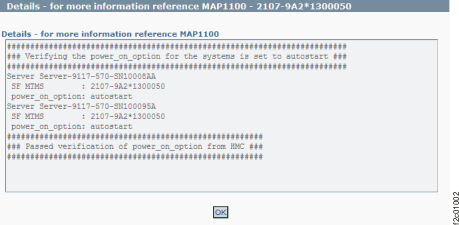
    Window: Systems power on options details
  2. Description: A managed system power-on option is not set to auto start.
  3. Action: Contact your next level of support. The next level of support must remotely connect to repair this condition.
  4. Next level of support only:
    /opt/hsc/bin/lssyscfg -r sys -F mm_type_model,mm_serial_num,name,
    power_on_option,serial_num,pend_power_on_option
    2107-922,1300150,Server-9117-MMA-SN13AABF0, autostart,13AABF0,autostart
    2107-922,1300150,Server-9117-MMA-SN100096A, autostart,100096A,autostart
    
    ERROR EVALUATION:
    This check verifies that the power on option for all managed systems
    in selected SF managed by this HMC are set to autostart.  
    Power on option set to autostart causes the LPARs to automatically
    boot when PHYP is brought up.
    - If power_on_option is set to auto start - check passes.
    - If power on option is not set to autostart...check pend_power_on_option.
    - If pend_power_on_option is set to auto start- check passes.
    - If pend_power_on_option is not set to auto start, code tries to change the
    power_on_option to autostart. If its successful then check passes...otherwise
    error. 

MAP1100 Section-20, Systems Power Off Policy

About this task

Note: If the Large File Transfer (the 10th System Check Type status from the top) is FAILED, this System Check Type cannot be displayed.

Procedure

  1. Figure 20 is an example of the detail window for the system power off policy (in this example, an error condition is not shown).
    Figure 20. Window: Systems power off policy details
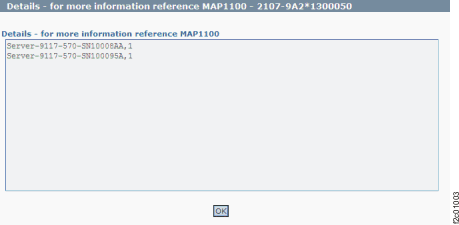
    Window: Systems power off policy details
  2. Description: Power off policy needs to be set to 1.
  3. Action: Click Storage Facility Management > storage facility > Service Utilities > View Storage Facility Power Status and display the Power Status menu options. If nothing appears incorrect, display and repair any open serviceable events that are related to the rack power system. If there are none, contact your next level of support. The next level of support must remotely connect to repair this condition.
  4. Next level of support only:
    - /opt/hsc/bin/lssyscfg -r sys -F name, power_off_policy 
      Server-9117-MMA-SN13AABF0,1
      Server-9117-MMA-SN100096A,1
    
    Error evaluation:
    power_Off_Policy should be set to 1. Anything else is an error. 

MAP1100 Section-21, Service Locks

About this task

Note: If the Large File Transfer (the 10th System Check Type status from the top) is FAILED, this System Check Type cannot be displayed.

Procedure

  1. Figure 21 is an example of the detail window for the systems power on option (in this example, an error condition is not shown).
    Figure 21. Window: Service locks details
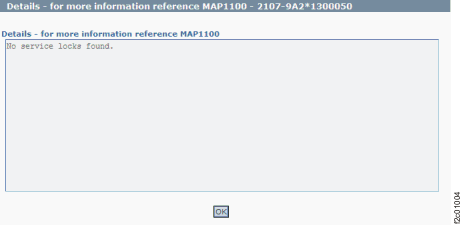
    Window: Service locks details
  2. Description: Service Locks are HMC marks-on-the-wall that are used to prevent simultaneous service actions on the same FRU. Service locks are set when a repair action begins, and they are reset when a repair action ends. If a simultaneous repair action is attempted, the user is informed that the action is not allowed because the FRU is already locked by another service action.
  3. Action: After all service actions that are in progress are complete, the service locks reset and clear this condition. If the condition is still present, the service locks can be reset by restarting the HMC. Next level of support can use the PE login ID to reset the locks by using theStorage Facility Management > storage facility > Service Utilities > Reset Service Locks menu option.

MAP1100 Section-22, DA Load State

About this task

Note: If the Large File Transfer (the 10th System Check Type status from the top) is FAILED, this System Check Type cannot be displayed.

Procedure

  1. Figure 22 is an example of the detail window for the DA (device adapter card) load state (in this example, an error condition is shown).
    Figure 22. Window: Device adapter load state details
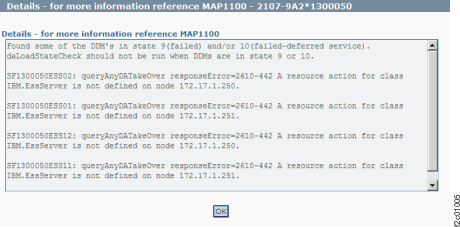
    Window: Device adapter load state details
  2. Description: A resource that is associated with the DA is not in the expected state.
  3. Action: Display and repair any open related serviceable events. If there are none, contact your next level of support. The next level of support must remotely connect to repair this condition.
  4. Next level of support only: Check the return code for the command /usr/lpp/diagnostics/bin/dacheckloadstate -s on each LPAR.
    Normal return code values:
    0: All adapters, arrays, pdisks, enclosures, loops, and spares are in a good
    state. DA code update is allowed.
    
    Error return code values:
    1: An owned device adapter is not in the working state.
    2: An array is not in good state.
    3: No pdisks are shown by issdload -s.
    4: Not all pdisks on the device adapter are available.
    5: A pdisk is not in a good state.
    6: A storage enclosure is not in a good state.
    7: There are no device adapters available.
    8: There is a device adapter loop problem.
    9: Invalid input parameters to dacheckloadstate; contact next level of support
    10: There are insufficient spares.
    15: A storage enclosure power supply is not installed or is in a bad state.
    28: Failed to run dacheckloadstate command on lpar.

MAP1100 Section-23, Pinned Data on LPARs

About this task

Note: If the Large File Transfer (the 10th System Check Type status from the top) is FAILED, this System Check Type cannot be displayed.

Procedure

  1. Figure 23 is an example of the detail window for the pinned data on LPARs (in this example, an error condition is not shown).
    Figure 23. Window: LPARs pinned data details
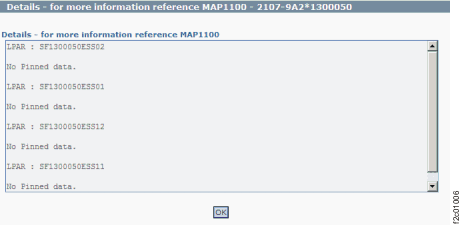
    Window: LPARs pinned data details
  2. Description: One or more conditions exist that prevent customer data from being successfully destaged from cache to the DDMs in the storage enclosure.
  3. Action: Display and repair any open related serviceable events. If there are none, contact your next level of support.

MAP1100 Section-24, Service Intent

About this task

Note: If the Large File Transfer (the 10th System Check Type status from the top) is FAILED, this System Check Type cannot be displayed.

Procedure

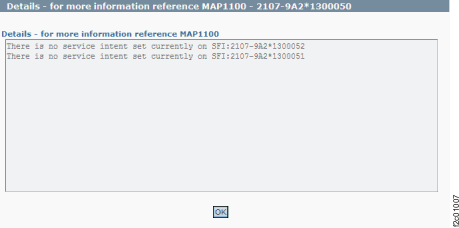
  1. Figure 24 is an example of the detail window for the "service intent" when a DA card FRU is being replaced. This figure shows the displayed status for a model 9A2, dual SFI. Notice that status for both SFIs is displayed.
    Figure 24. Window: Check service intent details
    Window: Check service intent details
  2. Description: Service intent is the HMC marks-on-the-wall that is used to prevent the customer from doing logical configuration when a DA card is being replaced. Service intent is set at the same time that service lock is set and is reset when service lock is reset.
  3. Action: After the DA card service actions that are in progress are completed, the service intent automatically resets and this condition is cleared. Then, the customer can do logical configuration. If the condition is still present, a restart of the HMC does not clear the flag.

    To reset the service intent:

    1. From the navigation area, click Storage Facility Management > storage facility > SF image.
    2. From the bottom Task area, click Service Utilities > Reset Service Intent.

MAP1100 Section-25, Display Details for a Resource State

About this task

Note: If the Large File Transfer (the 10th System Check Type status from the top) is FAILED, this System Check Type cannot be displayed.

Procedure

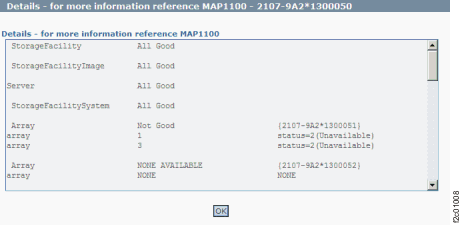
  1. Figure 25 is an example of the detail window for the resources state (in this example, an error condition is not shown).
    Figure 25. Window: Details of a resource state
    Window: Details of a resource state
  2. Description: A resource has unexpected status.
  3. Action: Display and repair any open related serviceable events. If there are none, contact your next level of support. The next level of support must remotely connect to repair this condition.

MAP1100 Section-26, Quiesced Resources

About this task

Note: If the Large File Transfer (the 10th System Check Type status from the top) is FAILED, this System Check Type cannot be displayed.

Procedure

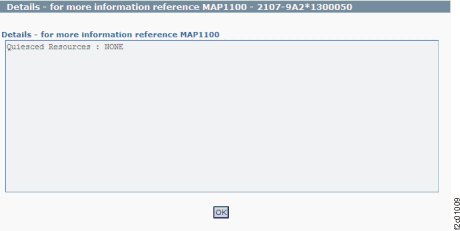
  1. Figure 26 is an example of the detail window for the quiesce resource (in this example, an error condition is not shown).
    Figure 26. Window: Quiesce resource details
    Window: Quiesce resource details
  2. Description: Resources are automatically quiesced (removed from customer use) during normal service activities such as replacing a FRU. The resources are automatically resumed (returned to customer use) at the end of a successful service action.
  3. Action: Ensure that all service actions completed. If the condition still exists, identify the part (FRU) associated with the resource that is quiesced. Use the HMC exchange part menu option to do a pseudo replacement of that part. Do not replace the part.

MAP1100 Section-27, Fenced Resources

Procedure

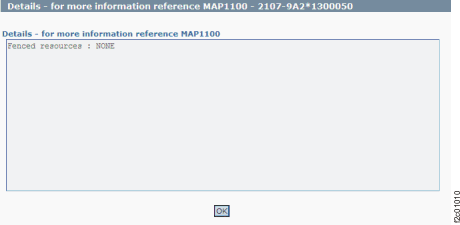
  1. Figure 27 is an example of the detail window for the fenced resources (in this example, an error condition is not shown).
    Figure 27. Window: Fenced resources details
    Window: Fenced resource details
  2. Description: Resources are fenced (removed from customer use) by LPAR error recovery analysis when the error cannot be recovered successfully or when the error rate threshold is exceeded. When a resource is fenced, a serviceable event is created to guide the repair of the condition.
  3. Action: Display and repair the related open serviceable events. If there are none, contact your next level of support. Attempting to reset a fenced resource without doing a repair can cause further problems or an unexpected customer outage.

MAP1100 Section-28, Displaying Resource States

Procedure

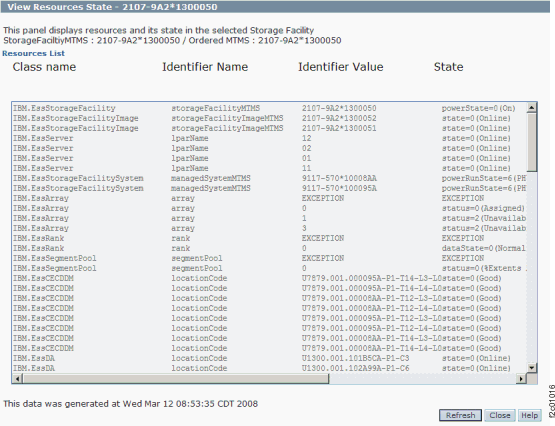
Perform the following steps to determine the resource state:
  1. From the navigation area, click Storage Facility Management > storage facility.
  2. From the bottom Task area, click Service Utilities > View Storage Facility Resource States. The View Resources State window opens.
  3. Scroll down to see the states of the various resources.
    Figure 28. Window: View Resource States
    Window: View Resource States

MAP1100 Section-29, Storage Facility Power State

Procedure

  1. Display the resource state details. See MAP1100 Section-28, Displaying Resource States.
  2. Check the state of the IBM.EssStorageFacility resource. The normal state=0. See Table 4 for the storage facility power states that are possible.
    Table 4. Storage facility power states (powerState=)
    State Meaning
    -1 Undetermined
    0 On
    1 Off
    2 Powering On
    3 Powering Off
    4 Power Exception

MAP1100 Section-30, CEC enclosure

About this task

There are two CEC enclosures in each storage facility. The CEC enclosures are shown as SF systems on the management console.

Procedure

Perform the following steps to determine the state of the storage facility systems:
  1. From the navigation area, click Storage Facility Management > storage facility > Server View.
  2. In the right content area, find the storage facility state. For example, Server-9117-MMA-SN13AABF0 Operating.

MAP1100 Section-31, Storage Facility Partitions

Procedure

Perform the following steps to determine the state of the storage facility partitions:
  1. From the navigation area, click Storage Facility Management > storage facility > Server View > server.
  2. In the right content area, find the storage facility state. For example, Server-9117-MMA-SN13AABF0 Operating.
  3. Find the storage facility partition state. For example, SF1300150ESS11 Running.

MAP1100 Section-32, Storage Facility Image LPARs

Procedure

  1. Display the resource details. See MAP1100 Section-28, Displaying Resource States.
  2. Check the state of the IBM.EssServer resource. The normal state is state=0.
    See Table 5 for the storage facility image server states that are possible:
    Table 5. Storage facility image server states
    State Meaning Description
    0 Online The server is operational.
    1 Offline The server is in service mode.
    2 Resuming The server is going online.
    3 Quiescing The server is going offline.
    4 Fenced The server is fenced by the storage facility image.
  3. To see additional information for LPAR status, see MAP1260 Displaying the storage facility image (SFI) state.

MAP1100 Section-33, Storage Facility Images

Procedure

  1. Display the resource details. See MAP1100 Section-28, Displaying Resource States.
  2. Check the state of the IBM.EssStorageFacilityImage resource.
    See Table 6 for the storage facility image states that are possible.
    Table 6. Storage facility image states
    State Meaning Description
    0 Online The storage facility image is running and capable of processing all storage facility image functions.
    1 Offline Both of the associated LPARs are offline.
    2 Resuming The storage facility image is coming online.
    3 Quiescing The storage facility image is going offline.
    4 Quiescing Exception The storage facility image is attempting to quiesce, but there are conditions that prevent a normal quiesce from completing.
    5 Forced Quiescing The storage facility image is performing a forced quiesce operation.
    6 Fenced The storage facility image failed and it is offline.

MAP1100 Section-34, Not Used

About this task

This section is not used.

MAP1100 Section-35, Host Adapters and Ports

Procedure

  1. Display the resource details. See MAP1100 Section-28, Displaying Resource States.
  2. Check the state of the IBM.EssHA resource and the IBM.EssHAPort resource.
    See Table 7 and Table 8 for the host adapter and host adapter port states that are possible:
    Table 7. Host adapter states
    State Meaning Description
    0 Online The host adapter is operational.
    1 Offline The host adapter is in service mode.
    2 Resuming The host adapter is coming online.
    3 Quiescing The host adapter is going offline.
    6 Fenced The host adapter is by the storage facility image.
    Table 8. Host adapter port states
    State Meaning Description
    0 Online The I/O port is enabled to operate in the enabled ULPs.
    1 Offline The I/O port is not operational on the attached I/O interface.
    2 Resuming The I/O port is going online.
    3 Quiescing The I/O port is going offline.
    6 Fenced The I/O adapter for this I/O port is not configured to this storage facility image.

MAP1100 Section-36, Device Adapter

Procedure

  1. Display the resource details. See MAP1100 Section-28, Displaying Resource States.
  2. Check the state of the IBM.EssDA resource.
    See Table 9 for the device adapter states that are possible:
    Table 9. Device adapter states
    State Meaning Description
    0 Online The device adapter is operational.
    1 Offline The device adapter is not operational.

MAP1100 Section-37, Display Rack Power System Resources

Procedure

Perform the following steps to determine the state of the RPC cards:
Note: The normal state is Available.
  1. From the navigation area, click Storage Facility Management > storage facility.
  2. From the bottom Task area, click Service Utilities > Activate/Deactivate Resources.
    The Show Resources window opens.
  3. Click Show Rack Enclosures.
    The Show Rack Enclosures window opens
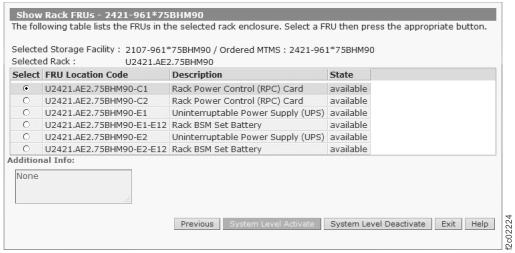
  4. Select a rack and then click Show FRUs.
    The Show Rack FRUs window opens. See Figure 29.
    Figure 29. Window: Show Rack FRUs
    Window: Show Rack FRUs
  5. The RPC cards, UPS or PPS, and rack batteries status is shown in the list.

MAP1100 Section-38, DDMs State

Procedure

  1. Display the resource details. See MAP1100 Section-28, Displaying Resource States.
  2. Check the state of the IBM.EssDDM resource.
    See Table 10 for the DDM states that are possible.
    Table 10. DDM states
    State Meaning Description
    0 Normal The storage device is operational and functional in its current disk usage.
    1 Installing A new storage device is discovered.
    2 Verifying The storage device is made accessible to the device adapter, its characteristics are determined, cabling is checked, and diagnostics are run.
    3 Formatting A verified storage device requires low-level formatting and the formatting operation is in progress.
    4 Initializing The storage device is being initialized with all zero sectors.
    5 Certifying The storage device is being read accessed to determine that all sectors can be read.
    6 Rebuilding Sparing occurred and this formerly spare storage device is being rebuilt with data of the array for which it is now an array member.
    7 Migration Target DDM migration is migrating another array member storage device to this spare storage device.
    8 Migrating Source DDM migration is migrating another array member storage device to this spare storage device.
    9 Failed The storage device failed and an immediate repair action is required.
    10 Failed - Deferred Service The storage device failed and a repair action is not immediately required.

MAP1100 Section-39, FCIC Card State

Procedure

  1. Display the resource state details. See MAP1100 Section-28, Displaying Resource States.
  2. Check the state of the IBM.EssFCIC resources. See Table 11 for the FCIC card states that are possible:
    Table 11. FCIC card states
    State Meaning
    0 Online
    1 Offline

MAP1100 Section-40, Memory Configuration

Procedure

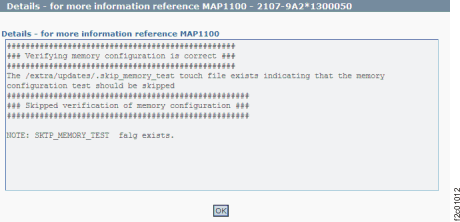
  1. Figure 30 is an example of the detail window for the memory configuration check (in this example, an error condition is not shown).
    Figure 30. Window: Memory configuration details
    Window: Memory configuration details
  2. Description: Verifies that there is no deconfigured memory on any of the systems under the selected SF. Displays the WARNING in the main panel in two cases:
    • When there is deconfigured memory on any of the systems in the selected SF.
    • When the system state is in a state where the memory configuration check cannot be run.
  3. Action: Depending on the previous case, do the appropriate action:

MAP1100 Section-41, Tower I/O Settings

About this task

I/O tower mode settings do not apply to model 941 or later models.

MAP1100 Section-42, Power Control Switch State

Procedure

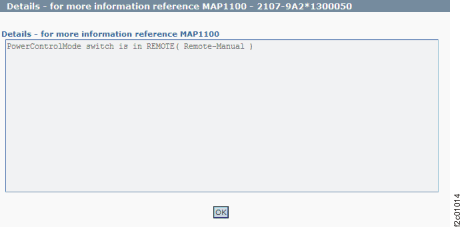
  1. Figure 31 is an example of the details window for the Power Control Switch check.
    Figure 31. Window: PowerControl switch details
    Window: PowerControl switch details
  2. Description: Verifies that Storage Facility powerControlMode is set to REMOTE or LOCAL. Displays as FAILED in the main panel when:
    • powerControlMode attribute is equal to 0 (local).
    • powerControlMode attribute is less than -1 and greater than 5 (indicates 'unknown' state).
  3. Action:
    1. Note the local remote switch positions for your model. Refer to Table 12.
      Table 12. Local remote switch positions
      Model Location of local remote switch (or zSeries local remote switch) REMOTE position (facing card) LOCAL position (facing card)
      941 Upper left rear of rack Up Down
      951 Upper left rear of rack Right Left
      961 (rack version 1) Upper left rear of rack Right Left
      961 (rack version 2) Top center rear of rack Toward rear of rack Toward front of rack
      98x Middle right rear of rack Right Left
    2. At the rear of Rack-1, observe the position of the local remote switch on the local remote switch card. It should be in the REMOTE position. It should be in the LOCAL position only if directed by next level of support or an isolation MAP for the special case where the management console could not control the storage facility power.
      • If the state is displayed as LOCAL, observe the local remote switch position.
        • If the switch is in LOCAL, complete the service action that had you set it to local. If there is no service action in progress, reset the switch back to REMOTE.
        • If the switch is in REMOTE, there is a problem with the physical setting of the switch not agreeing with the setting reported by the code. Contact your next level of support.
      • If the state is displayed as REMOTE, this state is correct if the switch is in the REMOTE position. If the switch is in the LOCAL position, contact your next level of support.
      Figure 32. Model 961 local remote switch card (zSeries local remote switch card similar)
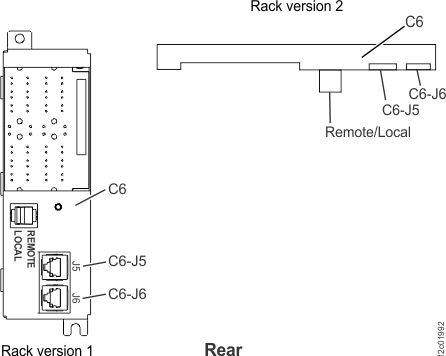
      Location codes for the local remote switch card
      Figure 33. Model 98x local remote switch card
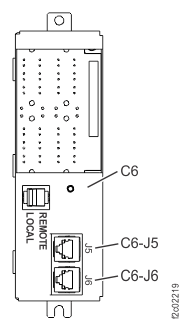
      Location codes for the local remote switch card

MAP1100 Section-43, Power Fault Status

About this task

  • Figure 34 is an example of the details window for the Power Fault Status check.
  • Description: Verifies whether there are any power fault in CEC and I/O enclosures:
    • Details panel indicates which CEC/tower components have power faults.
    • When no faults are detected, the details panel lists each CEC/tower location code and indicate that no faults are found.
  • Action: On a failed check, for better problem isolation, run the cdaPreVerify utility. Refer to MAP1214 Run CdaPreVerify
    The cdaPreVerify utility runs through a fault status check and generates the serviceable events with following SRCs:
    • SRC for failed power supply: BE9C1B5B
    • SRC for logic error during power supply verification: BE9C1B5E
    Figure 34. Window: Power fault status details
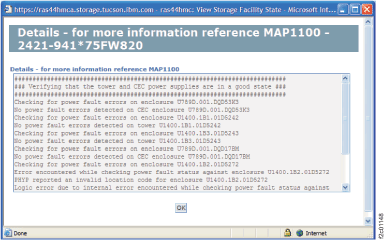
    Window: Power fault status details

MAP1100 Section-44, SPCN Loop Status

About this task

  • Figure 35 shows an example of the details window for the SPCN loop status check.
  • Description: Verifies whether the SPCN loop is complete on both CECs:
    • The Details panel indicates whether the SPCN loop is complete on each CEC.
    • When an OPEN loop is detected, it indicates the CEC that has open loop.
  • Action: On a failed check, for better problem isolation, run the cdaPreVerify utility. Refer to MAP1214 Run CdaPreVerify.
    The cdaPreVerify utility runs through an SPCN loop check and might result in a serviceable event with following SRC:
    • SRC for open SPCN loop: BED10470
Figure 35. Window: SPCN loop check details
Window: SPCN loop check details

MAP1100 Section-45, norsStart check

Procedure

  1. Figure 36 is an example of the details window for the norsStart check.
    Figure 36. Window:norsStart check details
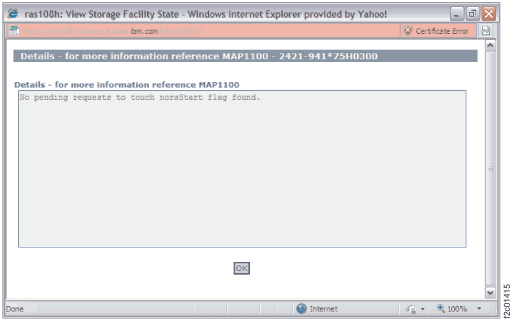
    Window:norsStart check details
  2. Description: Verifies whether there are any pending requests on HMC to touch norsStart flag on LPAR:
    • Details panel indicates whether there are any pending requests to touch norsStart flag.
    • When a pending request is detected, a message is displayed to user as follows in details panel:
      • There is a request that is pending to set norsStart. The LPAR <lparName> will not IML at next reboot.
      • Are you sure this is intentional? Use the GUI utility to reset (remove) norsStart flag if this flag was not intentionally set.
  3. Action: On failed check, ensure that the request to touch norsStart on lpar reboot is intentional. If not intentional, use the following utility to reset the request to touch norsStart on lpar (as indicated in the details panel) reboot:

    From the Service interface:
    Storage Facility Management > Select Storage Facility Image > Select LPAR > Reset No-rsStart

    From the DS8000 storage management GUI:
    Service > CEC Management > Reset No-rsStart

MAP1100 Section-46 RIO Loop Status

About this task

  • Figure 37 shows an example of the details window for the RIO Loop Status check (in this example, a good condition is shown).
  • Description: Verifies from each CEC whether the RIO loop is complete:
    • The Details window indicates whether there are open RIO loops.
    • When an open loop is detected, the following message is displayed:
       Detected problem in RIO Loop. Please run CdaPreVerify to isolate the problem in RIO loop. 
  • Action: On failed check, run CdaPreVerify to isolate the problem in the RIO loop. CdaPreVerify might open more serviceable events to isolate the problem. Refer to MAP1214 Run CdaPreVerify.
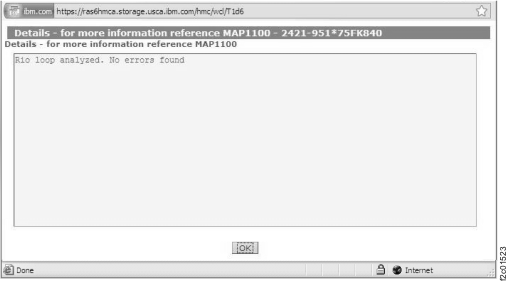
Figure 37. Window: RIO loop status details
Window:RIO loop status details

MAP1100 Section-48 Internally Fenced Resources

Procedure

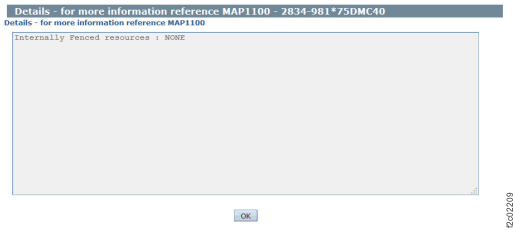
  1. #map1100section-48__d891e32 displays an example of the detail window for internally fenced resources (in this example, an error condition is not shown).
    Figure 38. Window: Internally fenced resources details
    Window: Internally fenced resources details
  2. Description: Resources are "internally fenced" as a system status to show a partial failure of a resource or component, where a recovery action is needed. Unlike a fenced resource, an internally fenced resource is not removed from customer use. When a resource is internally fenced, a serviceable event should be created to guide the repair of the condition.
  3. Action: Display and repair the related open serviceable events. If there are none, contact your next level of support. Attempting to reset an internally fenced resource without performing a repair can cause further problems or an unexpected customer outage.

MAP1100 Section-49 DNS Server Validity Check

Procedure

  1. Example of the details window contents for the Domain Name Server Validity Check:
    • Name Sever 9.55.129.10 listed in /etc/resolv.conf is OK and reachable.
  2. Description: Verifies whether the customer network DNS server settings show valid addresses that are reachable by the management console.
  3. Action: Confirm that the DNS server addresses are set correctly in the affected management console.
    HMC management > Change Network Settings > Name Services
    • Confirm Use DHCP DNS Settings is not selected unless "Obtain an IP address automatically (DHCP)" is checked in LAN Adapter Details.
    • Confirm DNS Enabled is selected.
    • Confirm the correct addresses are entered under DNS Server Search Order.
    • Confirm with the customer that the DNS server addresses are reachable from the affected management console.

MAP1100 Section-50 Storage Facility Configuration Check

Procedure

  1. Example of the details window contents for the Storage Facility Configuration Check:
    rsProductMaxCPU matches rsProductSFConfig on LPAR SF75ABCD0ESS01.
    desired_procs matches max_procs on LPAR SF75ABCD0ESS01.
    desired_procs and max_procs matches rsProductMaxCPU on LPAR SF75ABCD0ESS01.
    EssHMCGlobalData StorageFacilityConfiguration matches rsProductSFConfig on LPAR SF75ABCD0ESS01.
    EssStorageFacility managedSystem0MTMS matches rsProductSFSystemMTMS on LPAR SF75ABCD0ESS01.
    Software PID check returned successfully from LPAR SF75ABCD0ESS01.
    rsProductMaxCPU matches rsProductSFConfig on LPAR SF75ABCD0ESS11.
    desired_procs matches max_procs on LPAR SF75ABCD0ESS11.
    desired_procs and max_procs matches rsProductMaxCPU on LPAR SF75ABCD0ESS11.
    EssHMCGlobalData StorageFacilityConfiguration matches rsProductSFConfig on LPAR SF75ABCD0ESS11.
    EssStorageFacility managedSystem1MTMS matches rsProductSFSystemMTMS on LPAR SF75ABCD0ESS11.
    Software PID check returned successfully from LPAR SF75ABCD0ESS11.
    EssHMCGlobalData: StorageFacilityConfiguration of LPAR SF75ABCD0ESS11 matches StorageFacilityConfiguration of LPAR SF75ABCD0ESS01.
    EssStorageFacility 2107-986*75ABCD0's configuration is matched.
  2. Description: Verifies specific resource manager objects against expected configuration.
  3. Action: Contact your next level of support.

MAP1100 Section-51 Verify FHD Status on LPAR

Procedure

  1. Example of the details window contents for the Verify FHD Status on LPAR check:
    • all FHDs are available
  2. Description: Verifies that the FHD (firehose dump) devices are available on the LPARs. This verification allows data preservation in power-loss situations.
  3. Action: Display and repair any open related serviceable events. If there are none, contact your next level of support.

MAP1100 Section-52 Static IP Configuration on LPAR

Procedure

  1. Example of the details window contents for the Static IP Configuration on LPAR check:
    ### Verifying the LPARs under SF 2107-986*75ABCD0 are configured with static IPs
    - Verifying LPAR SF75ABCD0ESS11 is configured with static IPs
    LPAR SF75ABCD0ESS11 IP address 172.16.1.111 is properly set to a static IP
    LPAR SF75ABCD0ESS11 IP address 172.17.1.111 is properly set to a static IP
    - Verifying LPAR SF75ABCD0ESS01 is configured with static IPs
    LPAR SF75ABCD0ESS01 IP address 172.16.1.101 is properly set to a static IP
    LPAR SF75ABCD0ESS01 IP address 172.17.1.101 is properly set to a static IP
    ### Passed verification of static IP configuration for SF 2107-986*75ABCD0
  2. Description: Verifies that the LPARs are configured for static IP addresses on both the black and gray networks. This is important for correct communications between LPARs and management console processes. Failure of this check normally indicates an incomplete storage facility installation or IP address range change.
  3. Action: Contact your next level of support.

MAP1100 Section-53 Partner HMC End of Call

Procedure

  1. Example of the details window contents for the Partner HMC End of Call check:
    @@@@@@@@@@@@@@@@@@@@@@@@@@@@@@@@@@@@@@@
    @@@    Start HMC Checks
    @@@@@@@@@@@@@@@@@@@@@@@@@@@@@@@@@@@@@@@
    ***********************************************************
    HMCFileSystemSizeCheck PASSED
    ***********************************************************
    ESSNI Server PASSED
    ***********************************************************
    DS8000 Storage Manager Server PASSED
    ***********************************************************
    Open Problems YES - check details
    ***********************************************************
    HMC Peer Domain PASSED
    ***********************************************************
    VerifyHMCPeerNode PASSED
    ***********************************************************
    RMC HMC Resource Managers PASSED
    ***********************************************************
    No RsStartCheck PASSED
    ***********************************************************
    Storage Facility Object
    PASSED SF#1 2107-986*75ABCD0

    ***********************************************************
    System/Partition Objects
    PASSED SF#1 CEC1 8286-42A*21DB69V
    PASSED SF#1 CEC0 8286-42A*21DB93V
    PASSED SF#1 LPAR 1*8286-42A*21DB69V
    PASSED SF#1 LPAR 1*8286-42A*21DB93V
    ***********************************************************
    Domain Name Server Validity Check PASSED
    *********** END OF CALL - DONE *******************
  2. Description: Verifies that the management console checks in View Storage Facility State ("End of Call") completed successfully on the partner management console. This check does not appear on systems with single management consoles.
  3. Action: Run View Storage Facility State on the partner management console to identify and correct any failing items.