Finish installation and cleanup
Procedure
- You must use the next step to ensure that the storage facility power control mode is set to Manual unless the customer has selected a different setting on the customer worksheet.
-
Set the storage facility rack power control mode
that the customer has chosen on the configuration worksheet. For more information, see MAP2460 Configuring and overview of the DS8000 Power Control Mode.
- From the navigation area, click Storage Facility Management.
- From the right work area, select the radio button for the existing storage facility. The bottom Task area displays a list of tasks you can select.
- Click Service Utilities.
- Click Storage Facility Power Control
- Make the desired customer selections from the worksheets.
-
Compare the control switch settings that are defined on the Customization Worksheet
with the default settings in Table 1.
Table 1. Control switch default settings Control Switch Setting Default Value AS400 LUN Serial Suffix number 0 CUIR support 0 (false) Do the customization worksheet control switch settings match the default settings in Table 1?
- Yes, continue with the next step.
- No, from the HMC GUI perform the following steps to alter the Control Switch Settings for
each storage facility image that must be updated.
- From the navigation area, click Storage Facility Management > storage facility > SF image.
- From the bottom Task area, click Service Utilities > Enable/Disable Control Switches. The Control Switches - SF Image window opens.
- Update the values from the Customization Worksheets. Click Set.
- Continue to the next step.
-
Place the following items in the document enclosure for future use or reference:
- Copies of the configuration worksheets
- Spare ship group components
- CD-ROMs
- Spare labels
- Cable planning worksheets
- Host card wrap tools
- DVD drive
-
Use
the Network Topology Tool to verify connectivity with all nodes (Ethernet ports) on the DS8000 private network and then save the topology.
The following lists examples of nodes.
- Local HMC ports.
- HMC ports on second HMC (if installed).
- CEC enclosure service processor Ethernet ports (
HMC
ports) . - LPAR (partition) ports on the CEC enclosure Ethernet adapter.
Invoke the Network Topology tool as follows:
- From the navigation area, click HMC Management.
- In the right work area, go to the Operations section and click View Network Topology.
- Wait several minutes for the tool to gather and present the results.
-
A window opens and displays the current network topology (port connections) listed on top, and
the saved topology from the last time the tool was run and the Save button was selected. Normally
the saved topology should be from results when all nodes on both private networks were fully present
and operational.
Note: The option to save the topology is used after all nodes on both private networks are determined to be present and operational.
- Determine if all expected nodes are present. Refer to Figure 1, Figure 2, and the saved topology nodes list.
-
Are any nodes missing or failing?
- Yes, go to MAP7000 Entry point For storage facility private network problems
- No, go to step 6.
Figure 1 shows an example of a Network Topology window with a single management console. Figure 2 shows an example of a full topology tree for a single HMC and single storage facility.
Figure 1. Network Topology window (Current Topology area is shown) 
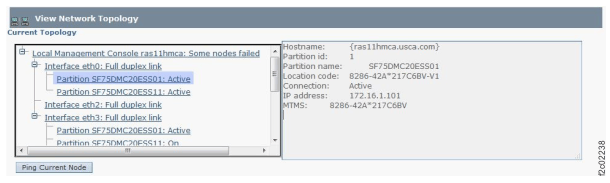
Figure 2. Full topology example with one management console 
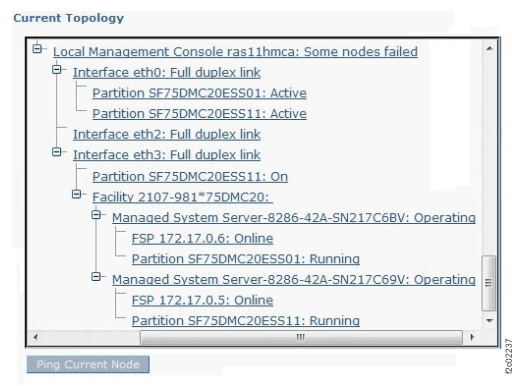
Figure 3. Diagram of network topology (example shows 8-port switches)
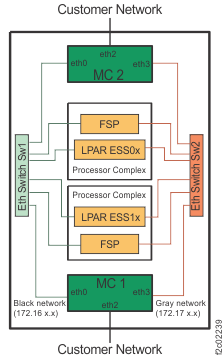
Notes:- The tool provides a hierarchical view of the network from the management console, which you logged in to.
- The Current Topology view shows the status of detected nodes on each of the two DS8000 private networks at the time the tool was started or when Refresh was selected.
- The service processor cards are accessed through one of the two networks, so they will not
appear on both. This is normal.
- The service processor cards are accessed by MC 1 through the GRAY network (default 172.17.xxx.xxx or one of three optional address ranges; to determine the range, see MAP7005 Determining which private network address range is selected).
- The service processor cards are accessed by MC 2 through the BLACK network (default 172.16.xxx.xxx or one of three optional address ranges; to determine the range, see MAP7005 Determining which private network address range is selected).
- The Storage Facility system status information is displayed along with the associated service processor card, so it will not appear on both networks. This is normal.
- If there is a second HMC in this storage complex, use the Network Topology tool (step 5) on the second HMC, then go to step 7.
- In the View Network Topology panel, click Close to close the panel.
- Store the customer provided configuration worksheets in the Rack 1 document enclosure (left rear of rack).
-
Use the View Storage Facility Status utility to ensure that there are no unreported or
unexpected problems or conditions.
- From the navigation area, click Storage Facility Management > storage facility.
- From the bottom Task area, click Service Utilities > View Storage Facility State.
-
A window opens listing passed/failed status for 25 or more system checks. You can display the
details for each system check.
Note: Further explanations and options are detailed in MAP1100 View storage facility state (end of call).
-
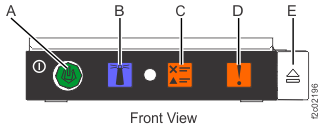
At the front of the rack, observe the CEC enclosure system attention blue LED indicator
C on the operator panel above the disk drives.
Is the indicator lit?- Yes. Because the prior step determined that there are no unexpected or reported problems,
this is a known false system attention indication. You must switch off the system attention
indicator. Go to MAP4050 Switching off the CEC enclosure system attention indicator (lit solid),
then return here and continue with the next step. Note: When the CEC enclosure attention indicator is lit solid, the rack operator panel attention LED indicator will also be lit solid.
- No, go to the next step.
Figure 4. Control panel LEDs 
- Yes. Because the prior step determined that there are no unexpected or reported problems,
this is a known false system attention indication. You must switch off the system attention
indicator. Go to MAP4050 Switching off the CEC enclosure system attention indicator (lit solid),
then return here and continue with the next step.
- Reference the pack/unpack instructions for return/discard information. Discard the shipping material locally.
-
The storage facility is now regarded as
Installation complete
.- Record the stop date and time for the HMC initial configuration through end of installation and clean up phase in Table 2 and Table 3 in section Recording information for the installation report.
- Update the account records to show the installation is complete.
- Record any additional time to install features, ECs, and MESs to the correct service code. Do not charge the additional time to the DS8000 installation.
- Go to the next step.
-
Determine if the management console software or storage facility LIC level must be updated by completing
the steps that follow. Compare the installed versions with the versions determined in the task Checking for required microcode .
- To display the level of management console software, from the navigation area click Updates. Select the HMC, then from the bottom Task area click Display Installed HMC Code Levels.
- To display the storage facility code level, from the navigation area, click Updates. Select the storage facility, then from the bottom Task area click Display Storage Facility Code Levels.
Does the management console software or storage facility LIC need to be updated?
- Yes, go to step 17.
- No, go to the next step.
- Did you choose the recommended option for the storage facility to call home on drive certify completion?
-
The on-site service actions are now complete.
- Inform the customer that the machine will be available for configuration when the drive certification completes.
- Upon receipt of the call-home, the IBM® support center will call the contact name and telephone number entered earlier and inform them that the DS8000 is now available.
-
Go to step 18
Note: There are three fields in the report for Monitor . Please enter the value
00.0
in each field as you will not be waiting for the certify to complete. This value will indicate that you selected the call home on drive certify completion option.
-
Monitor the drive certify process for completion.
- From the navigation area, click Storage Facility Management > storage facility.
- From the bottom Task area, click Service Utilities > View/Certify drives. A window opens and displays the number and type of drives to be certified.
-
When the drive certify process is complete, inform the customer that the storage facility is
now available for configuration.
Note: Use Table 4, in section Recording information for the installation report to record the stop date and time for the Monitor drive certify phase.
- Go to step 18.
-
To save time, acquire the LIC bundle while
monitoring the drive certify process for completion.
- Refer to the Microcode installation instructions to acquire the LIC bundle.
- From the navigation area, click Storage Facility Management > storage facility.
- From the bottom Task area, click Service Utilities > View/Certify drives. A window opens and displays the number and type of drives to be certified.
-
Wait until the drive certify
process is complete.
Note: Use Table 4, in section Recording information for the installation report to record the stop date and time for the Monitor drive certify phase.
-
Use the supplied LIC Installation Instructions to update the storage facility LIC.
Note: Use Table 4 in section Recording information for the installation report to record the start date and time for the SF Code Upgrade (SC33) phase.
-
When the LIC is complete, inform the customer that the storage facility is now available for
configuration.
Note: Use Table 4 in section Recording information for the installation report to record the stop date and time for the SF Code Upgrade (SC33) phase.
- Go to step 18.
-
If the customer has purchased LIC features, the customer is responsible for retrieving the keys
and activating the licenses by using the procedures in the IBM DS8000 Introduction and
Planning Guide for your model.
Note: If the customer cannot access the keys on the DSFA website the customer is instructed to open a service call. The service representative can have their next level of support manually generate and provide the keys to the customer.
- The customer is responsible for creating and managing all logical configuration of the racks being installed. If the customer has problems creating the logical configuration, they might come to you for help. You can check for any open serviceable events related to the I/O enclosures or storage enclosures to be repaired. If there are none, have the customer contact IBM support and ask for software help with the logical configuration and the GUI interface.
-
Complete the storage facility Install report.
From the Service Interface navigation area:
- Click Storage Facility Management > storage facility.
- From the bottom Task area, click Service Utilities > Generate Install Report.
From the DS8000 management GUI:- Click Service > Install Hardware > Generate Install Report.
- Logout of the HMC. Close the keyboard tray and slide the keyboard/display drawer into the rack.
- Reinstall any front or rear covers that were removed.
- Close the rear door.
- Close the front door. The on-site installation activity is complete.